Three different tools in DicaNote:
| Label in the app | What it is for |
|---|---|
| Import / Export | Bring in or generate readable files (TXT, Markdown, ZIP of notes) |
| Back up now | Create a library backup (attachments as you mark them) |
| Restore from backup | Bring back a previous backup |
UI language: English names on screen.
Privacy: screenshots without a real email, PIN, or personal file names.
Part A — Import and Export (readable files)
- Menu ⋮ → Import / Export.
- Import: TXT, Markdown, folder or ZIP → pick in the Android selector.
- Export: all notes or a selection; TXT or Markdown.
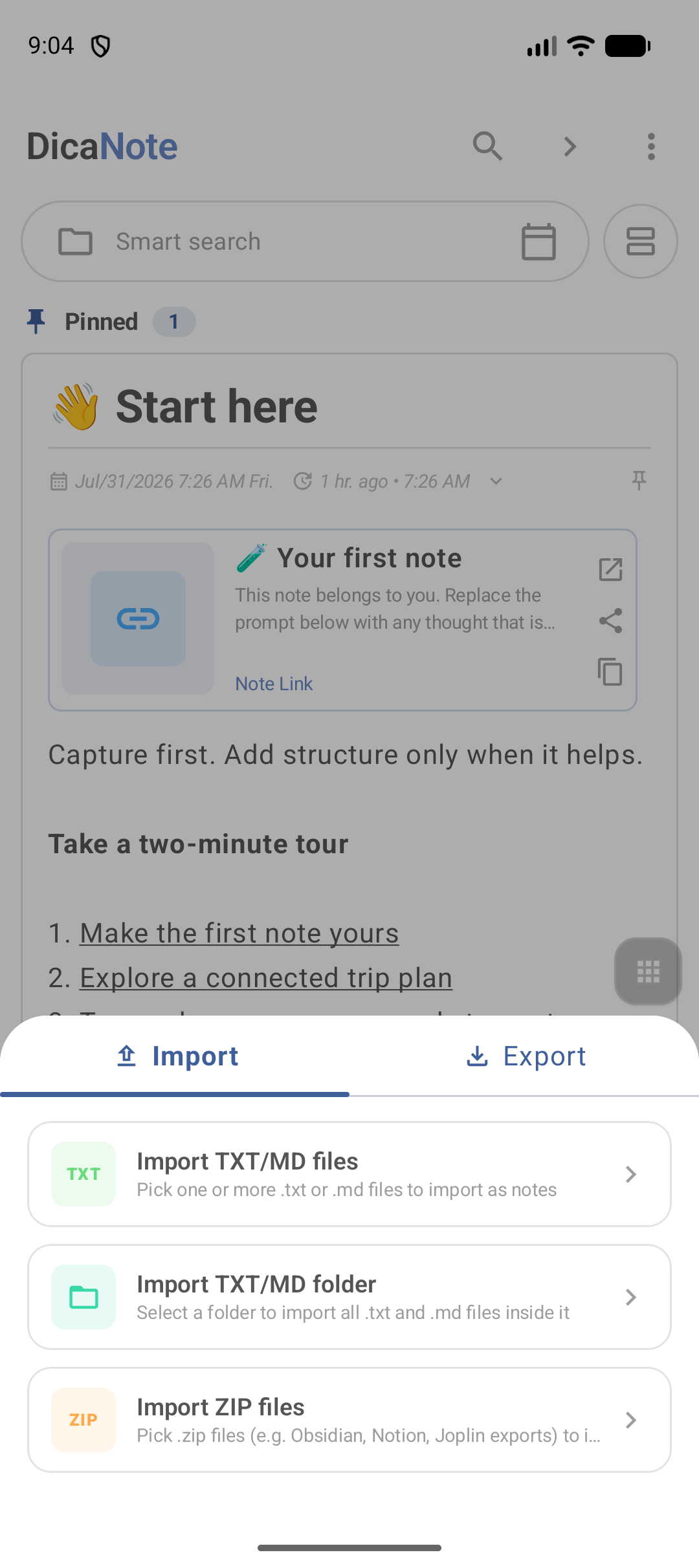
Test with a few notes before importing a huge folder.
Part B — Back up (Back up now)
Path
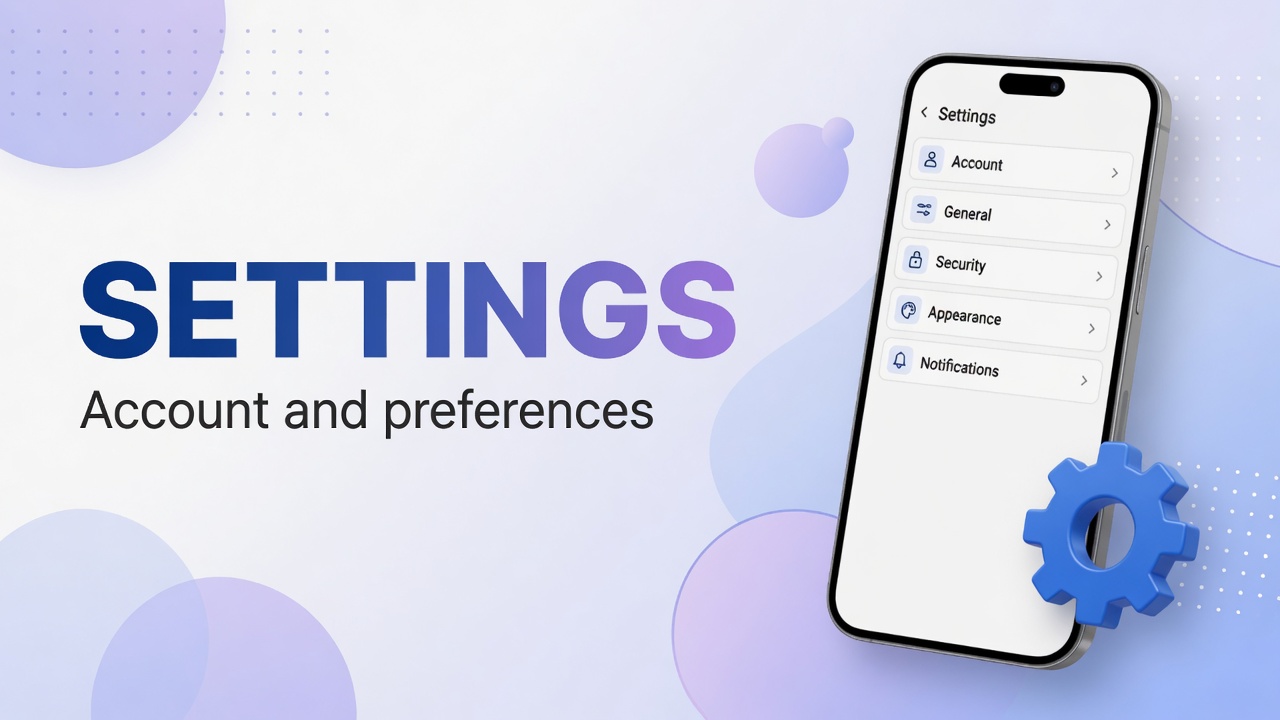
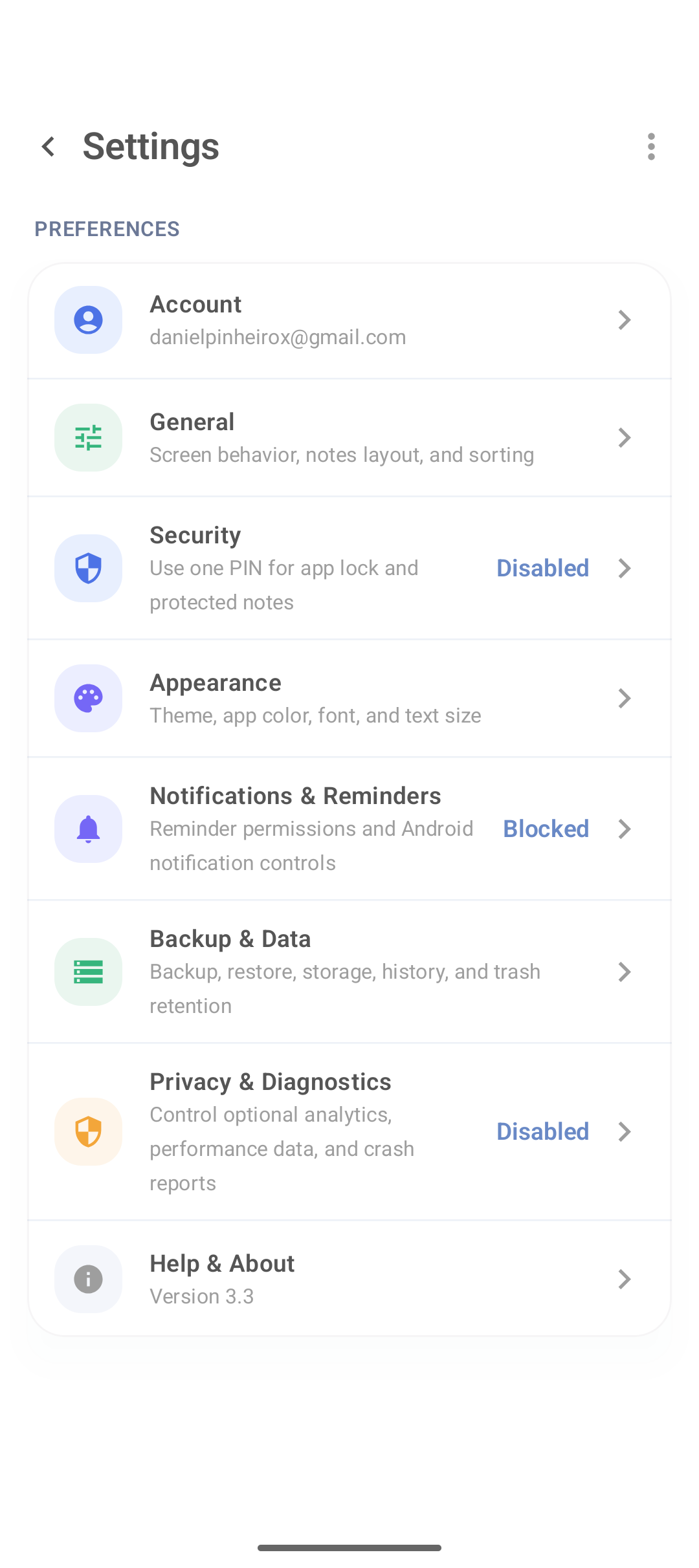
- ⋮ → Settings
- Backup & Data
- Scroll to BACKUP & RESTORE
Main backup screen
| Label in the app | What it is |
|---|---|
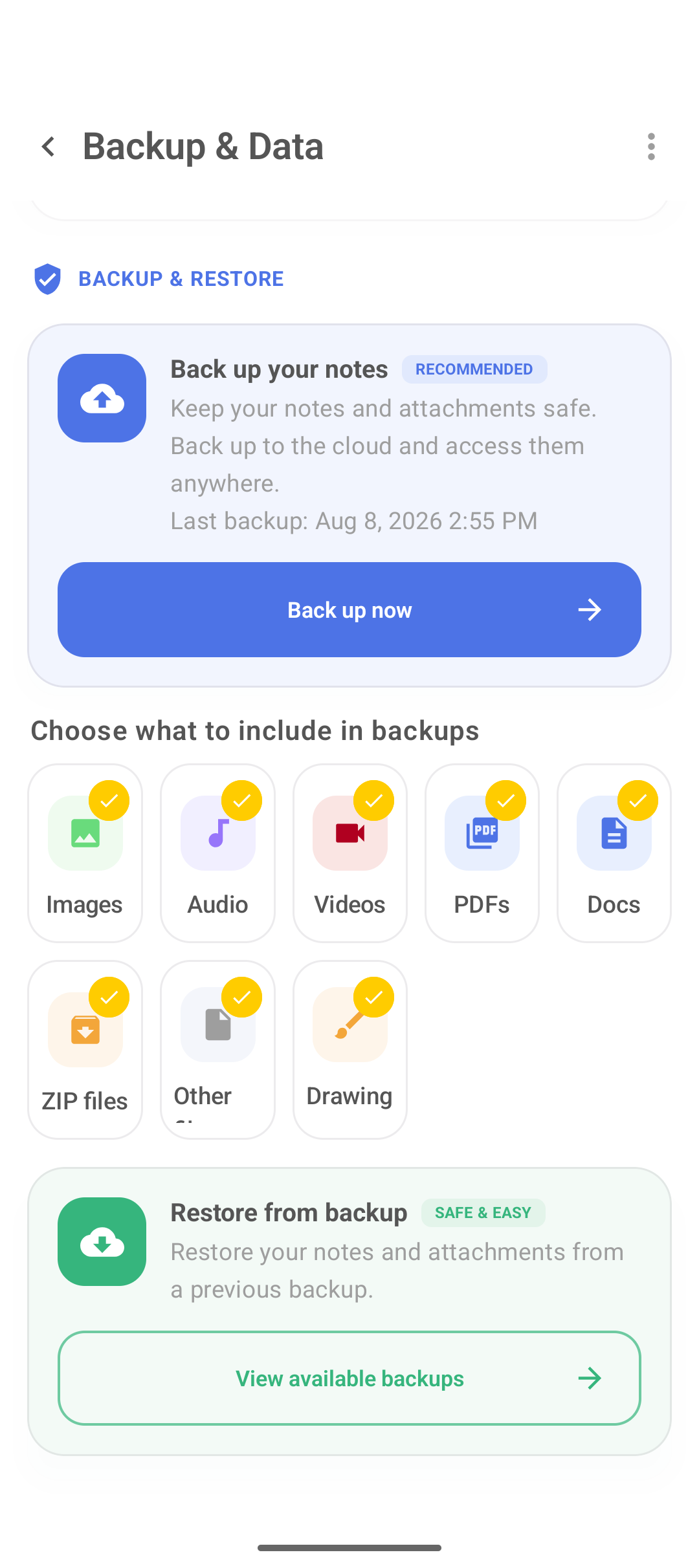
| Back up your notes | Main backup card |
| RECOMMENDED | Recommended badge |
| Back up now | Button that starts the backup |
| Last backup: … | Date/time of the last backup |
| Choose what to include in backups | What goes into the backup |
What to include in the backup
Mark what you actually use:
| Label in the app | Content |
|---|---|
| Images | Photos and images |
| Audio | Recordings and audio files |
| Videos | Videos |
| PDFs | PDFs and PDF scans |
| Docs | Documents |
| ZIP files | ZIPs |
| Other / Other files | Other |
| Drawing / Drawings | Drawings |
Step by step
- Check the types that are marked.
- Tap Back up now.
- Wait until the process finishes.
- Confirm Last backup updated.
- If the app generates or lets you copy a file, store it somewhere else (PC, your own cloud) and check the size (0 bytes = problem).
Also under Backup & Data (above the backup card):
- Trash retention (e.g. 30 days) — time in the trash
- Device storage — Android storage
- Clear recent activity / Reset settings — clear history or reset General/Appearance
Part C — Restore (Restore from backup)
When to use it
- New device
- App reinstall
- After data loss (if a backup exists)
Restore step by step
- Install DicaNote on the destination device and open the app.
- ⋮ → Settings → Backup & Data.
- Scroll to the green card Restore from backup (badge SAFE & EASY).
- Tap View available backups.
- Choose the desired backup from the list.
- Confirm restore in your version’s dialogs (it may warn about replacing current data — read carefully).
- Wait for completion (notes with media take longer).
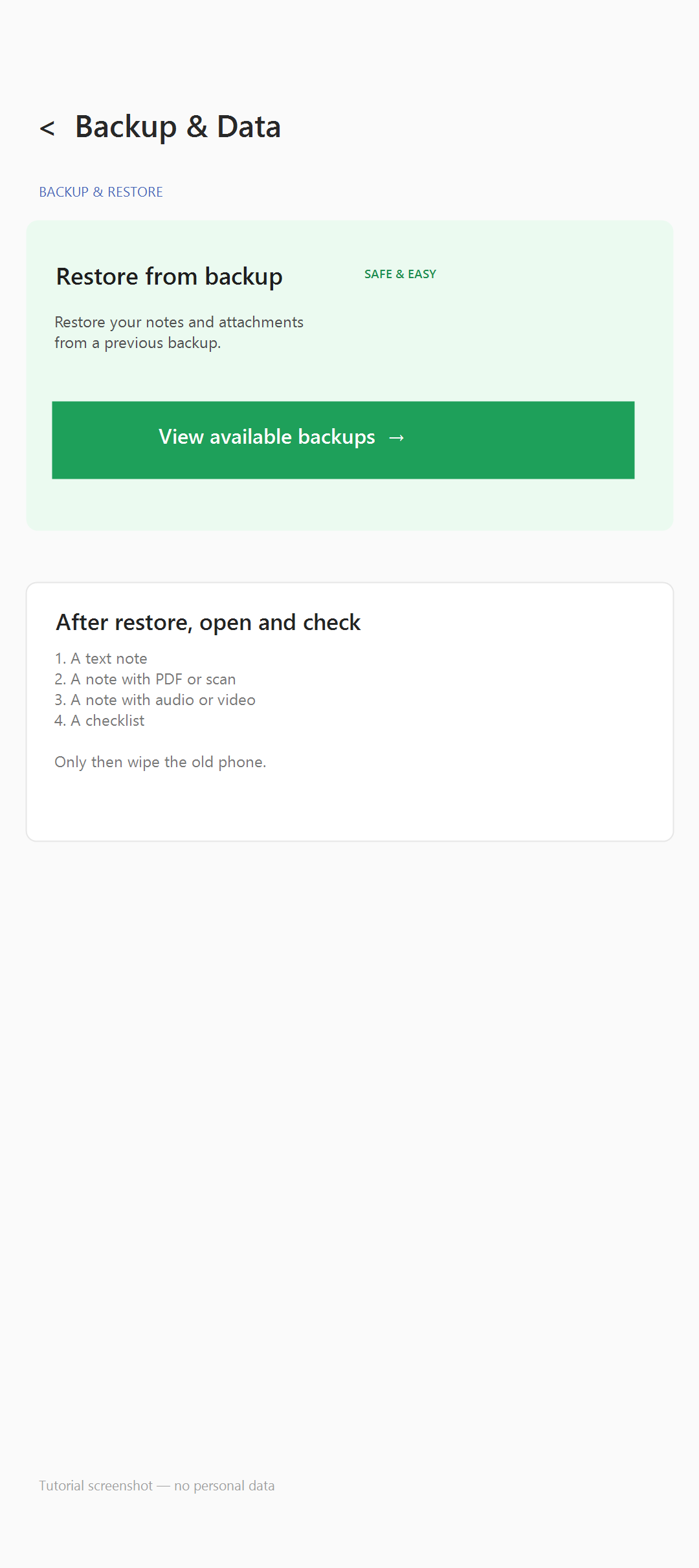
Required checklist after restore
Open and check at least:
- One text-only note
- One note with a PDF or scan
- One note with audio or video
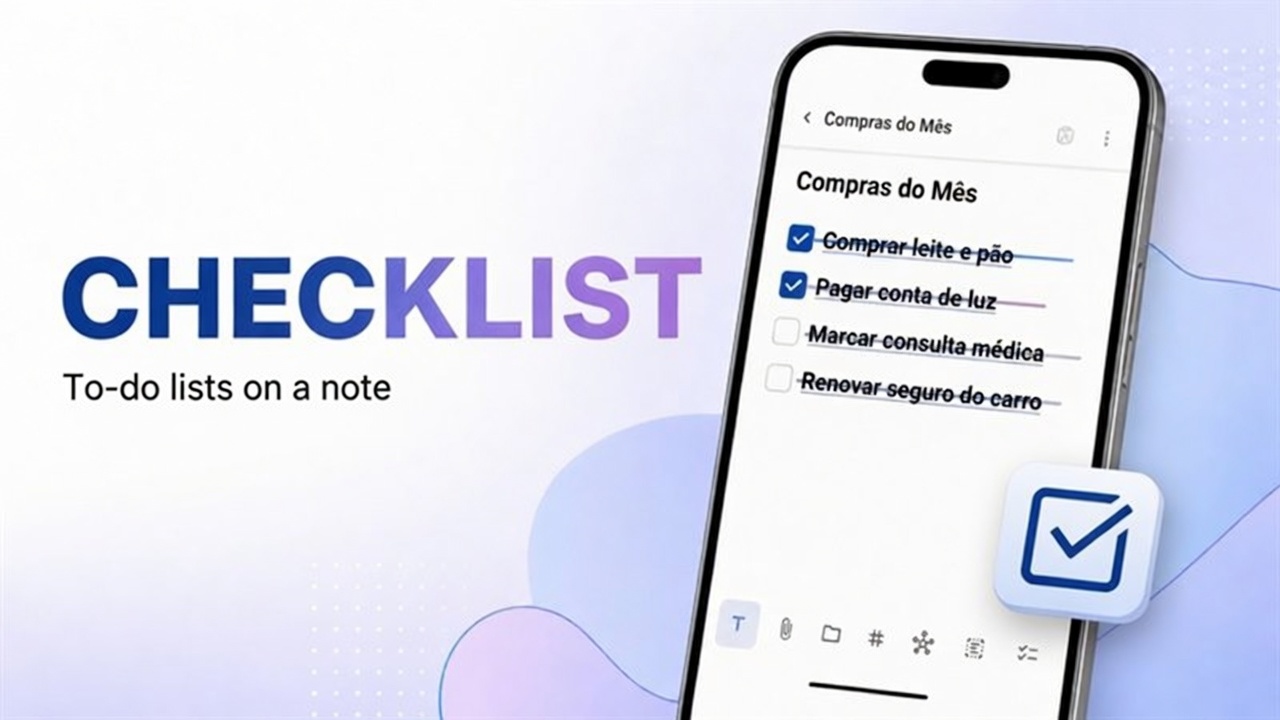
- One checklist (items and boxes)
Only then:
- uninstall the app on the old device, or
- wipe / sell the old phone
Important: restore may overwrite or merge with what is already on the new device, depending on version. If the new library already has important notes, back those up too before restoring the old file.
Part D — Safe order when switching phones
- On the old device: Back up now + copy the backup to a safe place.
- On the new device: install DicaNote → View available backups → restore.
- Run the validation checklist.
- Only then wipe the old device.
- (Optional) Set up Privacy PIN and notifications again.
Account vs backup
| Role | |
|---|---|
| Account / login | Account session |
| Back up now / Restore | Recoverable copy of the library |
Being logged in does not replace validating a backup. Map: settings and account.
FAQ
Are Export and Backup the same thing?
No. Export generates readable files. Back up now / Restore recover the library and the attachments you marked.
Does the backup include videos and audio?
Only if they are checked under Choose what to include in backups. Check the screen and validate on restore.
The app mentions cloud — do I still need to copy something?
Check Last backup and, if there is a local file, keep a copy under your control. Do not assume sync without testing restore.
How often should I back up?
Before switching devices and after weeks with many new notes. Daily users can set a monthly reminder.
Can I import from Google Keep?
If you export compatible TXT/Markdown/ZIP, use Import. Otherwise share note by note.