When the library grows, deleting, tagging or merging one by one gets tiring. DicaNote has selection mode: long-press, mark the batch and use the action bar.
Enter selection
- On the notes list, use Dense layout if Grid only opens a preview on long-press.
- Hold your finger on the first note’s title.
- Tap the others you want to include. The counter rises (1, 2, 3…).
- The bottom bar switches to bulk actions.
To leave without doing anything: Back or deselect everything (depending on version — if Back leaves the app, use X or tap outside selection if available).
What the bar usually offers
| Action | Use |
|---|---|
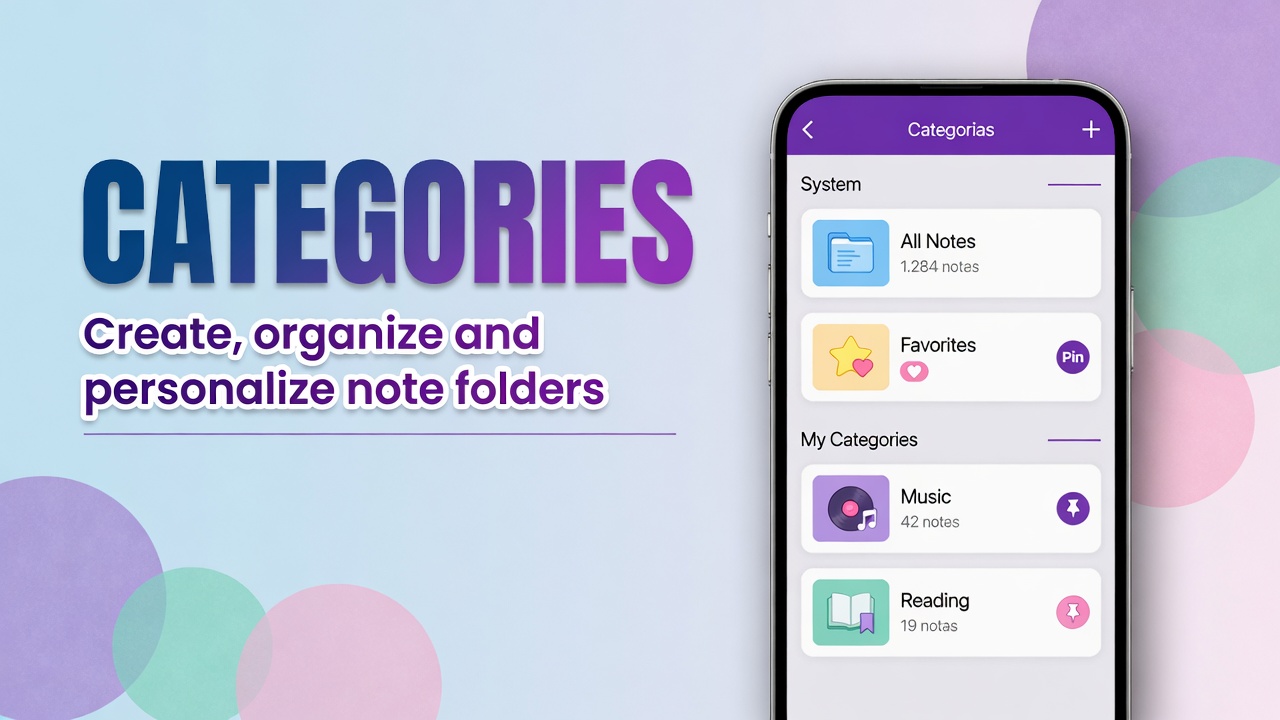
| Categories | Same folder for the batch |
| Tags | Same tag on several notes |
| Share | Share to another app |
| Copy | Duplicate content |
| Merge Notes | Join two or more (merge guide) |
| Favorite / Pin | Favorite or pin in bulk |
| Archive | Archive (leaves the active list) |
| Delete / Trash | Send to the trash |
Not every version shows every icon at once; essentials are usually categories, tags, merge and trash.
Best practices
- Check the counter before deleting.
- Merge only notes on the same topic.
- Bulk tags (
#archive-2024) are cheaper than reopening fifty notes. - Dense layout makes it easier to hit the second item.
Warning: bulk Delete sends items to Trash (usually with a restore window). Even so, make a backup before large cleanups.
Grid vs Dense
In Grid, long-press sometimes opens a single note preview (menu for that note only). Switch layout at the top of search and try again. Details: favorite, pin and layout.
FAQ
Do I need two notes for Merge?
Yes. With only one selected, merge does nothing useful. Mark at least two.
Does selection work on a filtered search?
Usually yes: search, select what remains in the filtered list and apply the action.
How do I deselect one note from the batch?
Tap it again; the counter decreases.