Categories are DicaNote’s “big folders”: Work, Reading, Music, and so on. The Categories screen shows everything at once — what the app creates on its own and what you built.
For the basics of assigning a note to a category and using tags, How to organize notes with categories and tags still applies. This guide focuses on the Categories page.
How to open the Categories page
Three common paths:
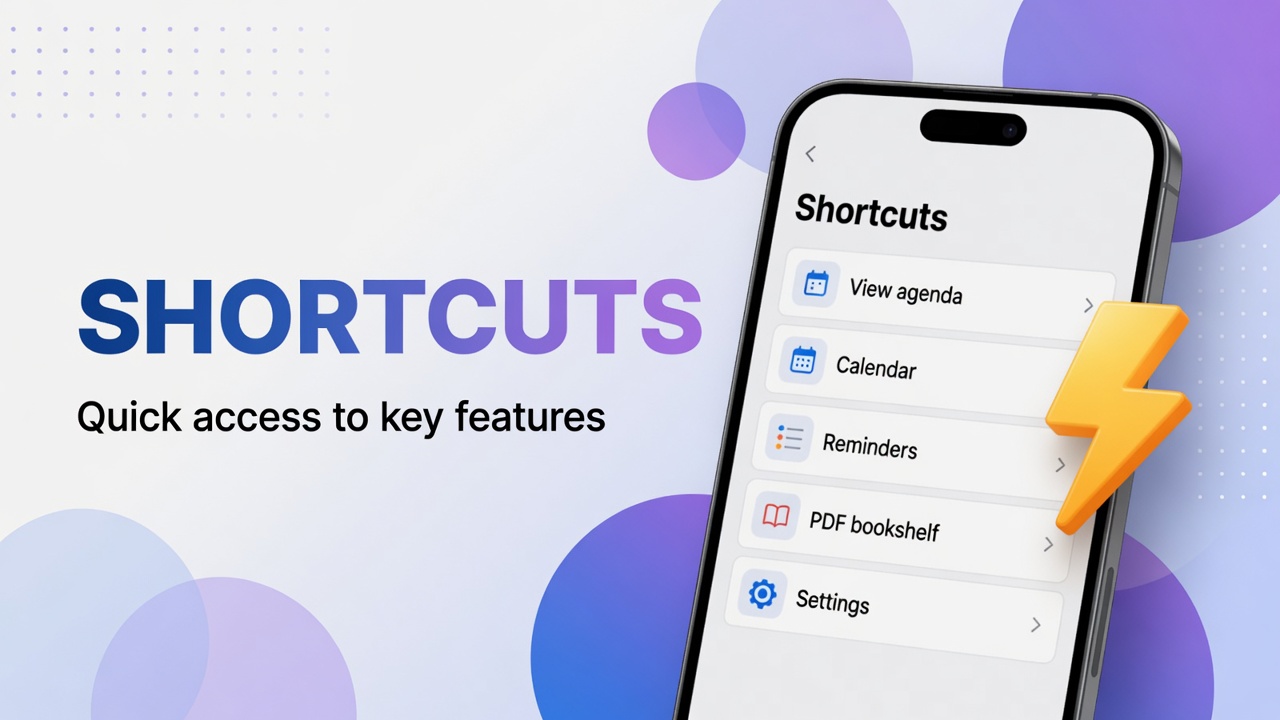
- Shortcuts — grid on home → Categories
- Search panel — menu icon on the Smart search bar → Categories tab
- Categories shortcut on a note’s bottom bar (folder icon, in some flows)
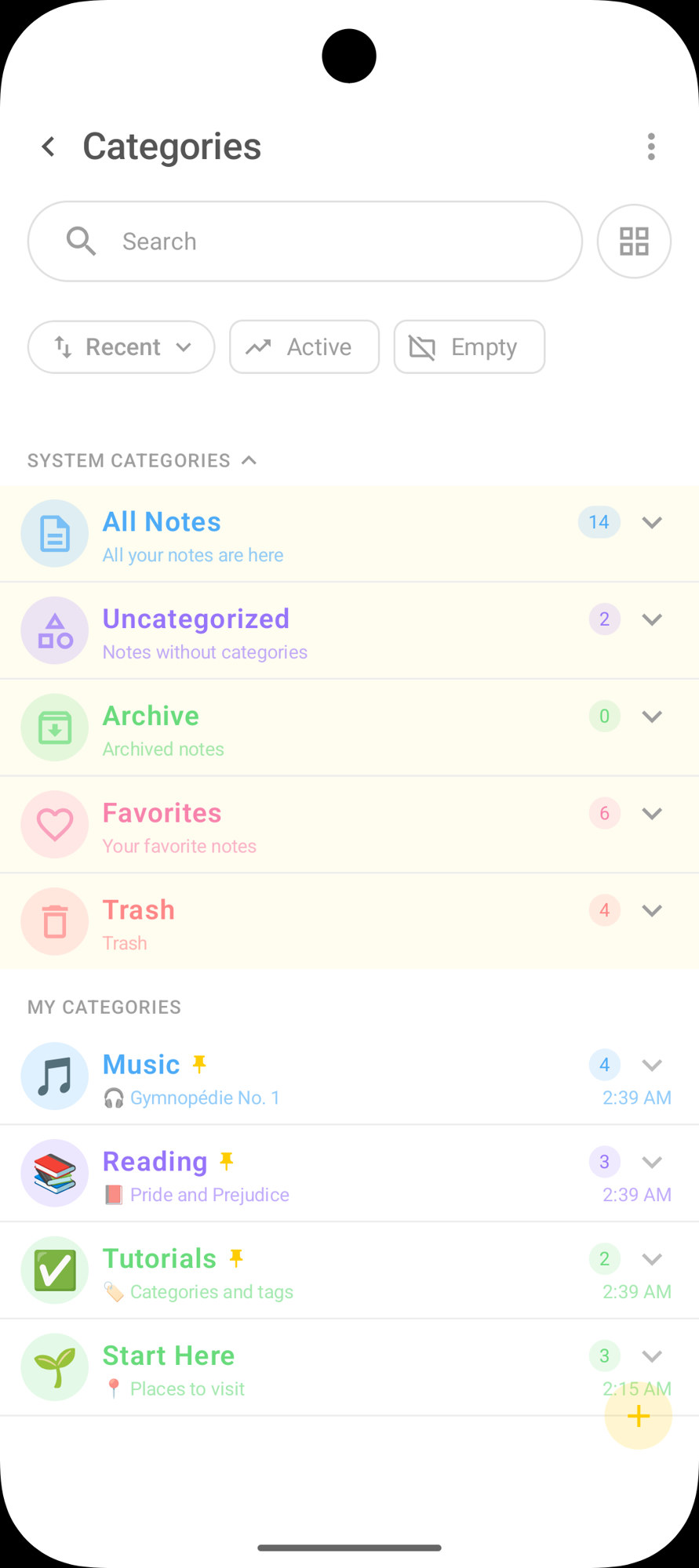
The screen title is Categories. At the top there is search and, on the right, a grid icon to change the view.
Search and filters
- Search — filters categories by name.
- Recent — sorts by recent use (the selector opens other sort options).
- Active — highlights categories with notes in use.
- Empty — shows folders with no notes (useful for cleaning what you do not need).
System categories
These are maintained by the app. You do not delete the concept; you just use them:
| In the app | Meaning | What it shows |
|---|---|---|
| All Notes | All notes | Everything that is not in the trash |
| Uncategorized | No category | Notes still without a folder |
| Archive | Archive | Archived notes |
| Favorites | Favorites | Notes marked with a heart |
| Trash | Trash | Deleted notes (while they are still there) |
The numbers on the right (14, 2, 6…) are the note counts in each group. The arrow expands or collapses the block.
My categories (your folders)
Under MY CATEGORIES are the ones you created. In the example:
- Music (pinned) — e.g. Gymnopédie No. 1
- Reading (pinned) — e.g. Pride and Prejudice
- Tutorials (pinned) — e.g. Categories and tags
- Start Here — intro notes
Each row shows:
- category icon / emoji
- name and pin (if pinned in the list)
- preview of a note inside
- note count
- time of last activity
Tap a category to open only the notes in that folder.
How to create a category
- Open the Categories screen.
- Tap the yellow + (bottom-right).
- The Add Category panel opens.
- In Enter category name, type the name (e.g. Work, Travel, Recipes).
- In Category Icon, pick the icon or emoji.
- Tap Apply (or Cancel to abort).
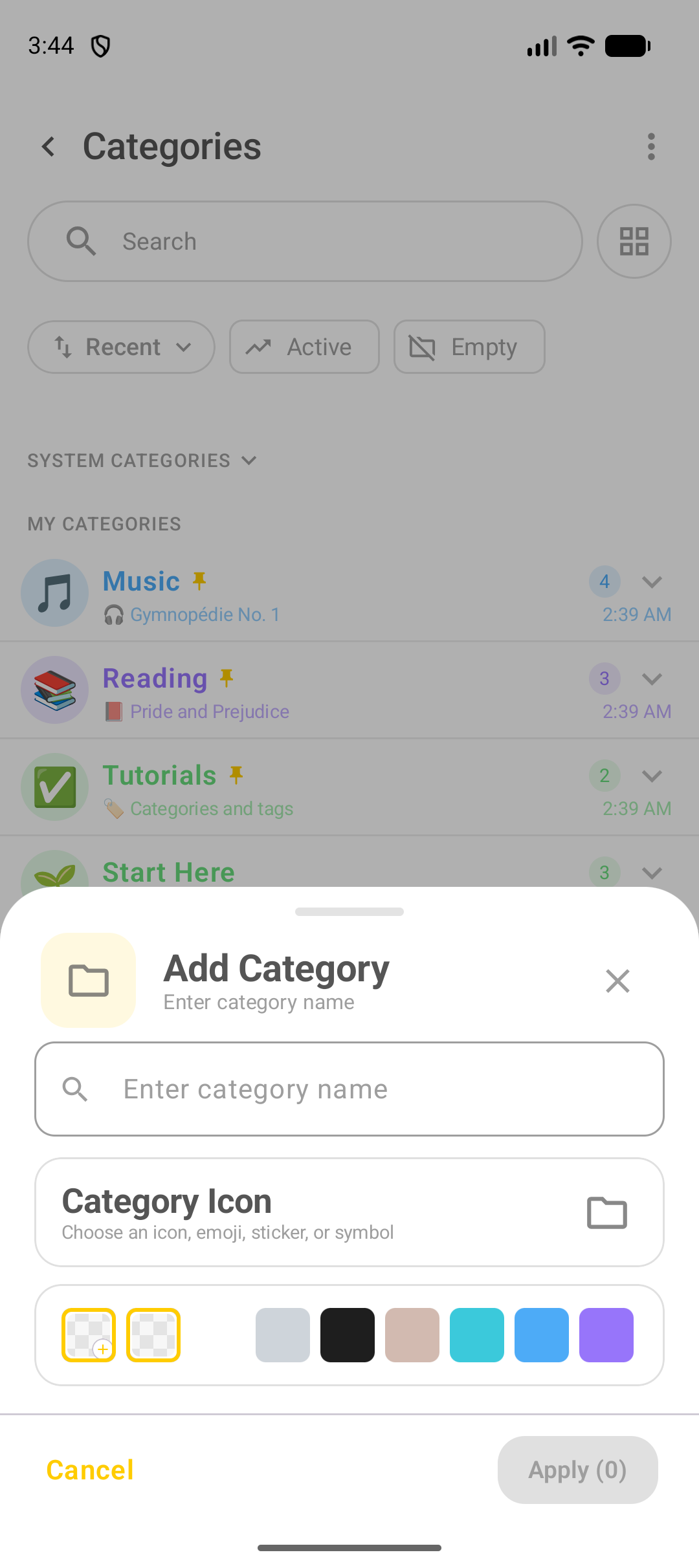
The new folder appears under MY CATEGORIES. Then open a note, tap the folder on the bottom bar and assign the category.
Organization tip
A few large folders work better than dozens of tiny ones. Fine detail (urgent, ebook, idea) usually fits better as tags (#).
Customize and pin
- Pin on the category row — keeps the folder highlighted in the list.
- Long-press or category menu (⋮ / arrow) — in many flows you can edit name, icon or color and, if it makes sense, delete the folder (notes usually return to Uncategorized; they do not vanish on their own — check what the app asks on confirm).
- Empty filter — helps find empty folders to delete or reuse.
Assign notes to a category
From the Categories page you browse. To put a note in a folder:
- Open the note.
- Tap the folder icon.
- Select the category (or create a new one there).
- Save the note.
A note can appear in the All Notes count and, at the same time, in your Reading folder.
Relation to tags and shortcuts
- Categories = big boxes.
- Tags = loose labels (several per note).
- Shortcuts and the search panel also lead to Categories and Tags.
FAQ
What is the difference between All Notes and Uncategorized?
All Notes gathers almost everything. Uncategorized is only what still has no folder of yours.
Can I delete Favorites or Trash?
They are system categories. You empty or use the content, but the system shortcut keeps existing.
How many categories should I create?
Start with a few (four to seven). If a folder has one note and never grows, a tag might have been enough.
Where do I create a category if I cannot find +?
On the Categories screen the + is in the bottom corner. You can also create one when assigning a folder from inside a note.