In DicaNote there are two similar ideas people mix up:
- Checklist / To-Do List — a component inside the note: several items to check off (shopping, packing, steps).
- Task with a due date — the whole note becomes an action with date, time and reminder.
This post is about the list component. For date and notification on a note, use How to create tasks and reminders in DicaNote.
How to create a to-do list
From the + button
- On home, tap the yellow +.
- Choose To-Do List (Create a checklist).
- Give it a title (e.g. “Travel packing”, “Shopping”).
- Add items to the list.
- Save.

Inside an open note
- Open or create a normal note.
- On the bottom bar, tap To-Do List (the last icon).
- Add the items and save.
Another path: ⋮ → Create list from note. That builds the list from text already in the note. A dated reminder is different: Set Task and Set Reminder in the same menu.
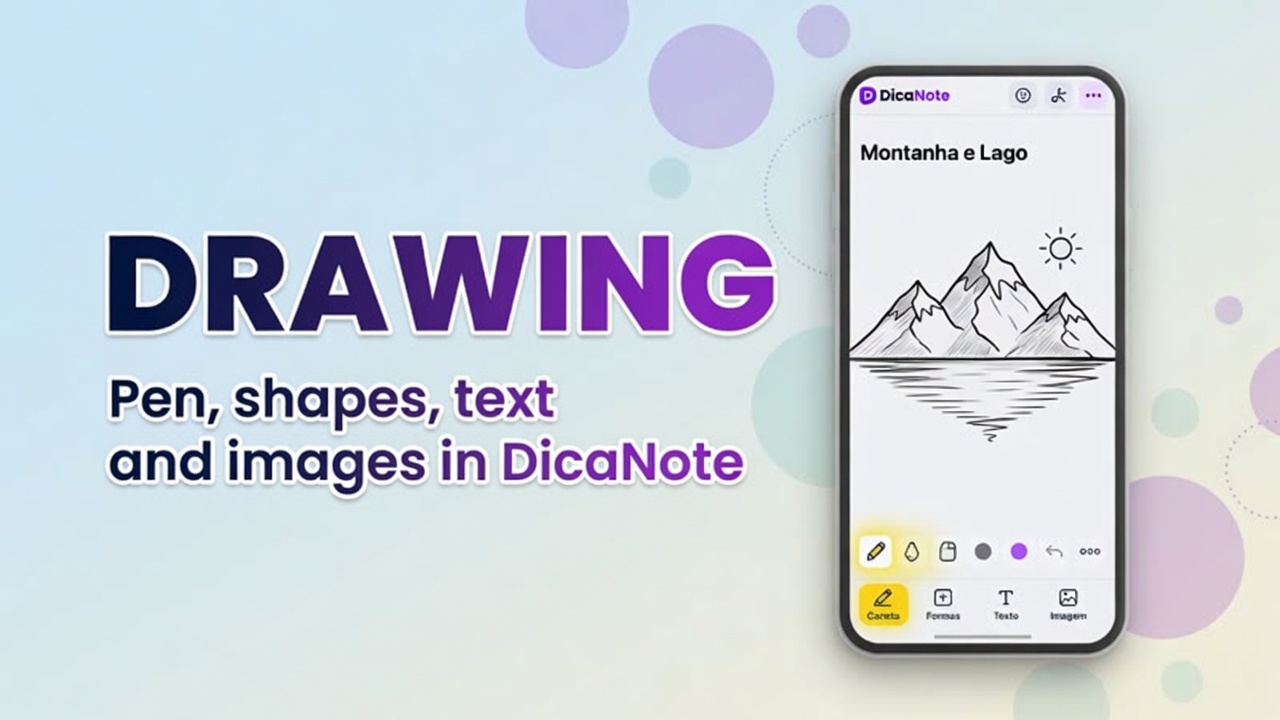
The full + menu (note, template, list, drawing) is in Create note, template, checklist or drawing.
What appears in the component
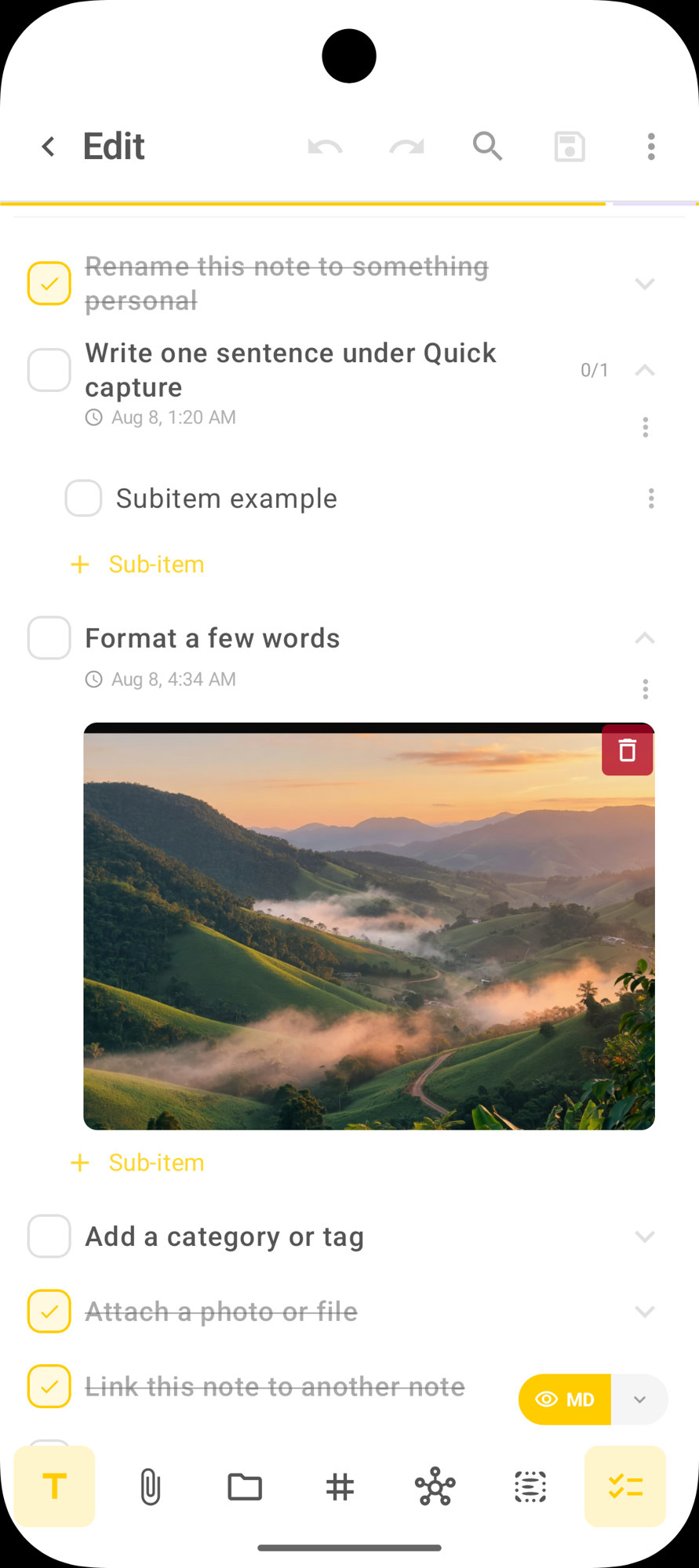
In practice the list shows:
| Element | Role |
|---|---|
| Circle on the left | Marks the item done / reopens it |
| Item text | Tap to edit |
| Arrow on the right | Expands or collapses details and subtasks |
| Date / time under the item | Reminder or due date for that item (e.g. Aug 8, 1:20 AM) |
| ⋮ on the item | More actions (priority, delete, etc.) |
| + Sub-item | Creates a subtask under the expanded item |
| Floating + | New item on the list |
| Floating ⋮ | Options for the whole list |
The list tool is highlighted on the bottom bar when the checklist is in focus.
Subtasks (+ Sub-item)
- Tap the item’s arrow (or expand the item).
- Tap + Sub-item.
- Type the child step.
- Check the sub-item when finished.
Useful for breaking “Gather documents” into ID, ticket and voucher without cluttering the top level.
Date and reminder on an item
With the item expanded, you can see (and set) date/time on it. That is not the same as turning the whole note into a calendar task — it is a notice or deadline for that step. For a commitment with a bell on the agenda, use the tasks and reminders flow.
Priority
In the item menu (⋮) or priority action, mark what cannot wait (Mark as priority). Priority items stand out and the list may show them first.
Day-to-day flow
- Create the list (+ → To-Do List) or open the checklist in a note.
- Type the first item.
- Use + or Add new item for the next ones.
- Mark the circle for what is done.
- Expand and use + Sub-item where you need detail.
- Save the note.
Checklist vs task with a date
| Checklist (this post) | Task with reminder | |
|---|---|---|
| Unit | Several items in one note | The note (or title) as one action |
| Use | List, pack, steps | Commitment with a deadline |
| Date / bell | Optional per item | Date, time and task notification |
| Where to look | Inside the note | Agenda, Shortcuts → Tasks |
Both can coexist: a “Trip” note with a packing checklist and another task-note “Confirm check-in” with a reminder tomorrow at 2 PM.
Markdown
If you prefer typing:
- [ ] Pending item
- [x] Done item
The app treats that as a checklist in Markdown content. The visual To-Do List component is usually more comfortable on a phone (tap, priority, subtasks).
Templates with a list
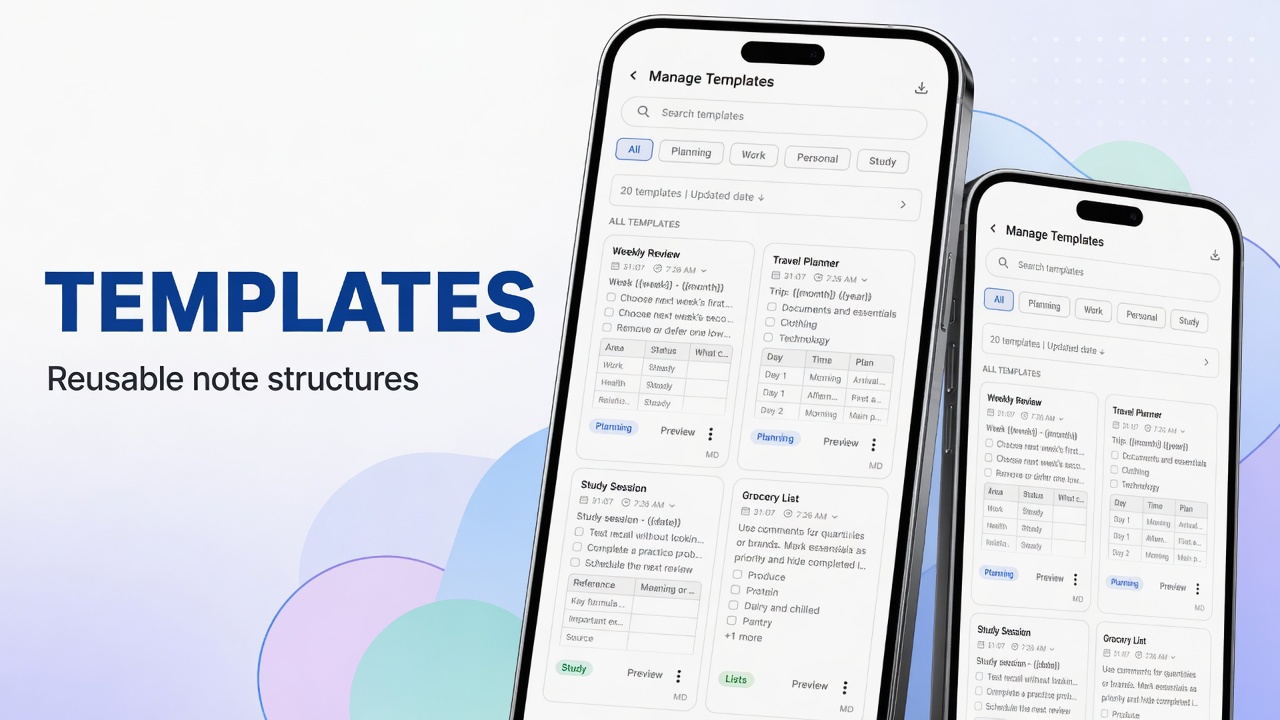
In the Manage Templates gallery there are templates that already include a checklist (e.g. Grocery List). Flow: How to use note templates in DicaNote.
Shortcuts and organization
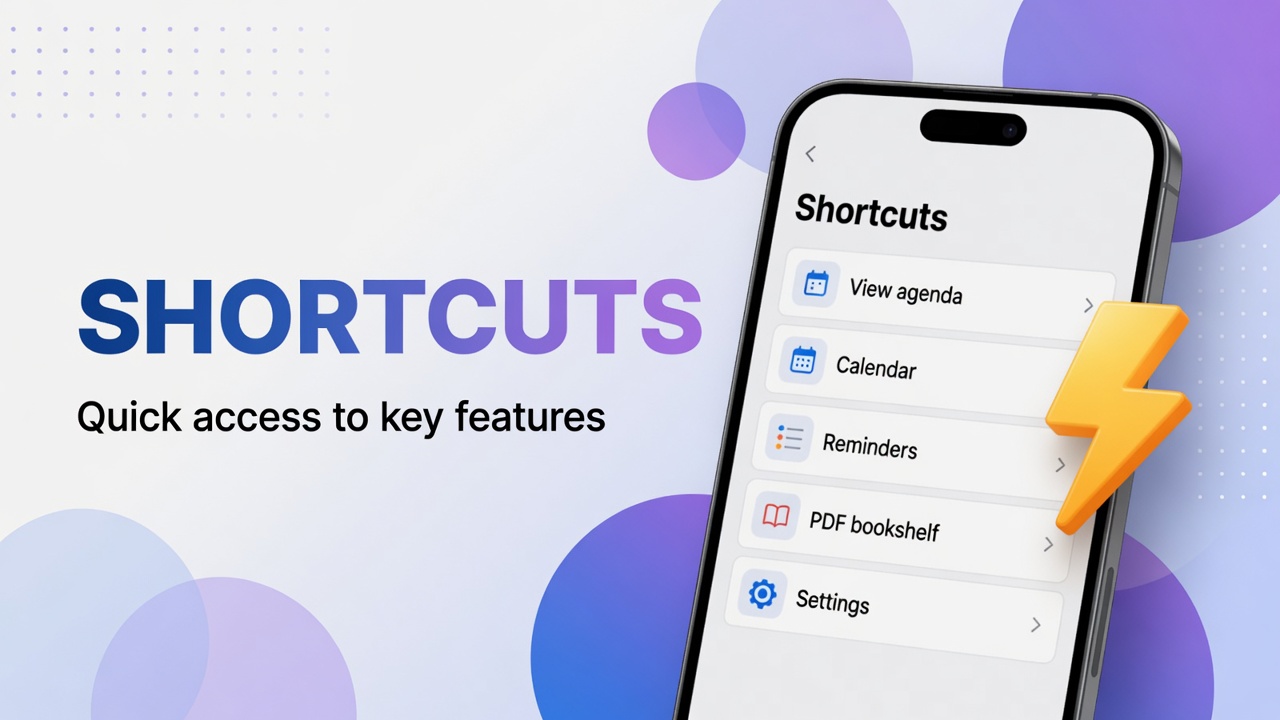
- Shortcuts → Tasks shows a view of tasks with due dates; the detailed checklist stays in the note.
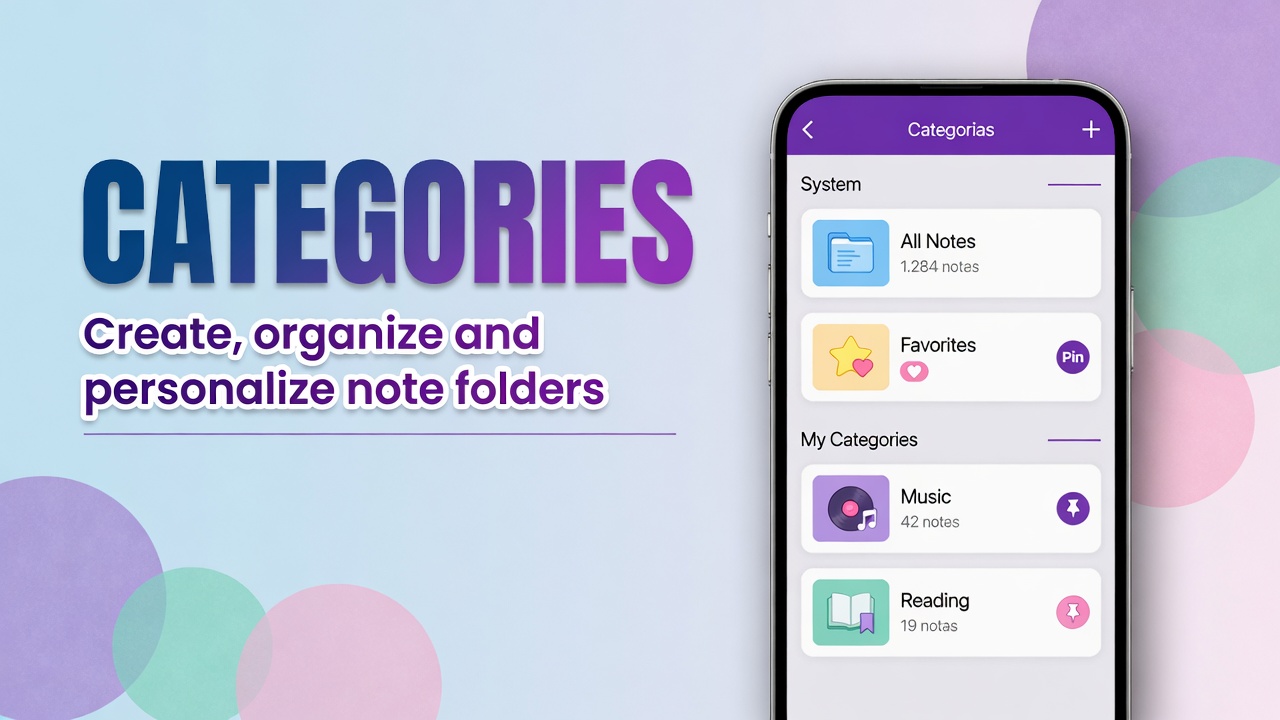
- Categorize the list (Shopping, Travel) in Categories.
- Old unused list: Trash.
FAQ
Are To-Do List and a “task” in the title the same thing?
No. To-Do List is a multi-item checklist. A task is Set Task on the note menu, with an optional date. The notification is Set Reminder.
How do I create a subtask?
Expand the item (arrow on the right) and tap + Sub-item. Fill in the child text and mark the circle when done.
What is Mark as priority?
Marks the item as priority. Helps you see what burns first; the list may surface those items at the top.
Can I copy the list to another note?
Yes. The app can copy the list (tasks and sub-items) to a note, including as Markdown, while keeping the original.