The Diary has one entry per day. Each entry is written in the same editor as your notes, but it stays apart from them: it doesn’t show up in the home screen list. The Agenda, calendar and diary guide shows other ways into the diary, such as the Today’s diary field in the shortcuts. This guide is about using the diary day to day.
1. Write today’s entry
- On the home screen, tap ⋮ → Diary.
- The diary opens on today, with the keyboard ready.
- Write. The grey prompt changes from day to day: What happened today?, What made you smile today?, What’s on your mind? or What did you learn today?.
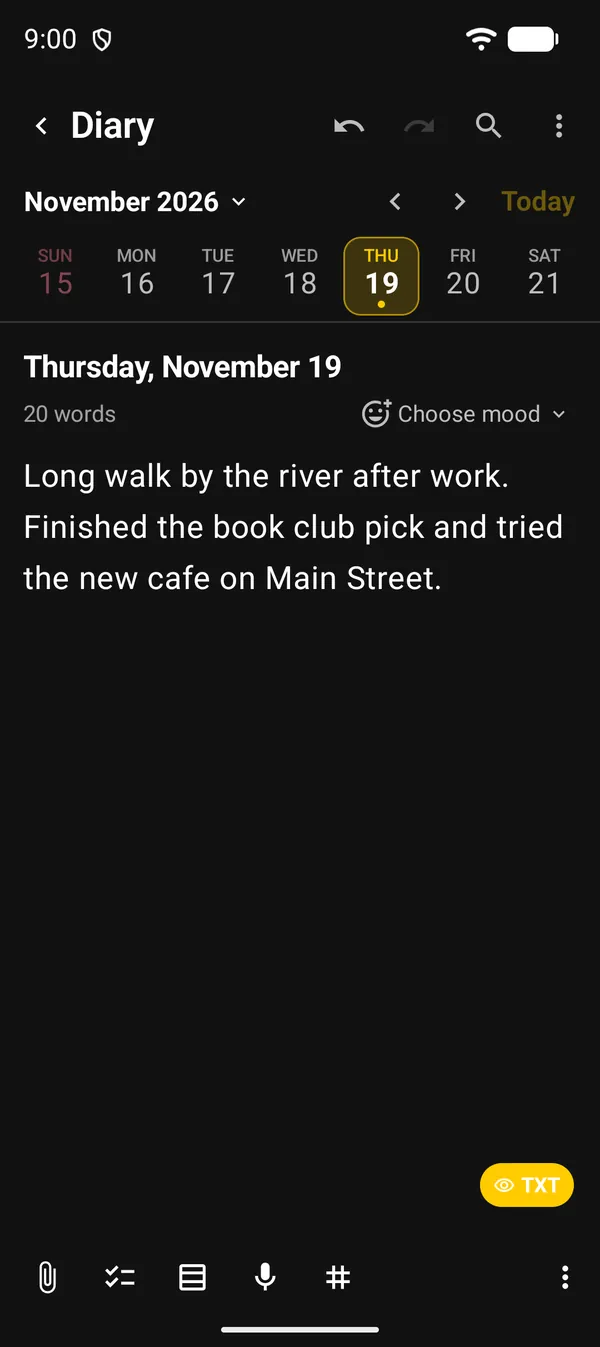
There is no save button: with autosave on, which is the default, the text is saved as you type. Opening a day and writing nothing doesn’t create an entry.
As in the note editor, the bottom bar has attachments, a checklist, a table and a microphone for dictation. See attachments and speech to text.
2. Log your mood
Tap Choose mood, to the right of the word count. Under How are you feeling?, pick one of nine:
Happy, Calm, Productive, Neutral, Tired, Stressed, Sad, Angry and Excited.
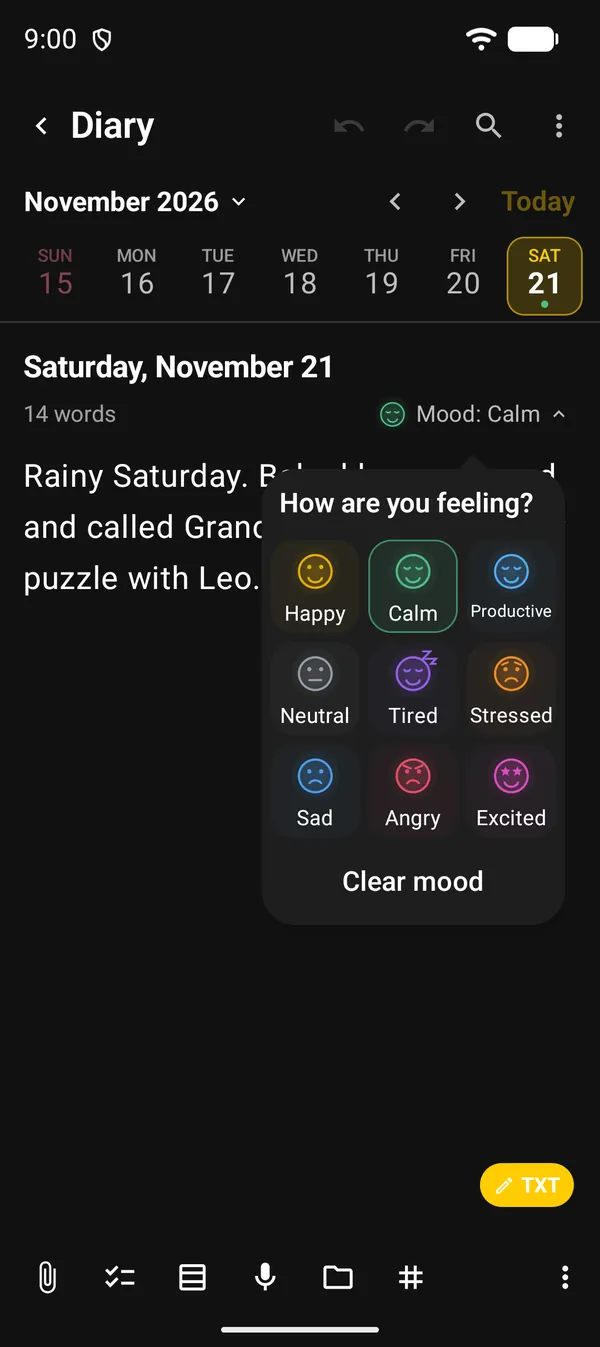
The button now shows the mood, such as Mood: Calm. To remove it, open the picker again and tap Clear mood.
3. Go to other days
| Where | What it does |
|---|---|
| Week strip | Tap a day to open its entry |
| ‹ and › arrows | Move the strip one week back or forward |
| Today | Jumps back to today |
| Month name at the top | Opens the Diary calendar with the whole month |
In the strip, a dot under a day means it has an entry. If the day has a mood, the dot takes the mood’s colour.
In the Diary calendar, each day with an entry shows a thumbnail of its photo or attachment, the mood face, or a dot. Private entries show a lock. Tap a day to open it.
On past days, the prompt becomes How was this day?. On future days, Plans for this day?.
4. On this day
When you wrote on the same date in earlier years, the On this day card appears just below the mood. It shows up to three entries, such as “1 year ago”, with the first line of each. Tap one to open that day.
5. The diary ⋮ menu
The ⋮ menu at the top has the same options as a note, plus one just for the diary:
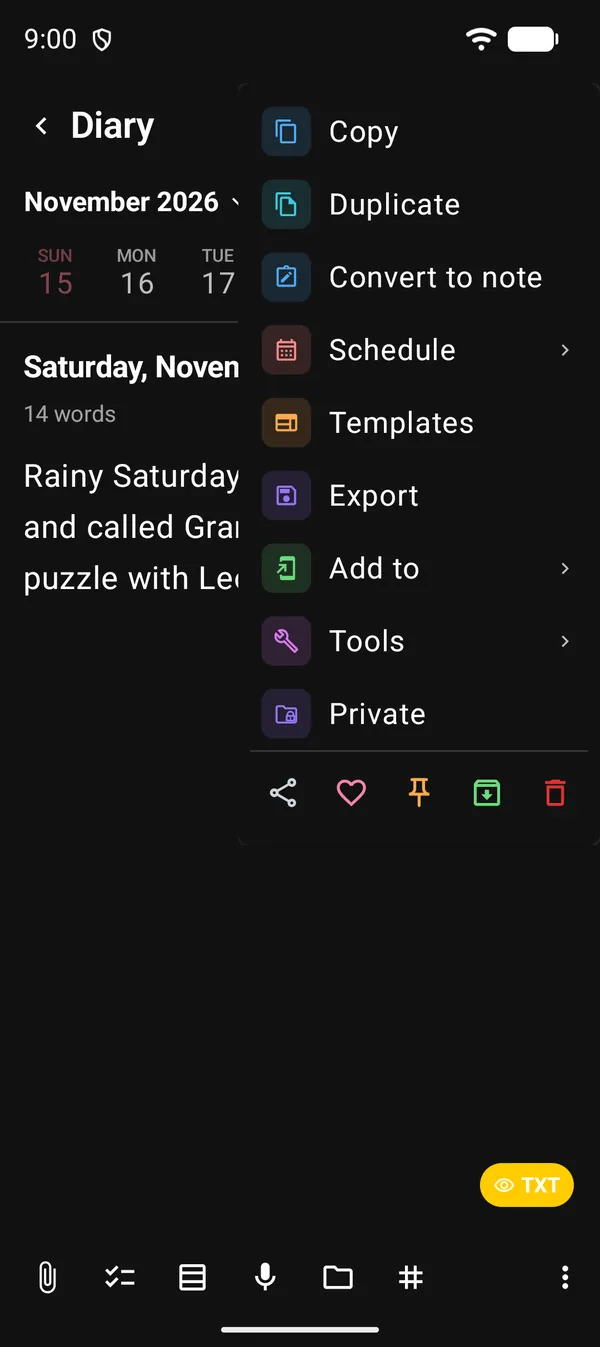
| Option | What it’s for |
|---|---|
| Convert to note | Takes the entry out of the diary and opens it as a regular note. The day is blank again |
| Export | Exports the entry like a note. See export a note |
| Templates | Applies a template to the entry or saves the entry as a template. See templates |
| Tools | The same tools as the note editor |
| Private | Protects the entry with your private notes PIN |
A private entry doesn’t show its text in the diary. Instead you see Private entry and an Open protected entry button. See private notes.
Convert to note only works once the text has been saved. If the option is greyed out, wait a moment.
Next guides
FAQ
Do I need to save the entry?
No, as long as autosave is on, which is the default. The text is saved as you type.
Do entries show up in my notes list?
No. They stay in the Diary. To move an entry to the list, use ⋮ → Convert to note.
Can I write on a day that has passed?
Yes. Tap the day in the week strip, or open the calendar from the month name and pick the date.
When does the On this day card appear?
Only when there is an entry on the same date in an earlier year. In your first year it won't appear.