EPUB is the most common e-book format. In DicaNote the book lives inside a note, like a PDF, and opens in its own reader that fits the text to the screen. The example in this guide is Alice’s Adventures in Wonderland, a public-domain book, attached to the note “Reading list”.
1. Attach the book to a note
The steps are the same as for a PDF:
- Open or create a note and tap the paperclip, Attach.
- Tap Documents. It accepts PDF, Word, Excel, PowerPoint, EPUB, TXT and CSV.
- Pick the
.epubfile in Android’s file picker.
The book becomes a card in the note.
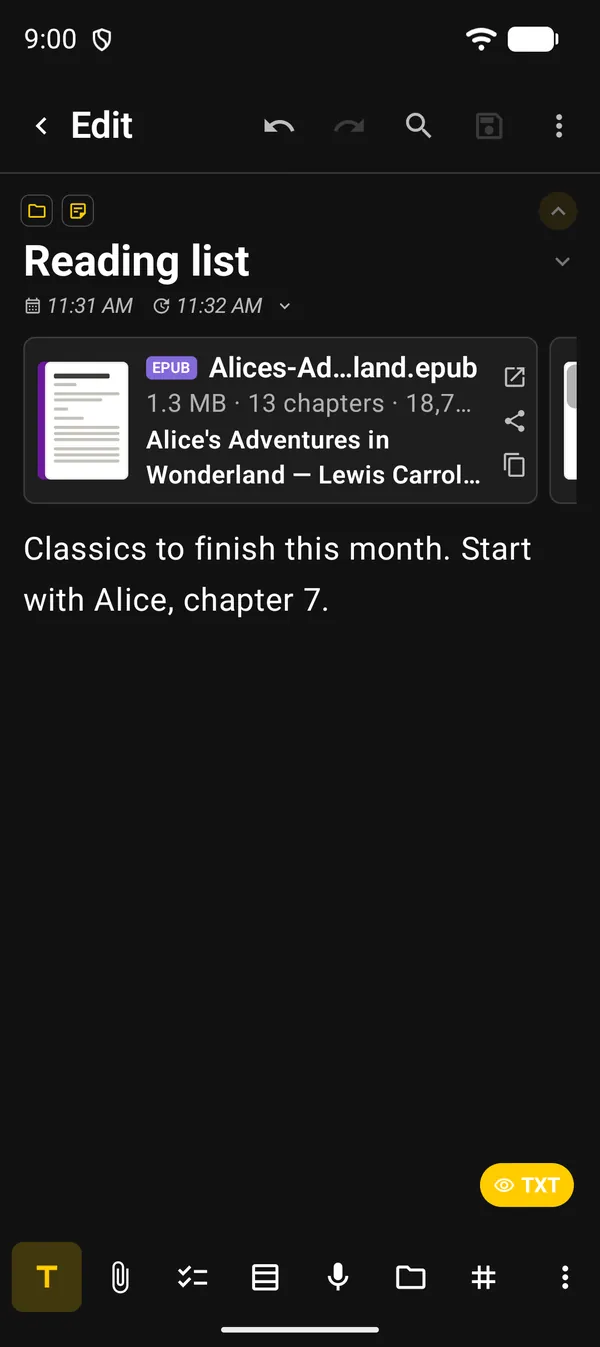
| On the card | What it shows |
|---|---|
| Purple EPUB badge and file name | The type and name |
| Second line | Size, number of chapters and words |
| Bold text | The book’s title and author |
| Icons on the right | Open, share and copy the text |
One tap on the card shows a passage from the start of the book. Another tap, or the open icon, takes you to the reader.
2. Read in the reader
The reader opens full screen, right where you stopped last time. At the top are the title, the author, the search magnifier and ⋮. Below them is a row of buttons:
| Button | What it does |
|---|---|
| TT | Reading settings |
| Moon | Dark pages. With dark mode on, the button turns into a sun, Light pages, and goes back to the light theme you were using |
| List | Contents, with your bookmarks |
| Corners | Full screen |
To read, scroll the text up, as on a web page.
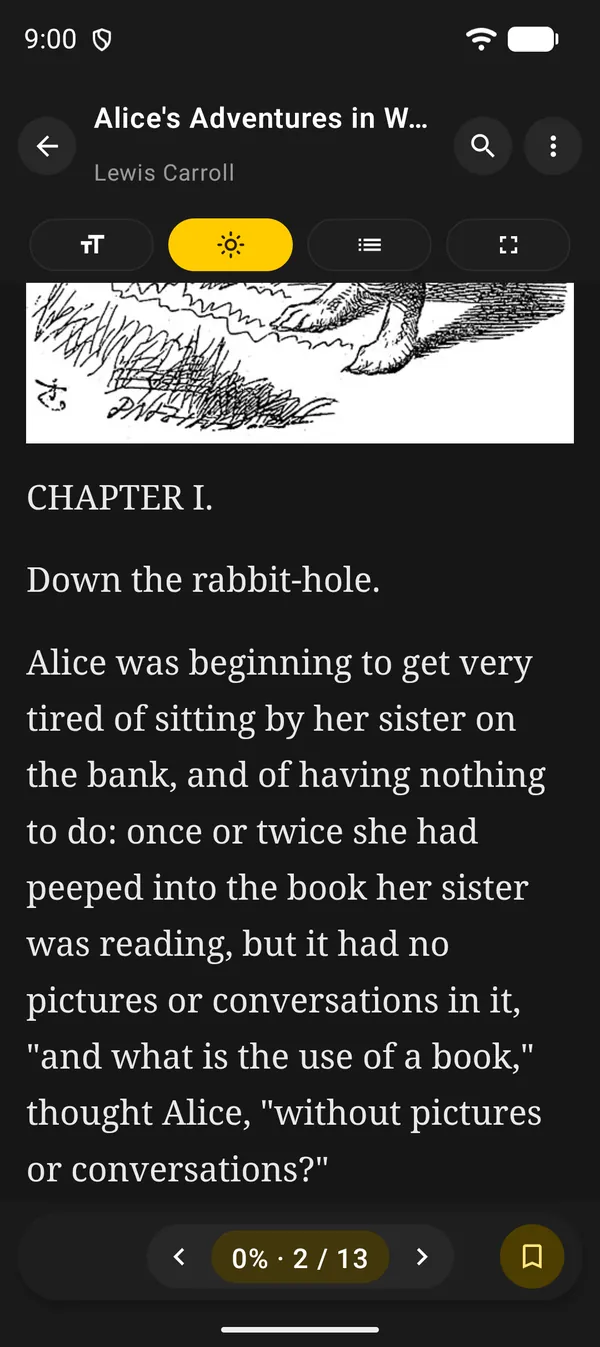
In the bottom bar:
- The counter, such as 0% · 2 / 13: how much of the book you have read and which part of the file you are in. Parts can include the cover and title page, so the total can be higher than the number of chapters in the contents.
- The arrows jump to the start of the previous or next part.
- Tapping the counter opens Contents. An EPUB has no fixed pages, so there is no Go to page as in the PDF reader.
- The yellow button on the right is Bookmark this page. See section 4.
In Full screen the bars disappear. To come back, tap the round button in the top corner, Exit full screen, or use your phone’s Back.
3. Reading settings
Tap TT to open Reading settings. Each change shows at once, and the text stays at the same spot.
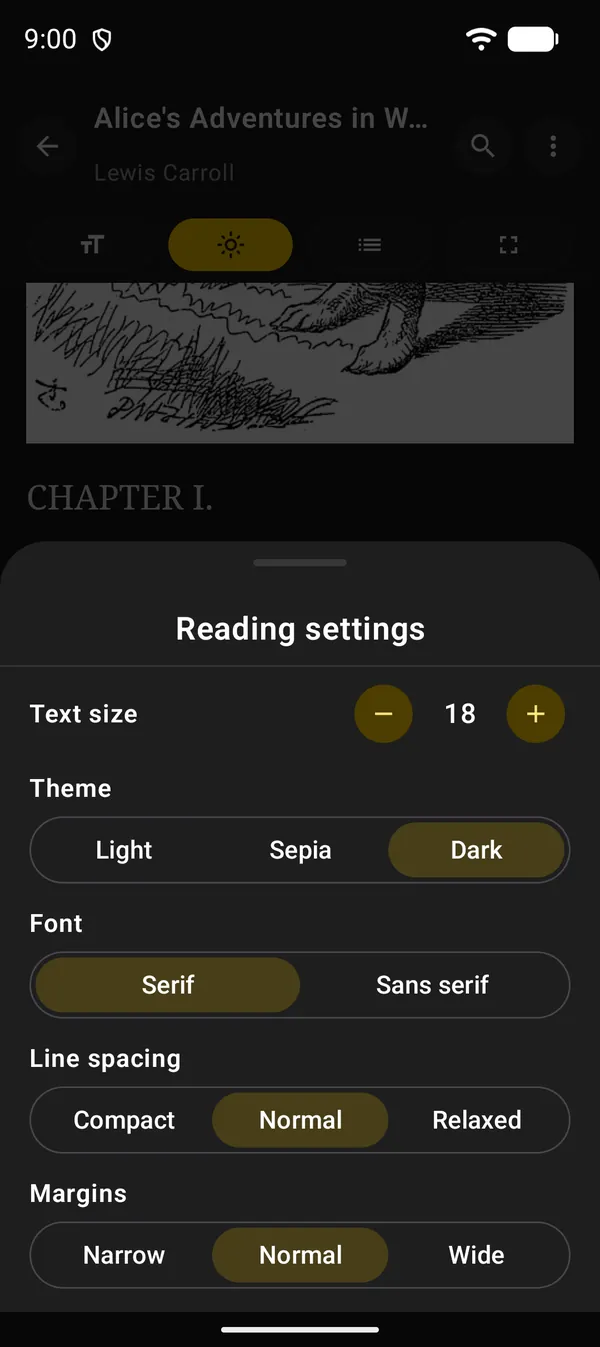
| Option | Choices |
|---|---|
| Text size | − and +, from 14 to 32. The default is 18 |
| Theme | Light, Sepia or Dark |
| Font | Serif or Sans serif |
| Line spacing | Compact, Normal or Relaxed |
| Margins | Narrow, Normal or Wide |
These settings apply to every book.
4. Contents and bookmarks
Tap the list button, or the counter, to open Contents. The current chapter is in bold. Tap a chapter to jump to it.
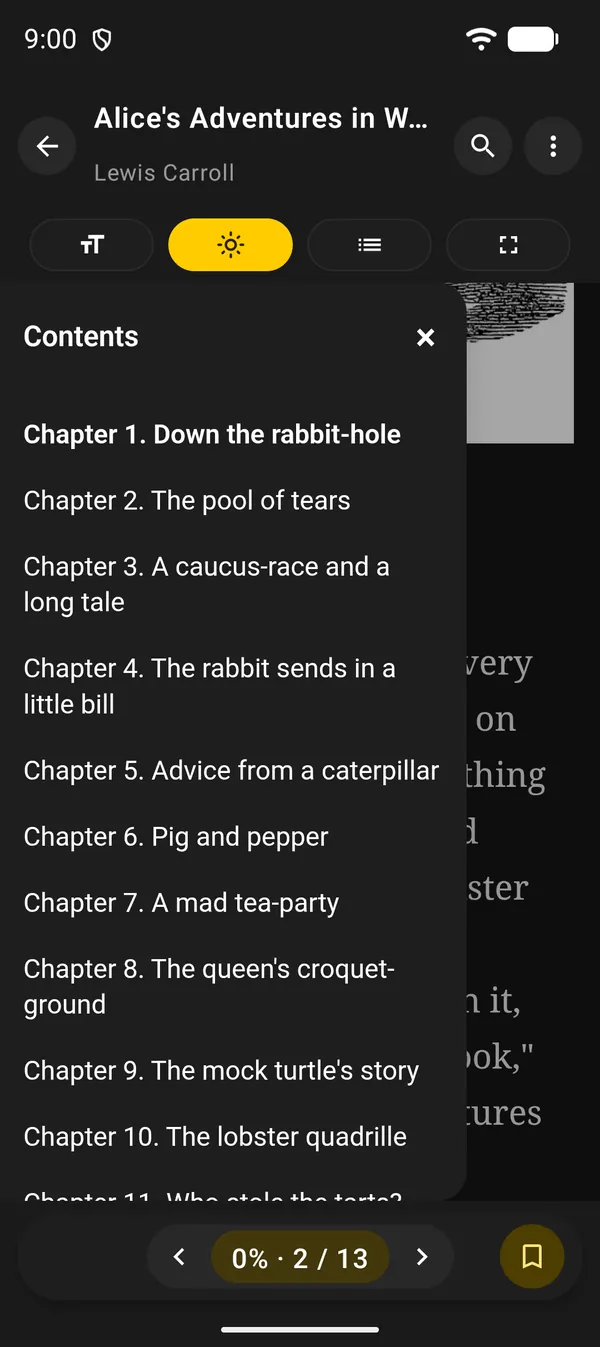
To keep a spot in the book, tap Bookmark this page, the yellow button in the bottom bar. It fills in. Bookmarks appear at the top of Contents, under Bookmarks, with the chapter name and percentage. To delete one, go back to that spot and tap the button again, Remove bookmark.
5. Search the book
- Tap the magnifier at the top.
- Type in Search in book. Search ignores upper and lower case.
- The counter shows the current match and the total. The arrows, or the keyboard’s Enter key, move from one match to the next.
Search starts at the first match after where you are reading.
6. Send a passage to a note
- Touch and hold a word. Drag the handles to select the passage.
- In the bar that appears, tap Add to note.
The reader closes and the Shared Content panel opens, with the passage in quotes and the book’s title below it. There you create a new note or choose an existing one, as in the share text guide. When you open the book again, it returns to the same spot.
Unlike the PDF reader, the EPUB reader has no colored highlights. To keep a passage, use Add to note.
7. The ⋮ menu
| Option | What it’s for |
|---|---|
| Copy text | Copies the book’s text |
| Pin in Library | Keeps the book pinned in Library |
| Add to another note | Puts a copy of the book in another note |
| Move to another note | Takes the book out of this note and into another |
| Share icon | Share the file |
| Arrow icon | Open in…: opens the book in another app |
To see all your books and other attachments together, use Library. See manage attachments.
Next guides
FAQ
Does the reader remember where I stopped?
Yes. Each book keeps its position and bookmarks. When you open it again, the reader returns to the same spot.
Can I highlight passages in an EPUB?
No. Colored highlights are only in the PDF reader. In an EPUB, select the passage and use Add to note.
A book I bought won't open. Why?
Books with copy protection (DRM) don't open in DicaNote. Use ⋮ → Open in… and pick an authorized reader, such as the app of the store where you bought it.
Why does the counter show more parts than chapters?
The counter counts the parts of the file, which can include the cover, title page and other pages outside the contents.