Export saves a copy of the note as a file, in a folder you choose. The note stays in the app unchanged.
1. Open Save as
- Open the note in the editor.
- Tap ⋮ → Export.
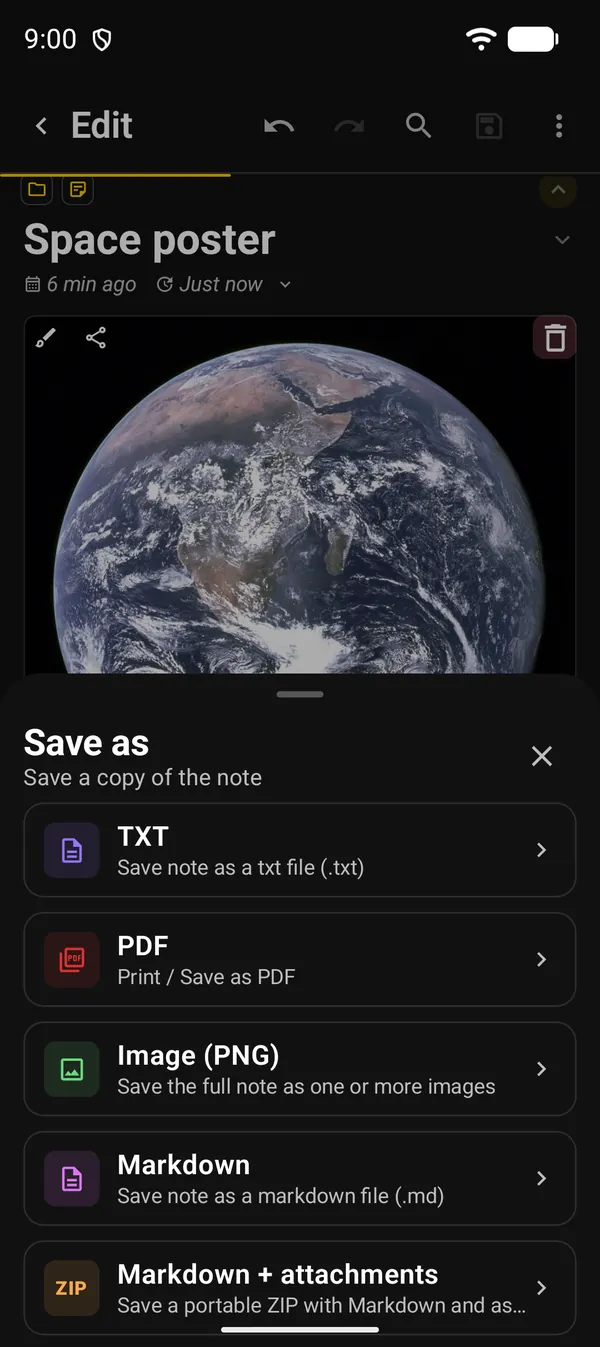
- The Save as panel opens, subtitled Save a copy of the note.
2. The formats
| Option | What you get |
|---|---|
| TXT | A .txt text file |
| Opens the page layout, then Android’s print dialog | |
| Image (PNG) | The whole note as one PNG image, or several numbered ones if it is long |
| Markdown | A .md file |
| Markdown + attachments | A ZIP with the .md file and the attachments in an assets folder |
| HTML | An .html file |
| Raw file / custom extension | The note’s original body, with an extension you choose |
For TXT, Markdown, ZIP, HTML and raw file, Android’s file picker opens with the note’s name already filled in. Pick the folder and confirm.
For Image (PNG), the app prepares the pages first. If the note fits on one page you get a single image. If not, you get numbered images inside a folder. Tap Choose destination to save.
For the ZIP, a message at the end says how many attachments went in and how many were unavailable.
3. PDF and printing
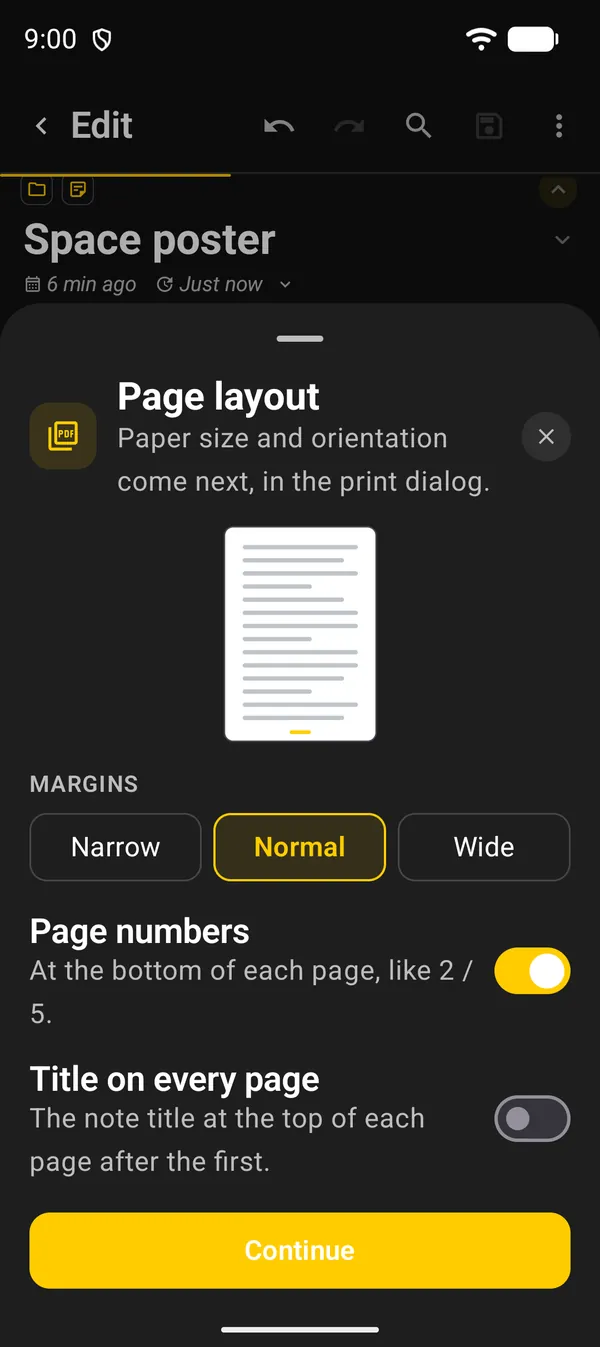
Tap PDF. Before printing, the Page layout panel opens:
| Option | What it does |
|---|---|
| Margins | Narrow, Normal or Wide. Starts on Normal |
| Page numbers | At the bottom of each page, like 2 / 5. On by default |
| Title on every page | The note title at the top of each page after the first. Off by default |
Tap Continue. Android’s print dialog opens:
- to get a file, choose Save as PDF instead of a printer;
- to print on paper, choose your printer.
You pick paper size and orientation in that dialog. The app remembers the page layout for the next PDF, including when you share the note as a PDF.
On devices with a very old Android System WebView, page numbers and the title may not show. Margins work either way.
To print just one attached photo, open the photo and use Print in the viewer’s ⋮.
4. Export or share?
| Export | Share | |
|---|---|---|
| What for | Keep a copy as a file, in a folder | Send the note to another app, such as email or chat |
| Where | ⋮ → Export | ⋮ → Share icon |
| What it offers | The formats in the table above | Text, Text and attachments, single attachments and As file |
Sharing is covered in the Share text guide.
To export many notes at once, use ⋮ → Import / Export on the home screen. See the backup guide.
Next guides
FAQ
Does the note leave the app when I export it?
No. Export saves a copy. The note stays in DicaNote.
How do I print a note on paper?
In Export, tap PDF, set the layout, tap Continue and pick your printer in Android's dialog.
Where do I change the paper size?
In Android's print dialog, which opens after Page layout. Orientation is there too.
Do attachments come along?
To take the attachment files with you, use Markdown + attachments. It makes a ZIP with the note and its attachments.