Important Dates keep birthdays, anniversaries and holidays. Each date shows how many days are left, can repeat every year and can have a reminder. They live in the Agenda, apart from your notes. The Agenda, calendar and diary guide covers the whole Agenda; this one is only about dates. The example uses Ana’s birthday, on November 30.
1. Where the dates live
Open the Agenda from the home screen ⋮ menu → Agenda. In the bottom bar, tap Dates.
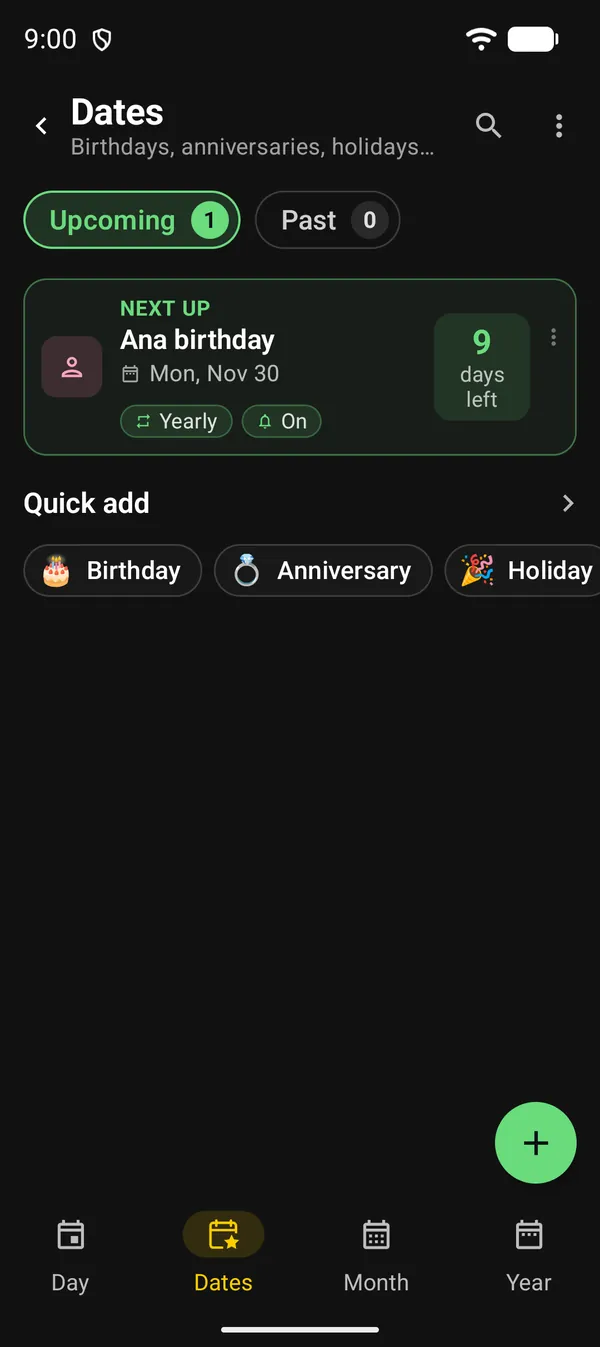
| Where | What it does |
|---|---|
| Upcoming | Dates still to come, soonest first |
| Past | Non-repeating dates that have passed |
| Next up | Card for the nearest date |
| Quick add | Shortcuts to add a birthday, an anniversary or a holiday |
| Green + | Opens a blank form |
| Magnifier at the top | Searches by name or description |
2. Add a birthday
- Under Quick add, tap Birthday.
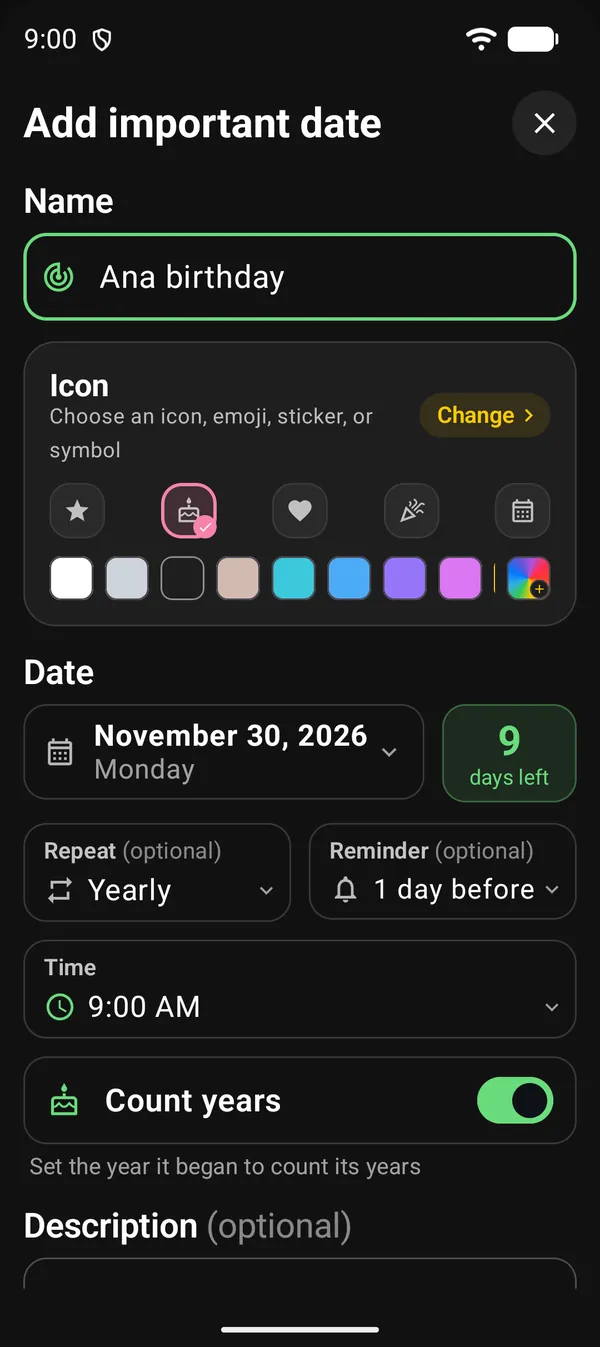
- In Name, type “Ana birthday”.
- In Date, tap the date and pick the day. The days left show next to it.
- Check the rest. The shortcut already sets Repeat to Yearly, Reminder to 1 day before, Time to 9:00 AM and turns Count years on.
- Tap Save.
If the app’s notifications are off, DicaNote asks for permission when you save. Without it, the date is saved with no reminder.
The day before, at 9:00 AM, the reminder arrives. Once the day has passed, the date moves on to next year by itself and the countdown starts again.
Show the age
With Count years on, the card shows the age, such as Turns 31. For that, the date has to be in the year of birth. If it is still in the current year, you see the hint Set the year it began to count its years.
To change the year, open the date and tap the month name at the top of the calendar. It opens a list of months and years, so you can jump back decades in a few taps.
3. The form fields
| Field | Options |
|---|---|
| Icon | Five shortcuts and a row of colours. Change opens emoji, icon, sticker or symbol |
| Repeat | Does not repeat or Yearly |
| Reminder | None, On the day, 1 day before, 3 days before or 1 week before |
| Time | When the reminder rings. Only shows with a reminder |
| Count years | Only shows with Yearly |
| Description | Optional, for a detail such as “buy a gift” |
Each Quick add shortcut comes filled in its own way:
| Shortcut | Comes with |
|---|---|
| Birthday | Yearly, reminder 1 day before, Count years on |
| Anniversary | The same as Birthday |
| Holiday | Yearly, no reminder |
| Other | No repeat, reminder on the day |
Other sits at the end of the row: swipe the shortcuts sideways or tap the arrow. The green + opens the form with no repeat and no reminder.
4. Edit or delete a date
Tap the card to open Edit important date, with the same fields. The card’s ⋮ menu has Edit and Delete. Delete asks first and removes the date along with its reminder.
The card shows the date, the Yearly and reminder-on pills, and the countdown in days. The day before and on the day, the countdown reads Tomorrow and Today.
Yearly dates that passed in the last seven days appear under Recently passed, at the top of Upcoming.
5. More options
- From the Month tab: tap a day, then Mark important. The form opens on that day.
- Remind me of all birthdays: in the Dates tab ⋮ menu. Turns on a 1-day-before reminder for birthdays that have none. It covers dates made with the Birthday shortcut, and the option only shows while one of them has no reminder.
- Delete past dates: a button in the Past tab. After you confirm, it deletes non-repeating dates that have passed.
- Import ICS: in the Dates tab ⋮ menu. Pick an .ics file, tick the events in the preview and tap Import. The events become important dates. Skip dates that have passed is on by default. You can also open an .ics file from another app with DicaNote.
Next guides
FAQ
Do I have to add the birthday again every year?
No. With Repeat: Yearly, the date moves on to next year by itself, reminder included.
Why doesn't the card show the age?
The date is set in the current year. Edit the date, pick the year of birth and keep Count years on.
I saved with a reminder, but it isn't on. Why?
The app didn't get notification permission. Allow DicaNote's notifications and turn the reminder on again in the date.
Does a non-repeating date disappear once it has passed?
No. It moves to the Past tab. To clear it out, use Delete past dates.