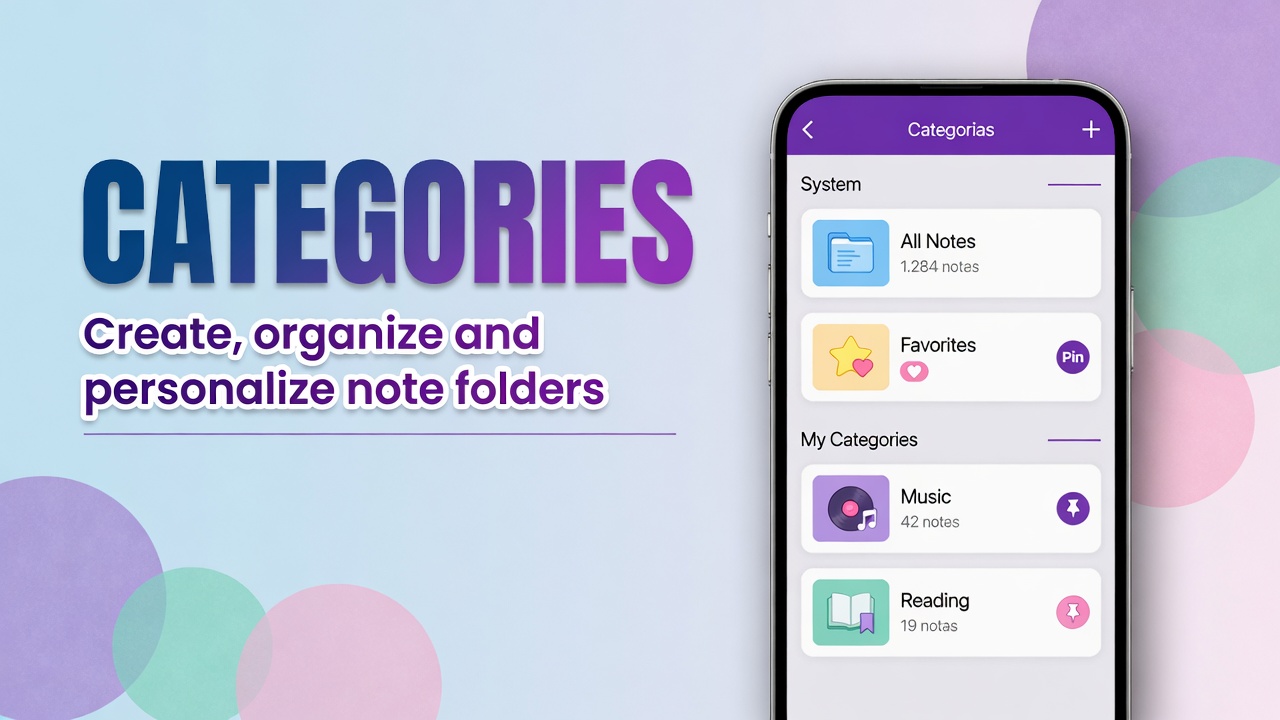
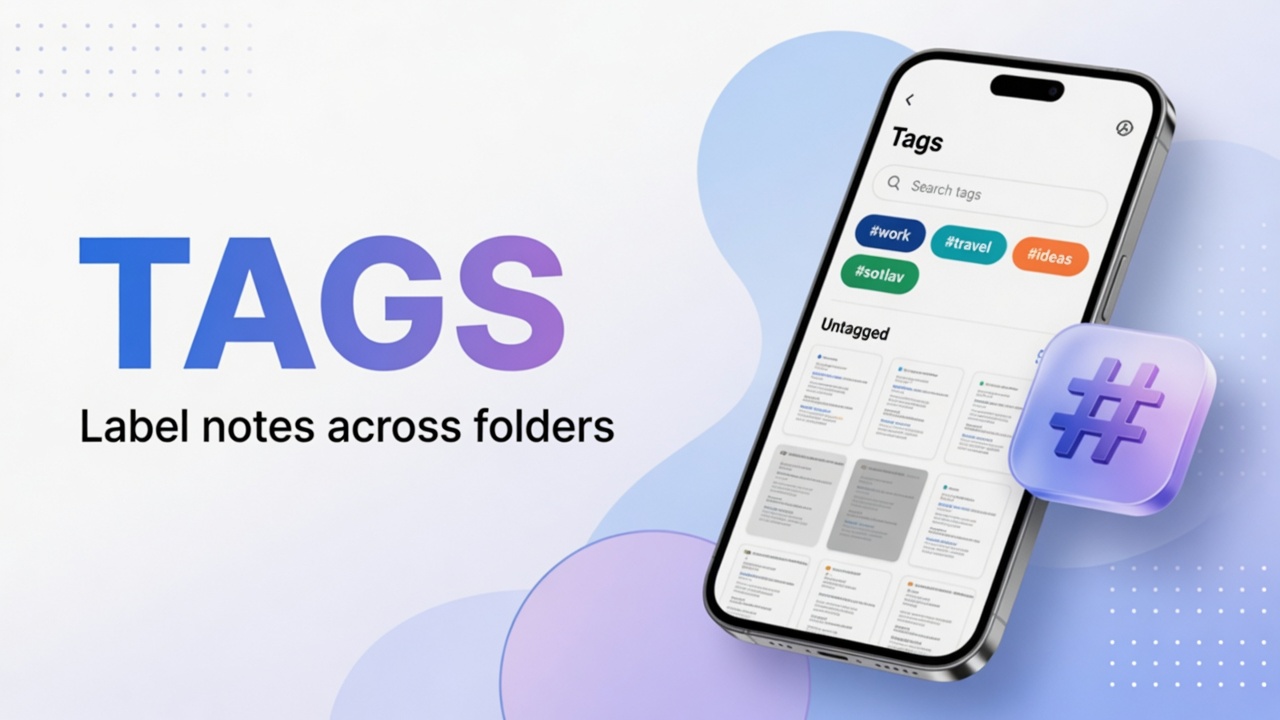
Category groups. Link connects. A “Trip” note can point to “Packing”, “Hotels” and “Itinerary” without copying the text three times.
Link to another note (internal)
- Open the source note.
- On the bottom bar, tap the relations / links icon (connected dots or equivalent).
- Choose the destination note.
- Confirm.
The app shows a card with title and snippet. Tap the card to open the linked note.
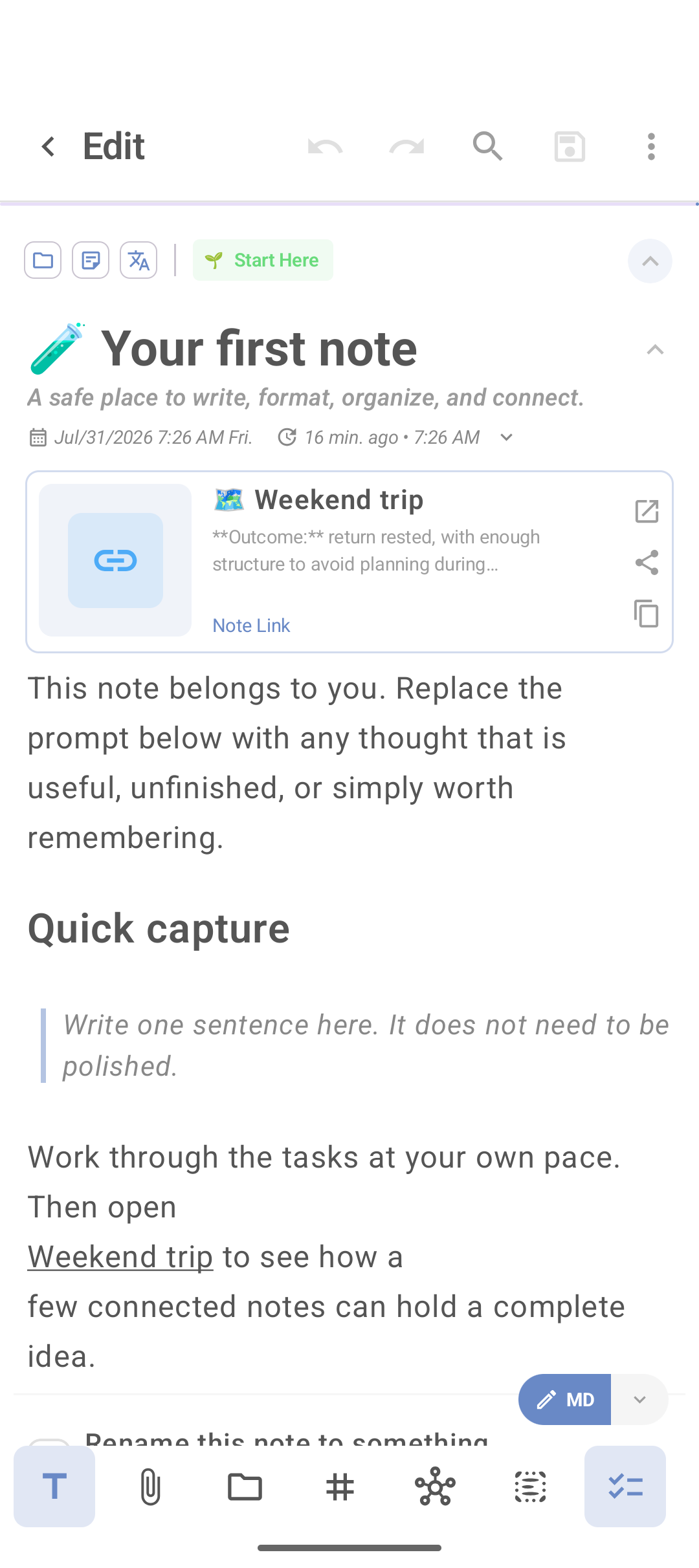
You can also paste a dicanote://note/... link in Markdown if a demo note or the app generates that address.
When to link (and when not)
Link when, a month from now, opening A you will need B.
Do not link everything to everything. Too much graph becomes a useless web.
Example: “Project X” → “Decisions”, “Timeline”, “PDF references”. Each child stays short; the parent is the map.
Web links
- Paste the URL in the note body. The app may generate a preview (title, site).
- To see all saved links: menu ⋮ → Manage Web Links.
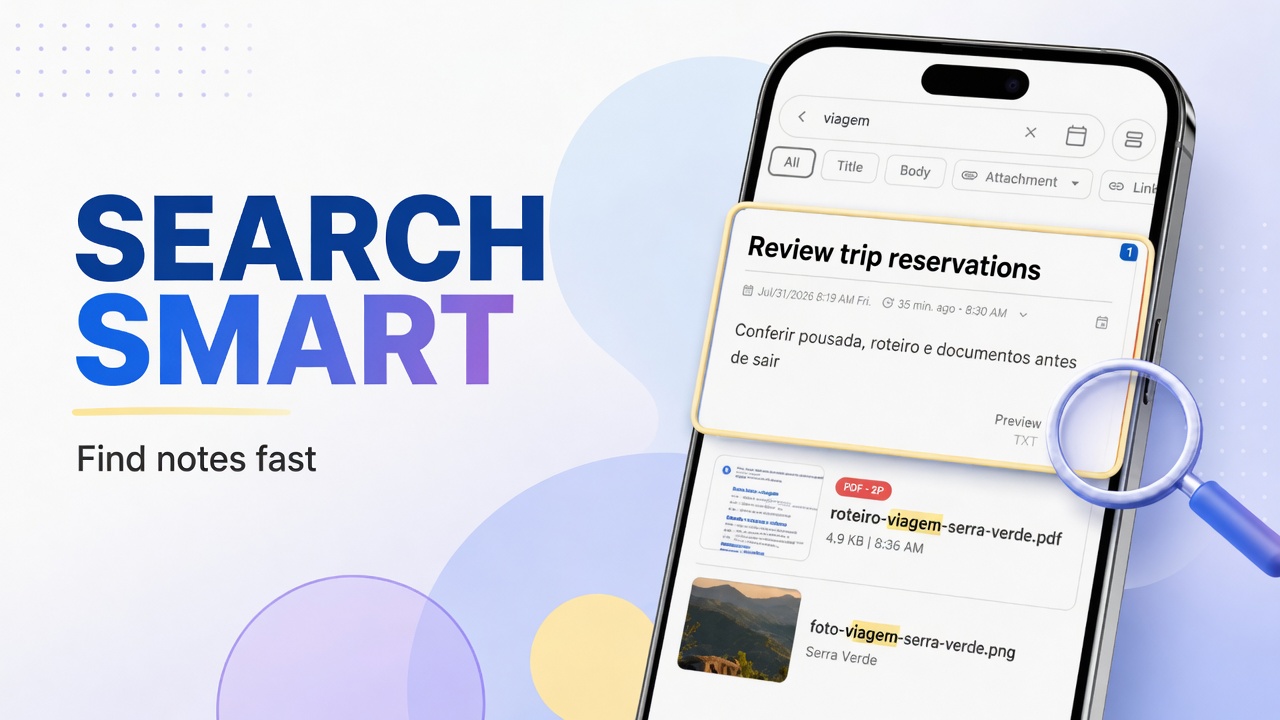
- Search by title or domain.
- Open, copy or share from the list.
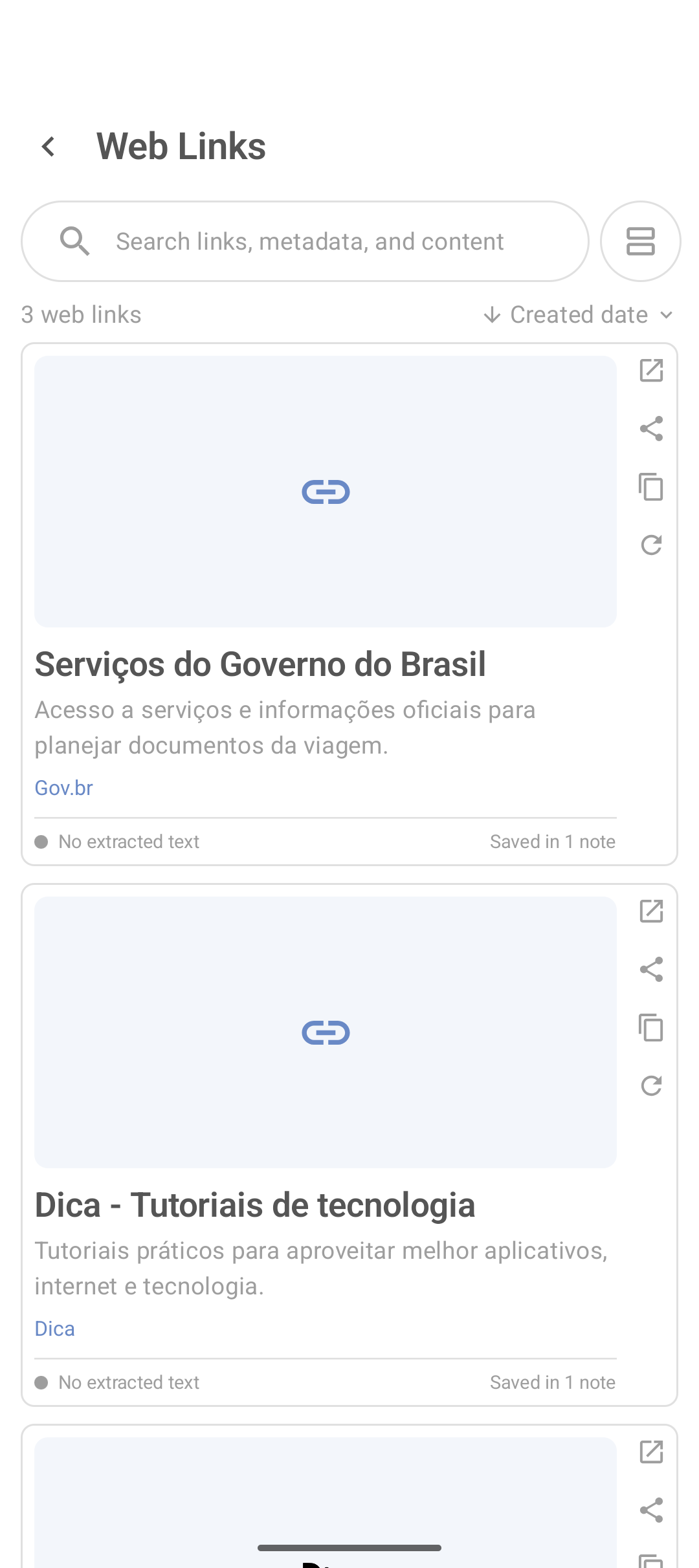
Write one line why the link matters. A bare URL goes cold over time.
Share into the app
Text or links from another app: share text into DicaNote.
Remove a connection
Deleting the relation card does not delete the other note. It only removes the reference.
FAQ
Are internal and web links the same?
No. Internal opens another DicaNote note. Web opens a site in the browser.
Where do I list all web links?
Main menu → Manage Web Links.
Can I link more than one note?
Yes. One source can have several destination cards.
Site preview came back “404”?
The app stores what the site returned at the time. Update the link or write the title by hand in the note body.
Starting from zero: first note.