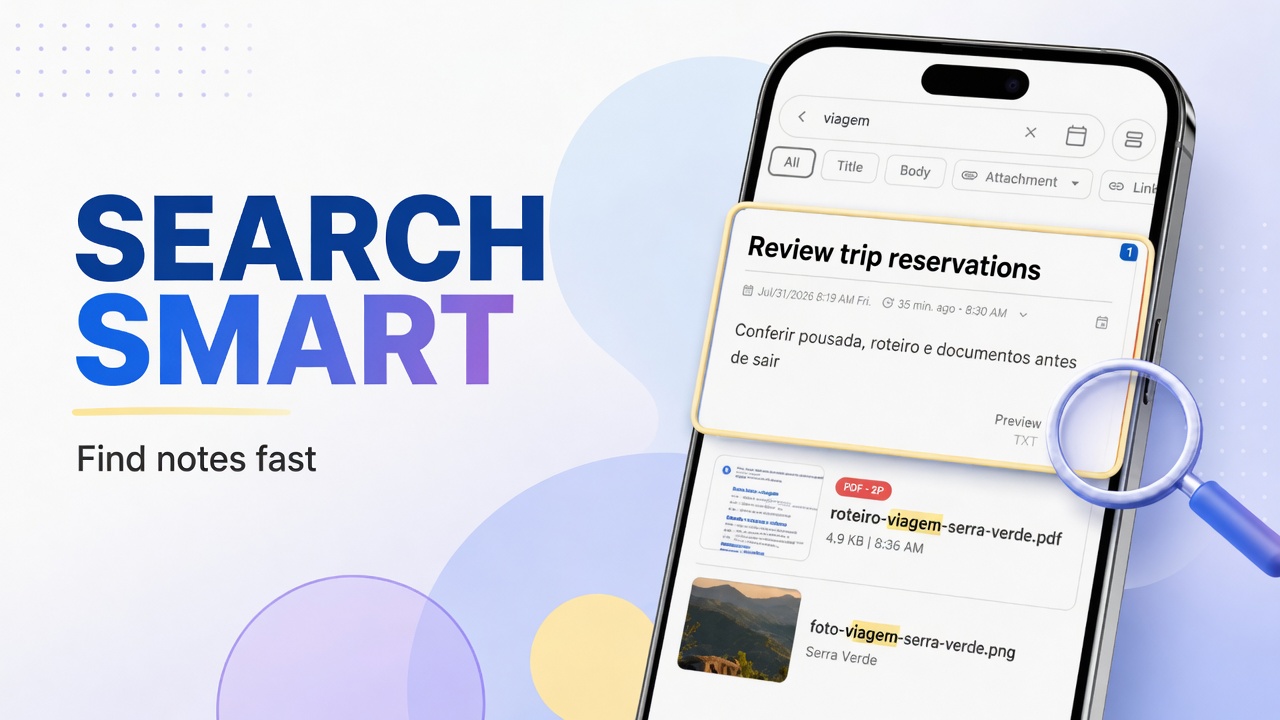
Attaching is the paperclip on the note. Managing is the Attachments menu: a library view of files that already entered the app.
Open Attachments
- Home → ⋮
- Attachments
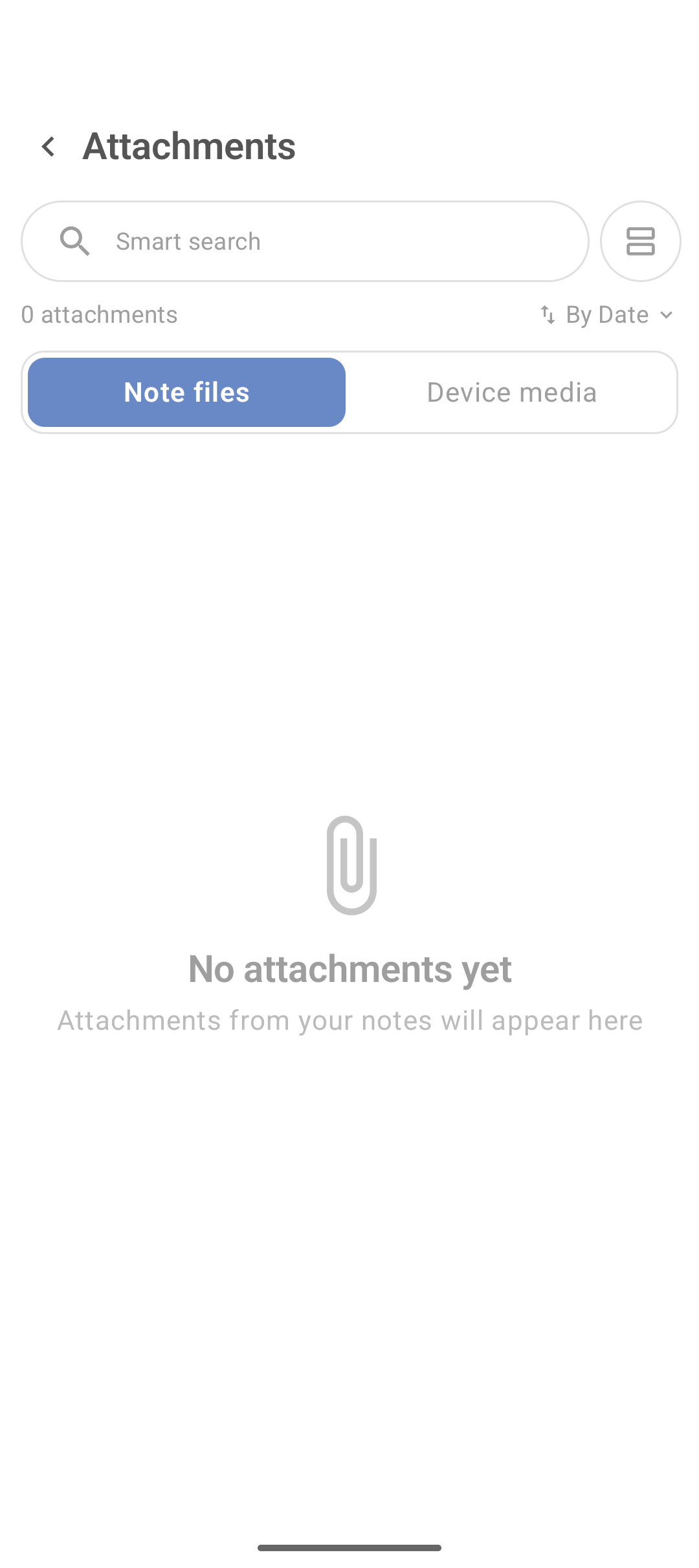
Note files vs Device media
| Tab | Content |
|---|---|
| Note files | Files linked to your notes |
| Device media | Media on the device (per permission) |
Use Note files day to day. Device media helps find something on the phone to attach again.
Search and sorting
- Search field by file name.
- Sort selector (date, name…).
- Switch grid/list layout when the button exists.
Open the note for an attachment
Tap the item. In many flows the app shows the file and/or takes you to the source note. If it only opens a viewer, use the note menu or search by title.
PDFs separately
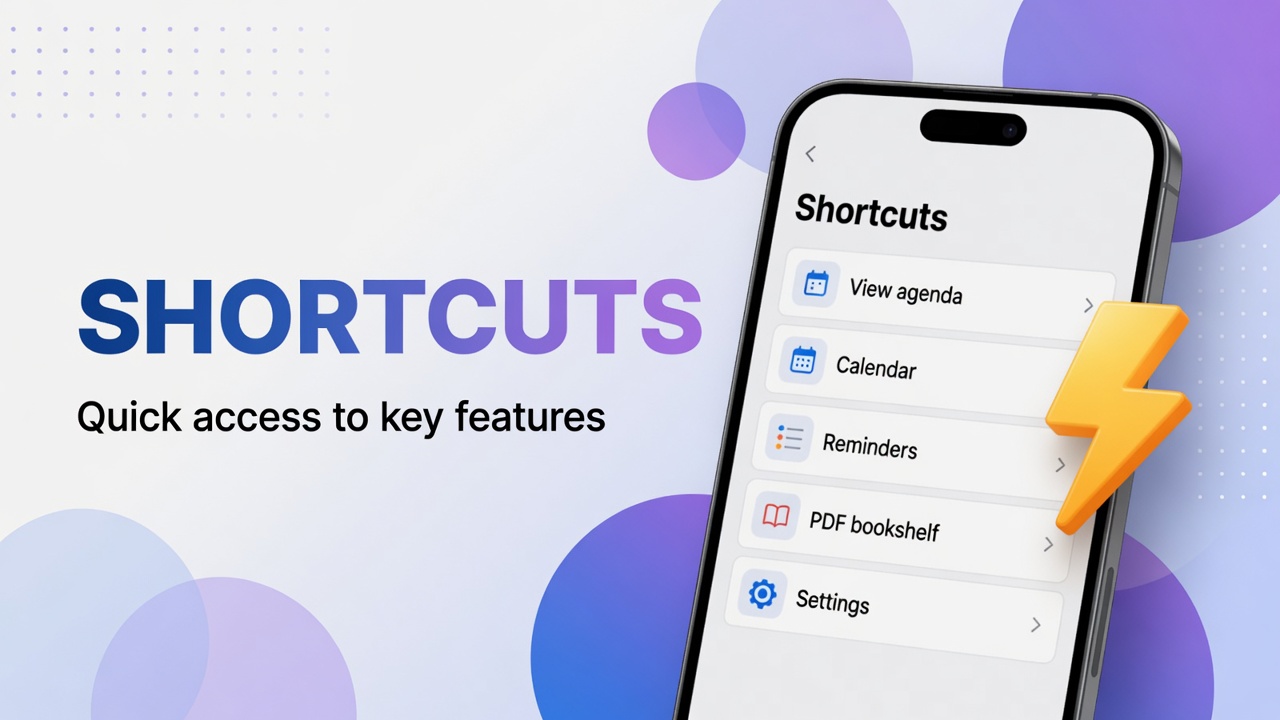
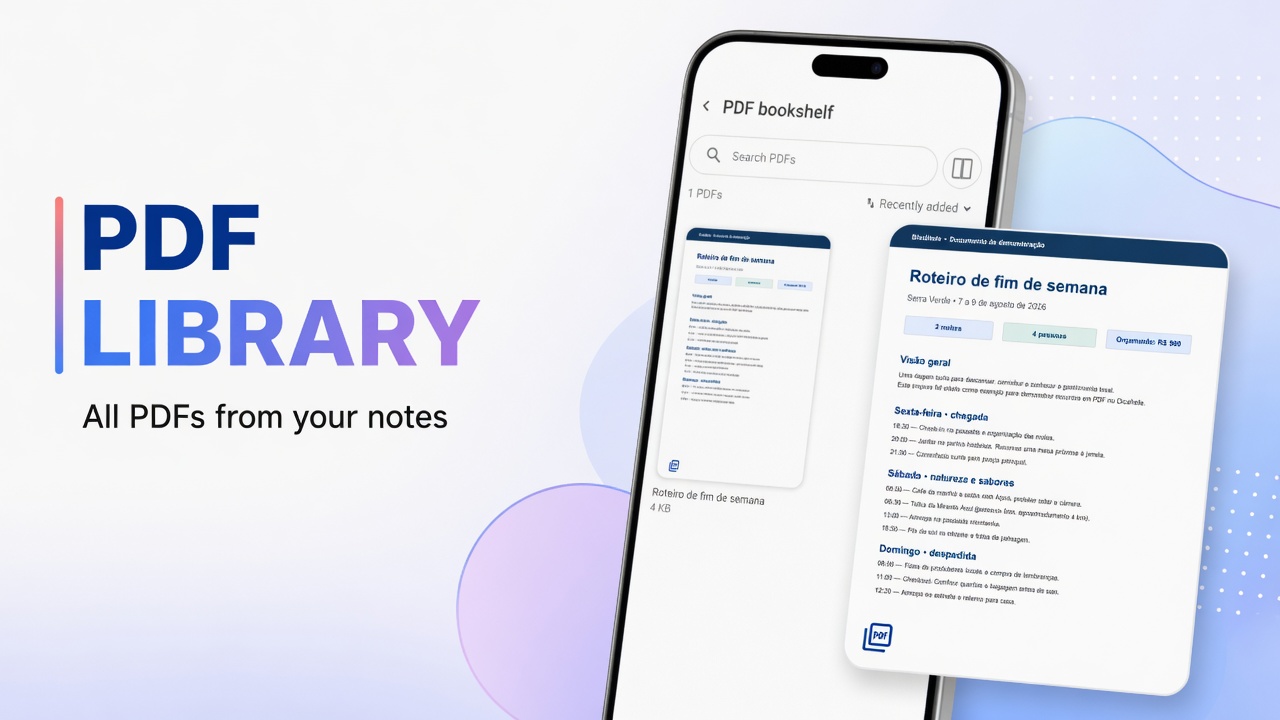
For documents only: PDF bookshelf. Attachments stays useful when photo, audio and PDF mix together.
Cleanup
- Wrong file: remove the attachment inside the note.
- Whole note useless: trash or archive.
- Before clearing dozens of media files: backup.
How files get in
| Type | Guide |
|---|---|
| Photo / general file | Attachments |
| Audio | Record audio |
| Video | Attach video |
| Scan | Scan document |
FAQ
Does Attachments delete the original on the phone?
Usually the app keeps a copy linked to the note. Do not assume deleting from the gallery deletes the note attachment (or the reverse) — test with a disposable file.
Why do I not see a PDF I attached?
Confirm you saved the note, that the file is under Note files, and that it is not on a private or archived note.