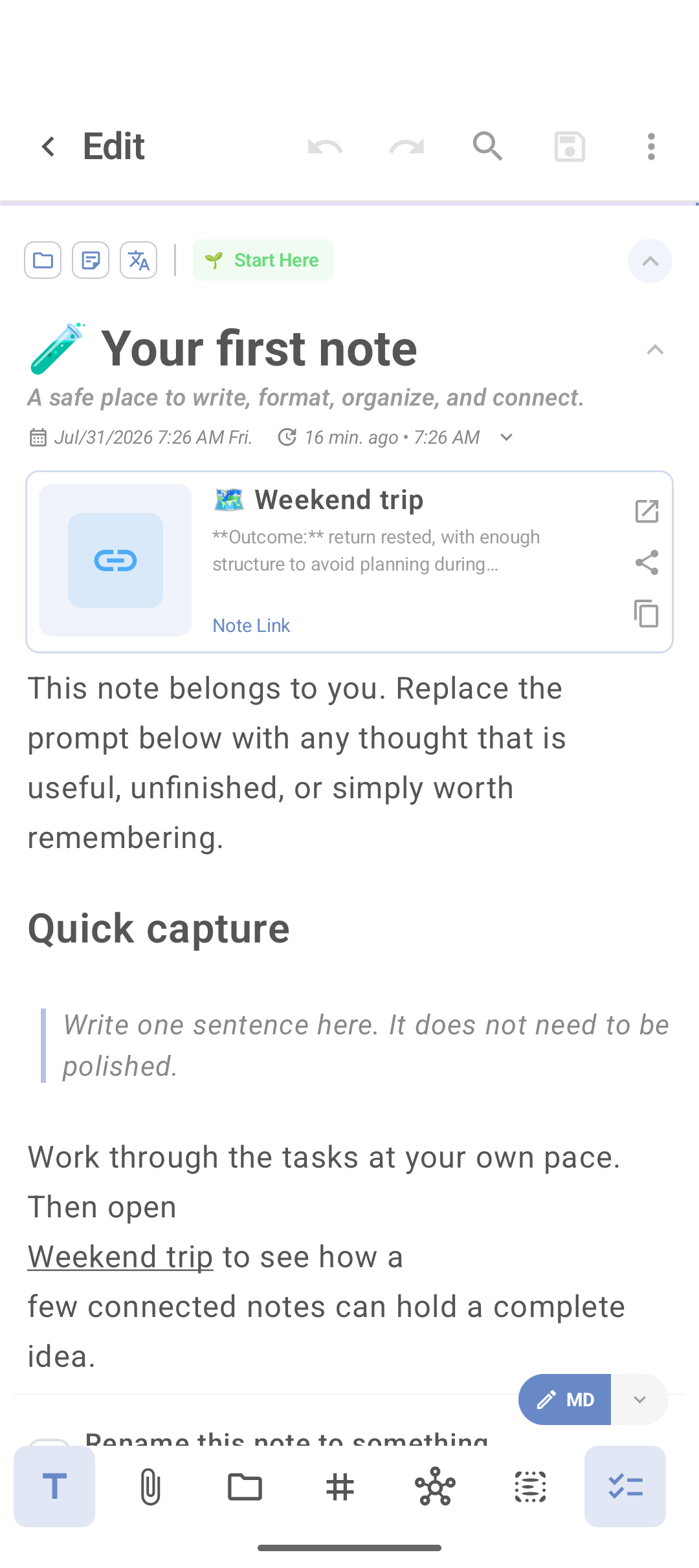
DicaNote accepts Markdown in the note body. Instead of tapping formatting buttons all the time, you type simple symbols and the app understands the structure. In the UI, MD mode (or the T text shortcut) is the path.
Syntax you will use most
# Main heading
## Subheading
### Smaller section

Normal paragraph.

**bold** and *italic*

- List item
- Another item

1. Step one
2. Step two

- [ ] Pending task
- [x] Done task

[Link text](https://dica.com.br)

> Quote or note
You do not need to memorize everything. With #, - and ** you cover most notes.
Checklist in Markdown
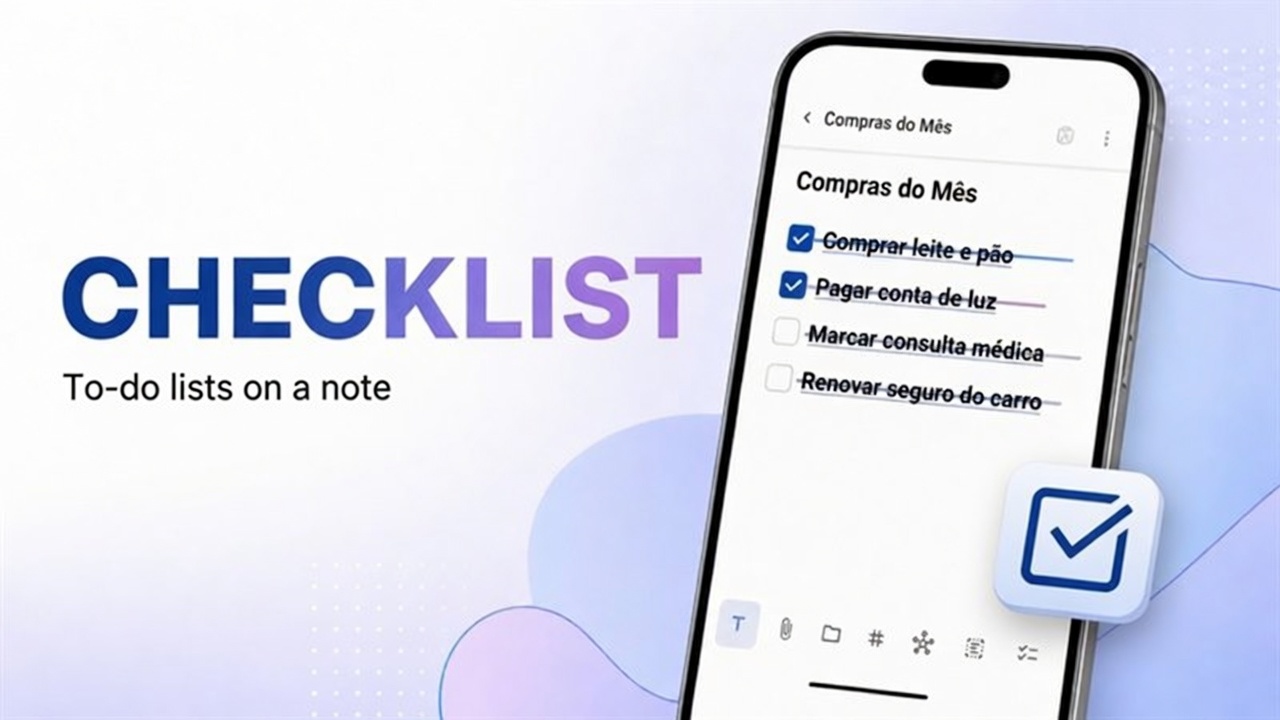
- [ ] and - [x] become boxes. If you prefer tap, priority and subtasks, use the To-Do List component — both styles can coexist in the same library.
Links
- Web:
[Dica](https://dica.com.br) - Related notes: also use the editor’s links button (internal links).
When Markdown helps
- Long note with sections (meeting, study, project).
- Quick checklist without opening the component.
- Paste a draft from another app that already uses MD.
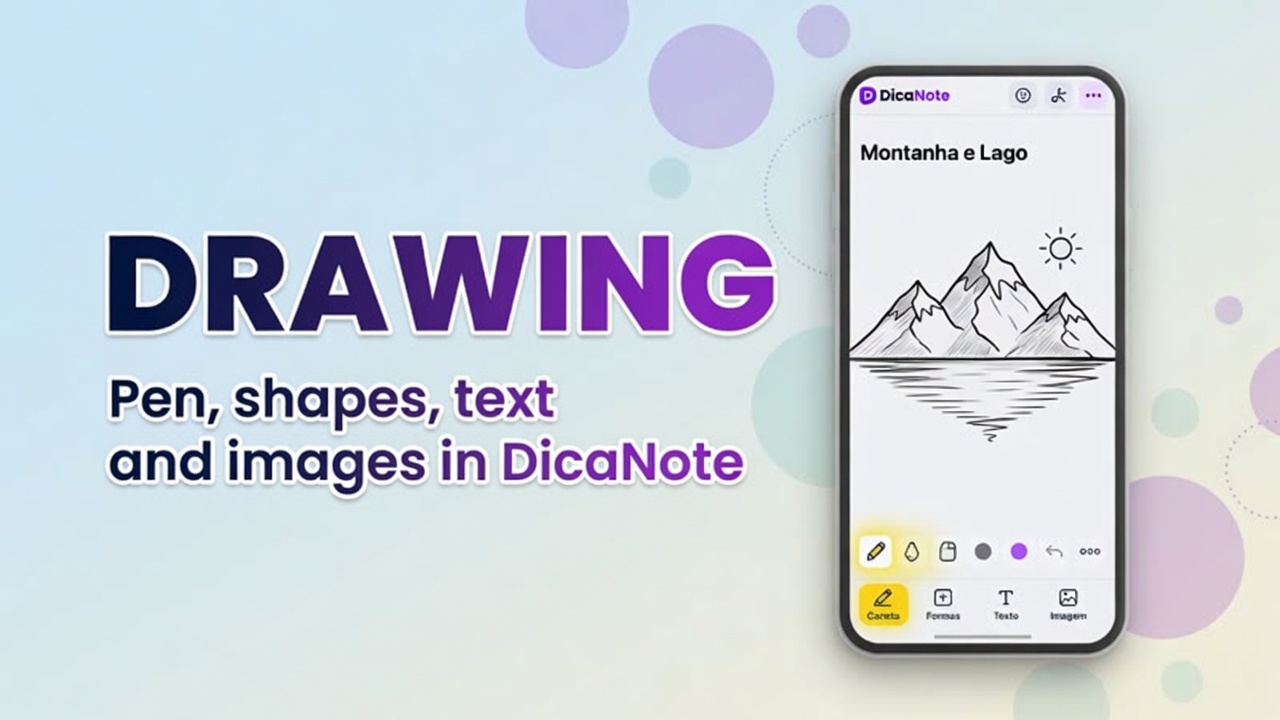
When not to force MD: sketch and photo — use drawing or attachment.
Tip: if the preview looks odd, check spaces: in Markdown, a blank line separates paragraphs; a list needs hyphen and space (- item).
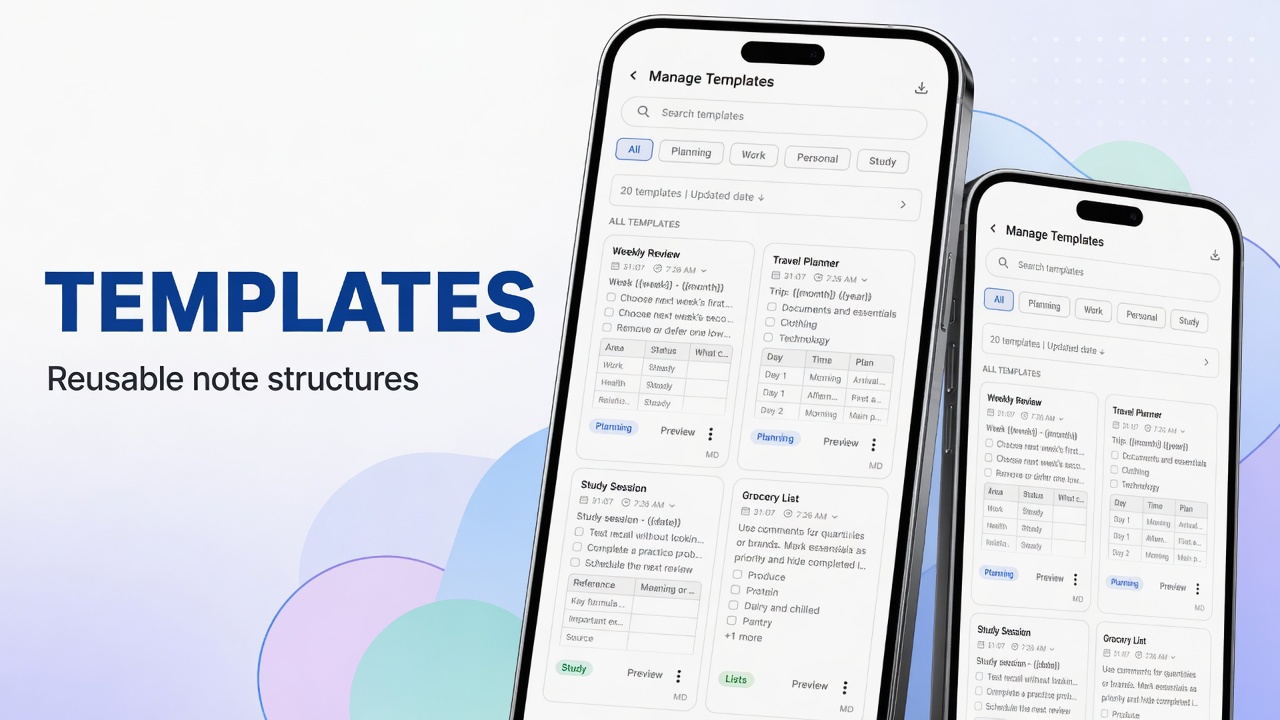
Templates already in MD
Several cards in Manage Templates ship with Markdown and {{date}} fields. Create the note and replace the placeholders.
FAQ
Do I need a special mode?
Use the editor in text/MD mode when the version shows the option. When unsure, type the syntax and save — the app usually renders it on read.
Does Markdown work in the note title?
The title is usually plain text. Keep formatting in the body.
Can I mix bar buttons and Markdown?
Yes. The bar (T, list, paperclip) and MD complement each other; they are not exclusive.
First note without fuss: create your first note.