Sometimes the same idea becomes three notes. DicaNote has Merge Notes to join the content and keep one main note.
UI language: the merge dialog is in English — the names below are the ones on screen.
Enter selection mode
- On the list, use Dense layout if Grid only opens a preview on long-press (layout).
- Long-press the first note’s title.
- Tap the others. The counter rises.
- On the bulk bar, tap Merge Notes.
Full bar guide: select notes in bulk.
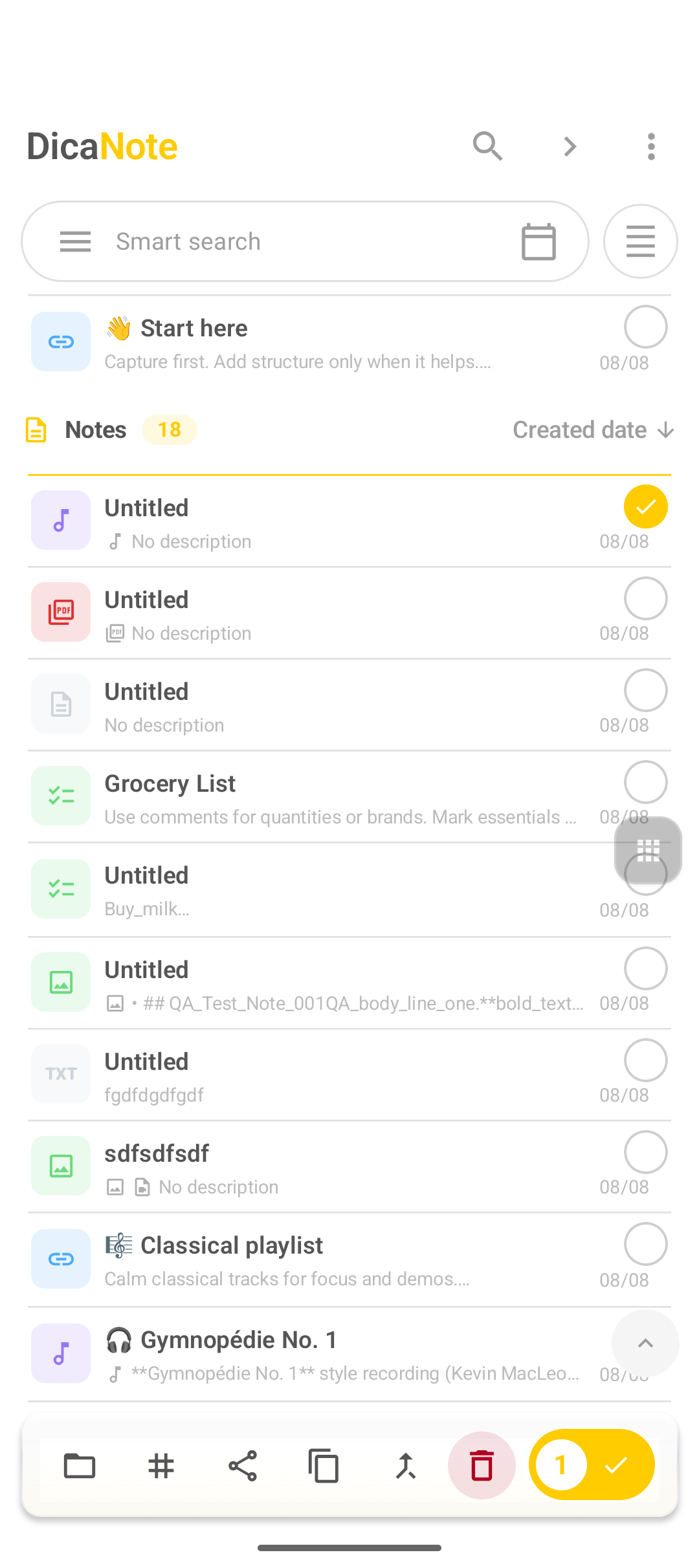
With only one note selected, merge does nothing useful — mark at least two.
Confirm what stays and what goes
The Merge notes dialog makes the rule clear:
| Label in the app | Meaning |
|---|---|
| Keep this note | Note that remains |
| This note will be deleted | Note that disappears after the join |
| Merge and keep this note | Confirms the merge |
| Cancel | Abort |
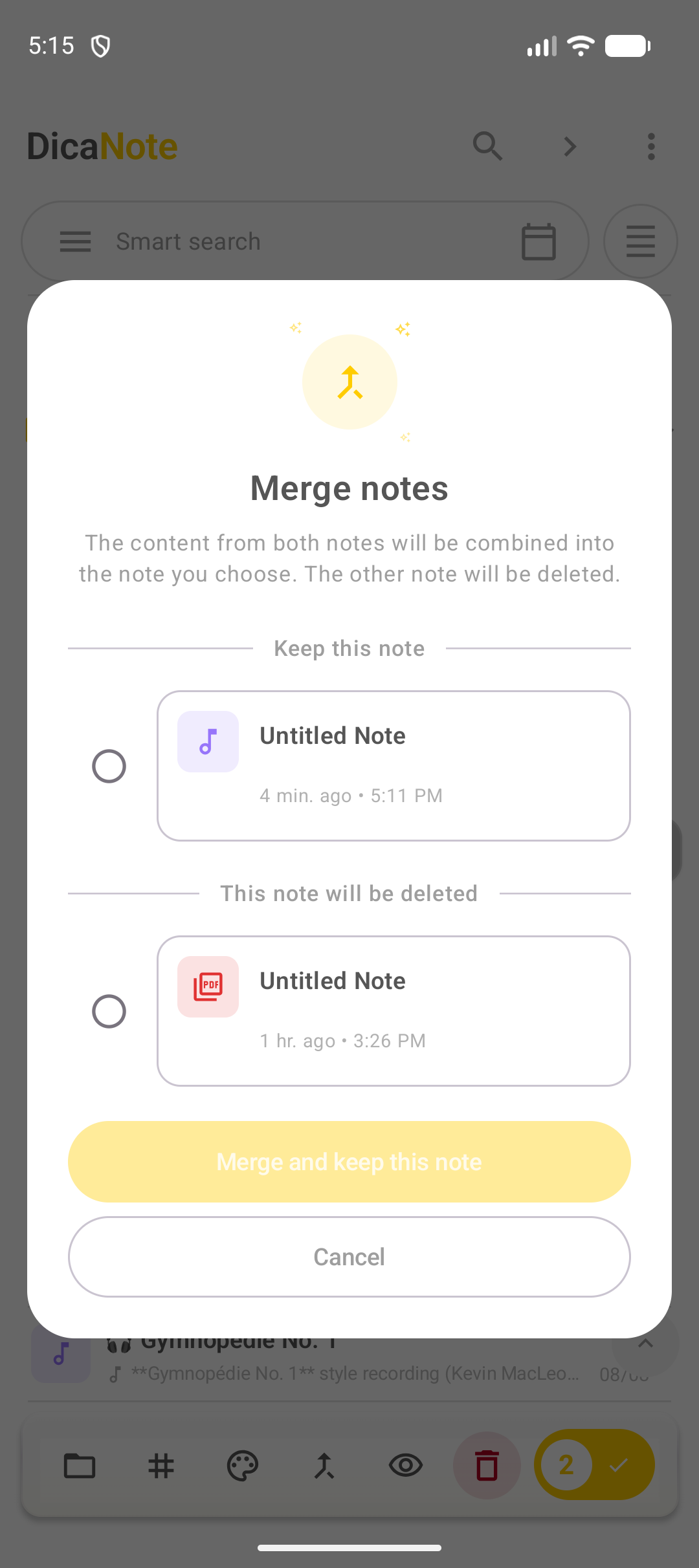
Warning: the note marked for deletion stops existing as a separate item. If it has a unique attachment, check the result or make a backup before merging large batches.
When merge helps
- Drafts of the same topic on different dates.
- A single “source of truth” for a project.
Do not merge notes on different topics or PDFs/audio you prefer kept separate.
FAQ
Can I undo a merge?
Do not treat it as an automatic reversible operation. Critical content: export or back up first.
Do categories and tags carry over?
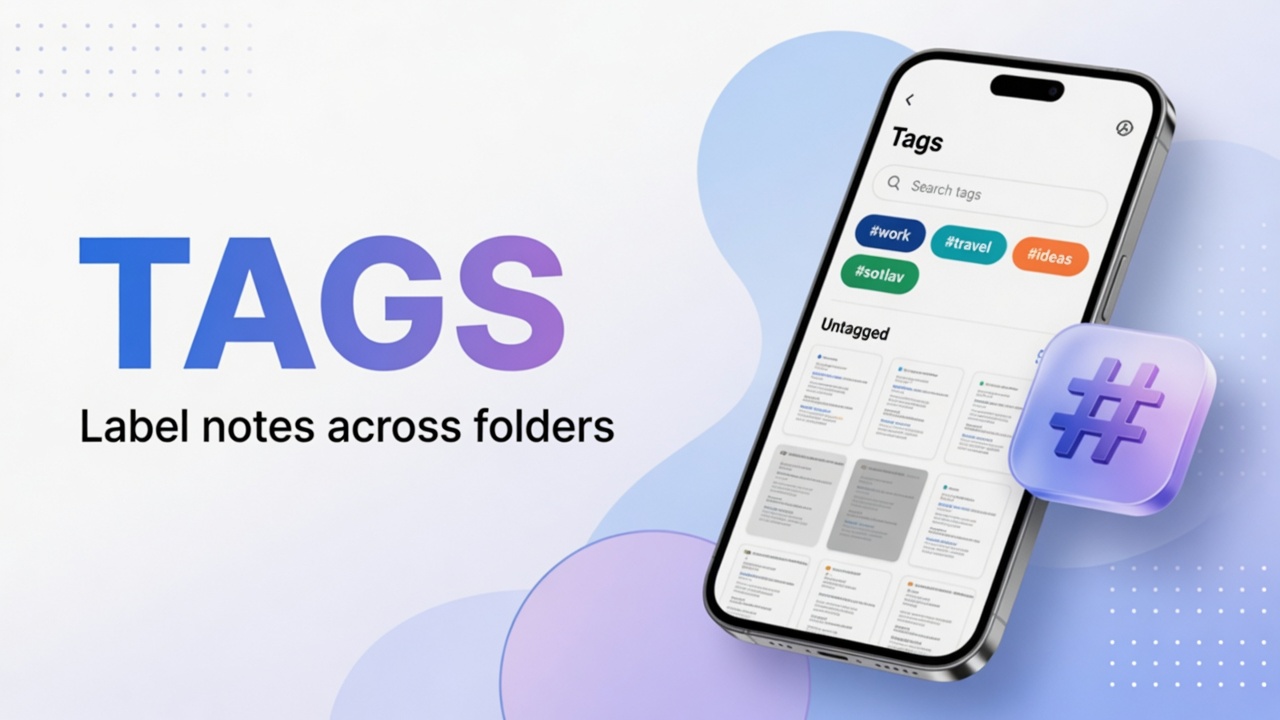
Review metadata on the kept note after the merge.
More than two notes?
Select as many as the UI allows. Merging two at a time with a review in between is safer.