DicaNote uses a Privacy PIN — an app-only code, separate from the Android screen lock. With it you lock opening DicaNote and/or access to notes marked private.
UI language: the screen is in English. Below, the label in the app is bold and we explain what to do.
Privacy: tutorial screenshots use a fictional email ([email protected]) and do not show a real account, real PIN or password.
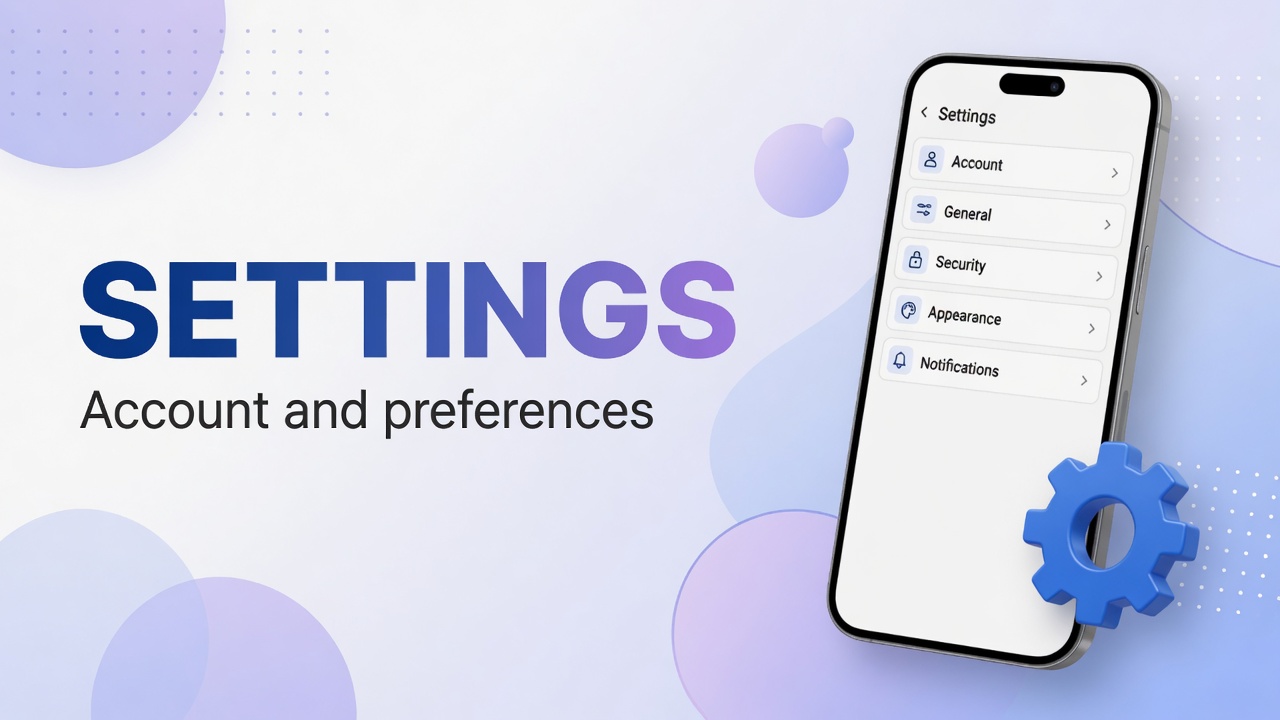
1. Open Settings
- On the notes list (home), tap ⋮ (menu icon).
- Tap Settings.
2. Enter Security
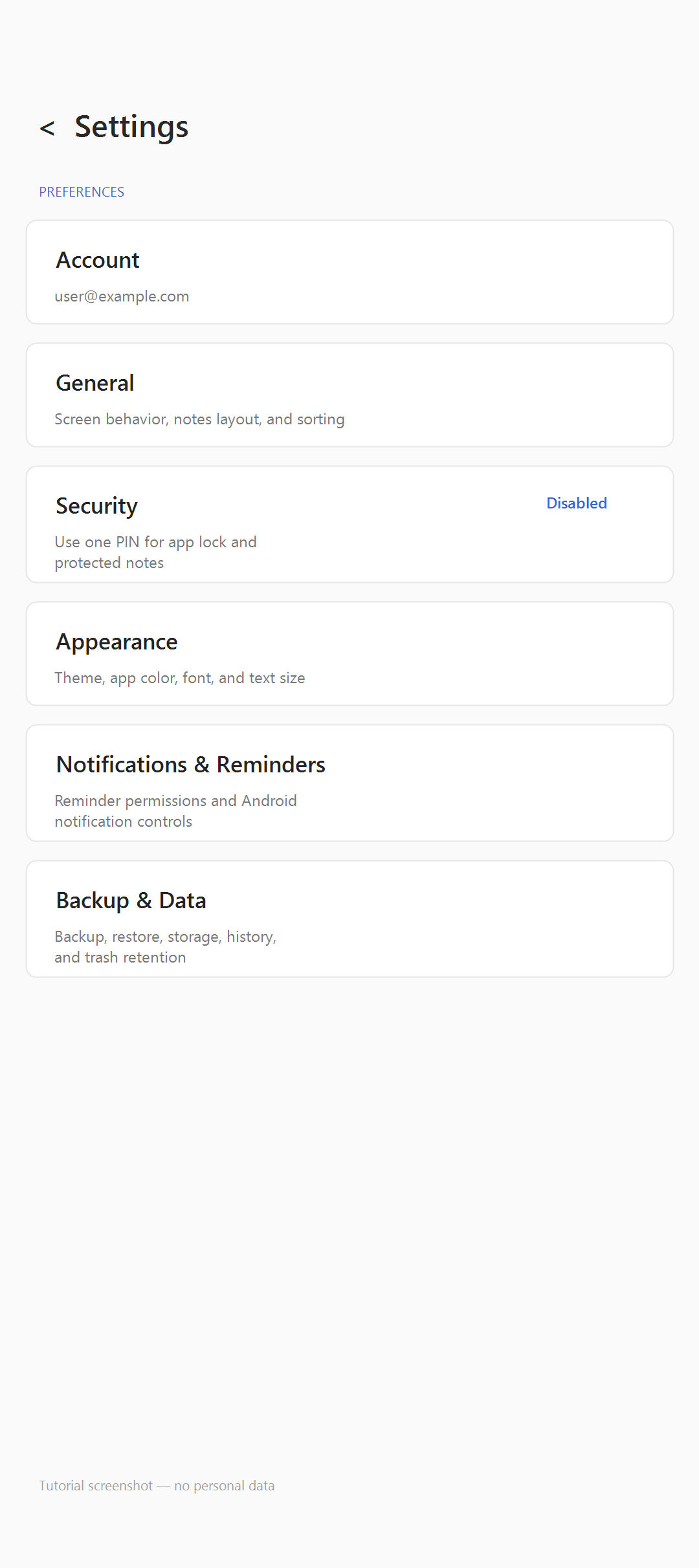
In the PREFERENCES list, tap the Security row.
| Label in the app | Meaning |
|---|---|
| Security | Security |
| Use one PIN for app lock and protected notes | One PIN to lock the app and protected notes |
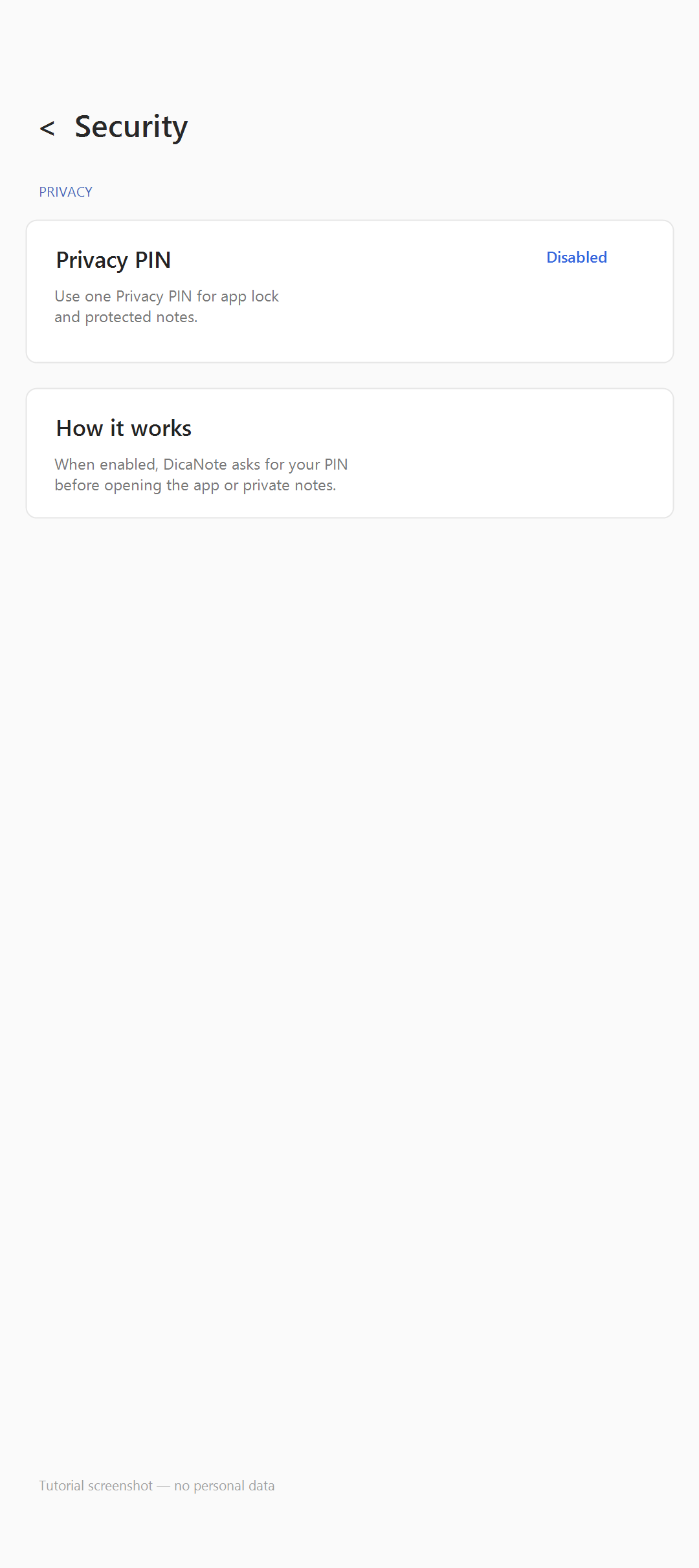
| Disabled | PIN still off |
3. Privacy PIN — what the screen shows
Inside Security you find the Privacy PIN block:
| Label in the app | Meaning |
|---|---|
| Privacy PIN | Feature name |
| Use one Privacy PIN for app lock and protected notes | One PIN for app lock and protected notes |
| Disabled / enabled | Off or already configured |
4. Enable and create the code
- Tap Privacy PIN (or the switch / activation flow in your version).
- Enter a new PIN (avoid reusing the phone lock if you can).
- Confirm the PIN when the app asks.
- Store the code outside the device (password manager, safe paper).
- Return to Settings and check that Security no longer shows only Disabled.
Do not use in tutorials or screenshots: a real PIN, birth date, 1234, 0000.
Warning: if you forget the PIN and your version has no recovery, private notes (and the app, if lock is on) may become inaccessible. Treat the code like an email password.
5. Protect a note (Private note)
- With Privacy PIN already on, open the note.
- In the note menu (⋮ or preview action bar), tap Private note.
- Confirm if the app asks for the PIN.
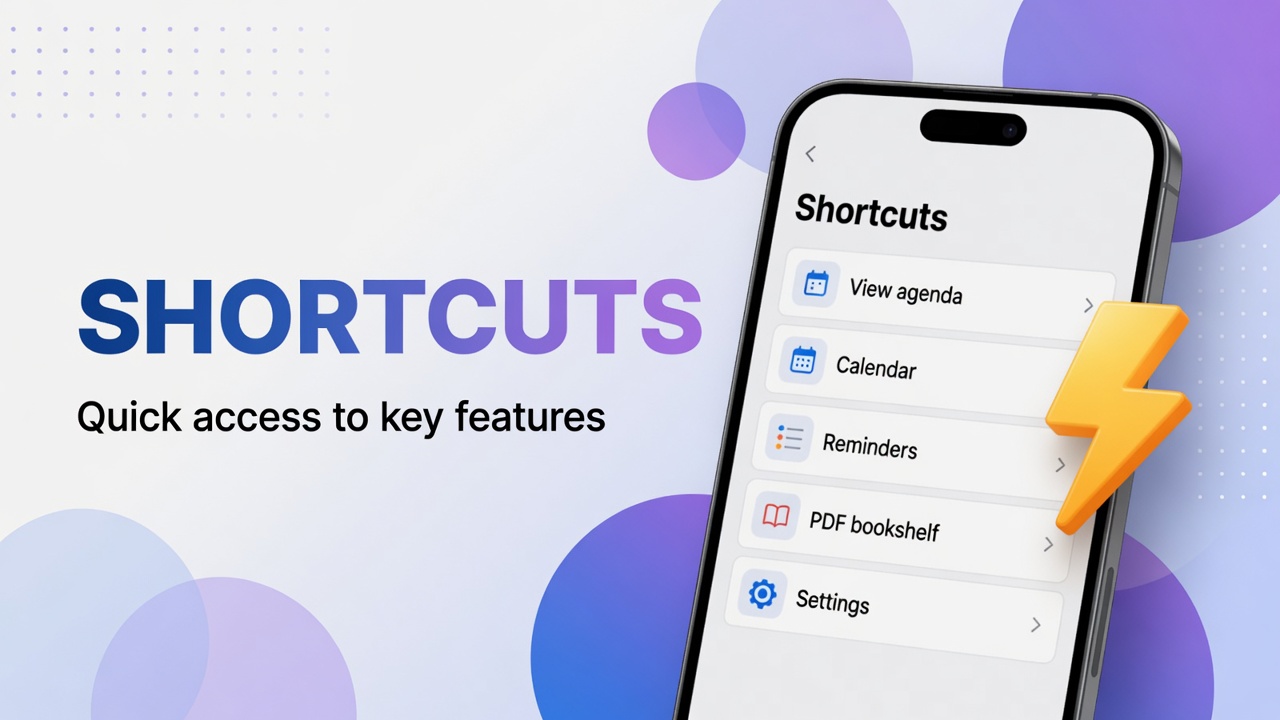
To list only private ones: Shortcuts panel (grid on home) → Private Notes.
Panel guide: Shortcuts.
6. What the PIN does not replace
- The Android screen lock.
- A backup in a safe place.
- Care when lending the phone with the app already unlocked.
Account (do not mix with PIN)
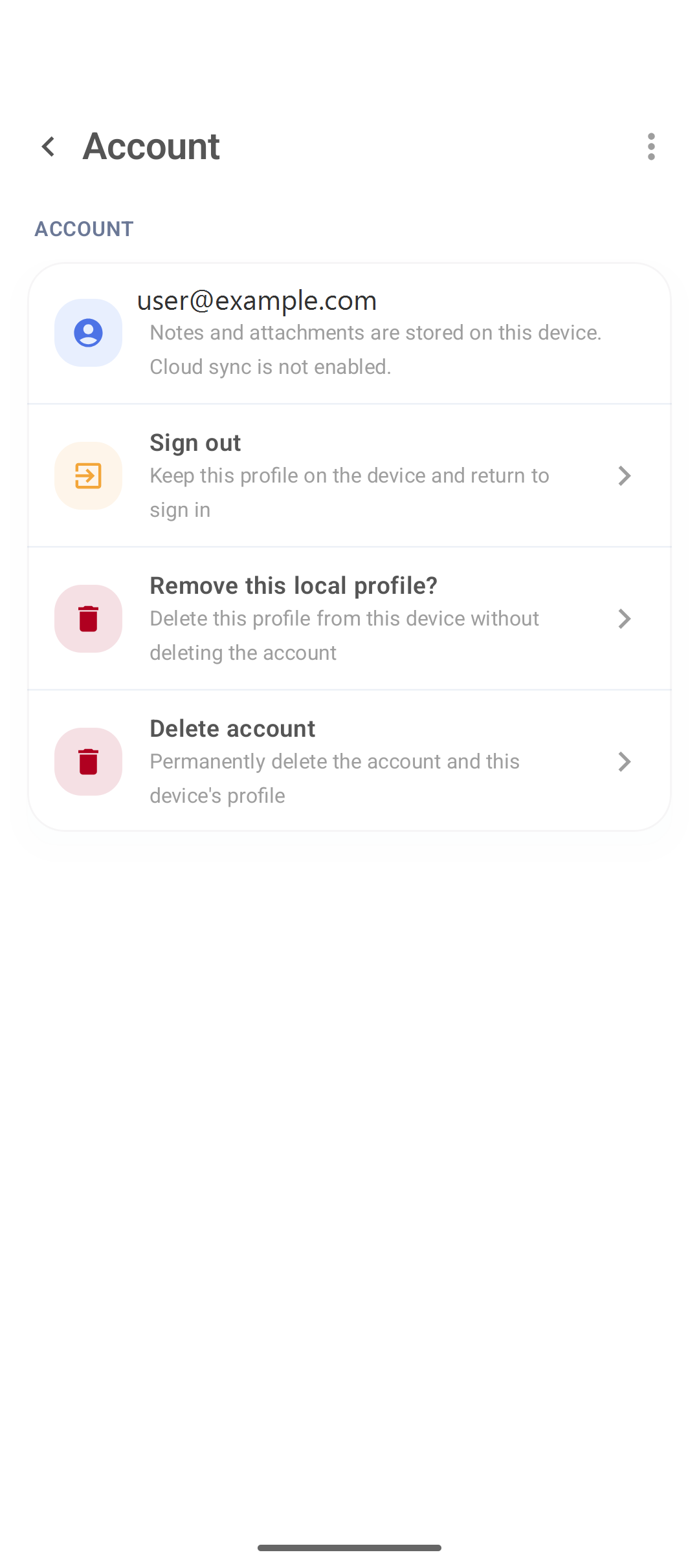
Under Settings → Account (screenshots with [email protected]):
- Sign out — leave the session (read whether the local profile remains).
- Remove this local profile? — removes the profile on this device.
- Delete account — permanent account deletion.
FAQ
Is Privacy PIN the same as the phone lock?
No. It is a DicaNote code. The Android screen lock is another layer.
Are all notes hidden?
It depends: app lock on open and/or only notes with Private note. Check Security and Private Notes.
Do I need internet?
Not for the local PIN.
Where is it in English on screen?
Settings → Security → Privacy PIN. Common state before setup: Disabled.