DicaNote reads a note aloud, sentence by sentence, and can record that reading to an audio file. It also opens Google Translate’s page with the note’s text. All three live in the same place: the editor’s Tools menu.
1. Where the options are
- Open the note.
- Tap ⋮ → Tools.
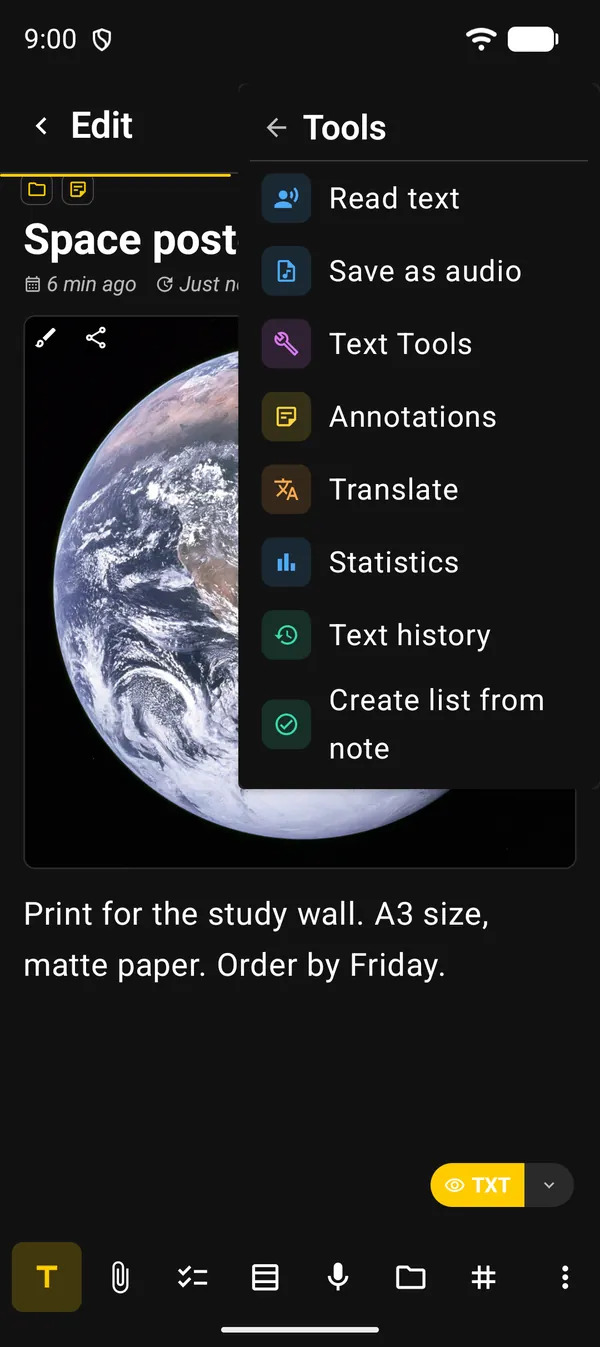
| Option | What it does |
|---|---|
| Read text | Reads the note aloud, with the transcript on screen |
| Save as audio | Records the reading to an audio file and attaches it to the note |
| Translate | Opens Google Translate with the note’s text |
2. Listen to the note
Tap Read text. The note is replaced by a transcript and reading starts on its own. The sentence being read is shown in bold.
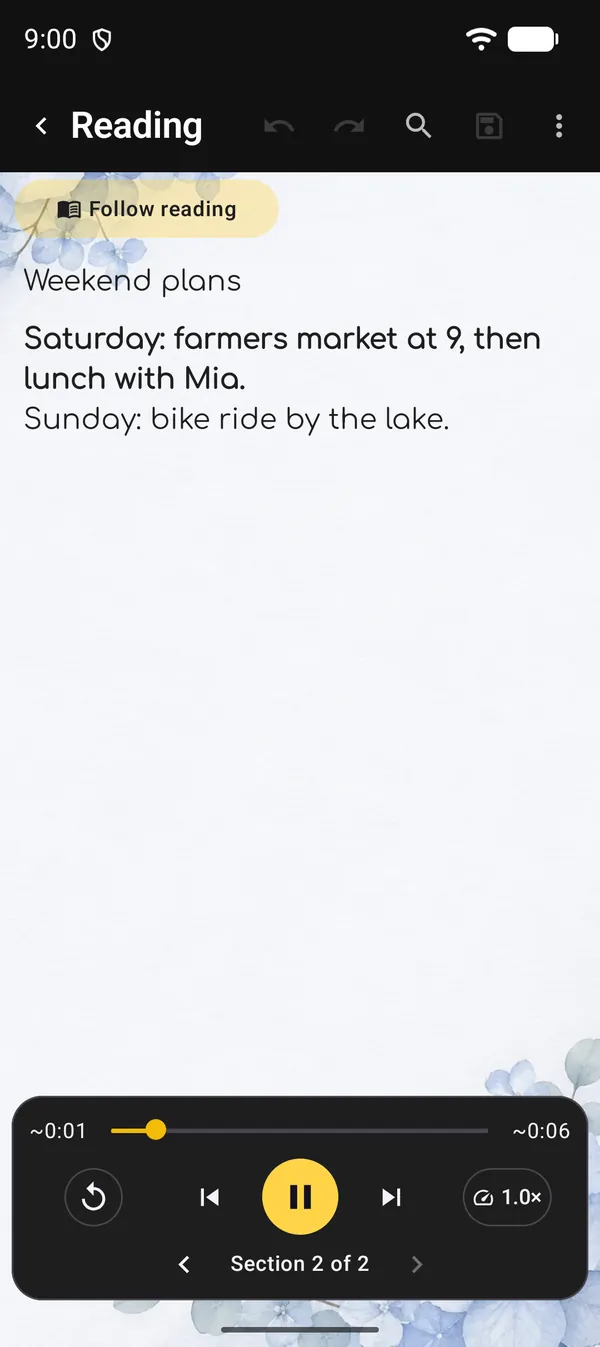
The player has:
| Control | What it does |
|---|---|
| Time bar | Shows how much has been read. Drag it to jump to another section |
| Circular arrow | Replay: starts again from the top |
| ⏮ / ⏭ | Previous sentence / Next sentence |
| Yellow button | Play / Pause |
| 1.0× | Speed and other options (section 3) |
| ‹ Section 2 of 2 › | Moves back or forward a whole section |
Times carry a ~ because they are estimates. Each section is a paragraph or a short block of the note. The title counts as the first one.
To start from another point, tap a sentence in the transcript. Reading jumps straight to it. If it is paused, it waits there until you tap Play.
When the note ends, Finished appears with a Replay button. To close the reader, tap the back arrow at the top of the screen.
Follow reading
The Follow reading button above the text scrolls the screen for you so the sentence being read stays in view. Turn it off if you want to scroll the note freely while you listen.
Notes with a checklist
If the note has a checklist, a second button appears next to it: Skip completed tasks. With it on, items already checked off are left out of the reading.
3. Speed, voice and timer
Tap the speed button (1.0×). The menu has:
- Speeds from 0.5× to 2×.
- Voice: lists the voices installed on the phone. Each one says Offline or Requires internet. The play button next to it plays a sample. At the top of that list is Language, to change the reading language.
- Sleep timer: pauses reading after 5, 15, 30 or 60 minutes. While it is on, the item reads Sleep timer is on, and inside it you’ll find Turn off timer.
The app remembers the speed and the Follow reading and Skip completed tasks buttons for next time.
The voice comes from the phone
The speaking is done by Android’s text-to-speech engine, not by DicaNote. If none is ready, or the voice for the language is missing, the reader shows Error with an explanation and three buttons:
- Retry
- Open text-to-speech settings: takes you to Android’s settings, where you install or enable an engine and download voices
- Close
4. Save the reading as audio
In ⋮ → Tools → Save as audio, a sheet opens with:
- Voice: the same list as in the reader.
- Playback speed: 0.5× to 2×.
- Skip completed tasks: only shown if the note has a checklist.
Under the sheet’s title you’ll see the file’s approximate length and size. Tap Create audio.
While the file is being made, the sheet shows Creating audio… and how many sentences are done. The screen stays on until it finishes. Cancel stops it.
At the end you’ll see Audio added. The file (.m4a) is attached to the note itself, like a voice recording. To play it, use the note’s audio player: see the attached audio guide.
5. Translate the note
Tap ⋮ → Tools → Translate. A sheet opens with Google Translate’s page inside the app, already holding the note’s text.
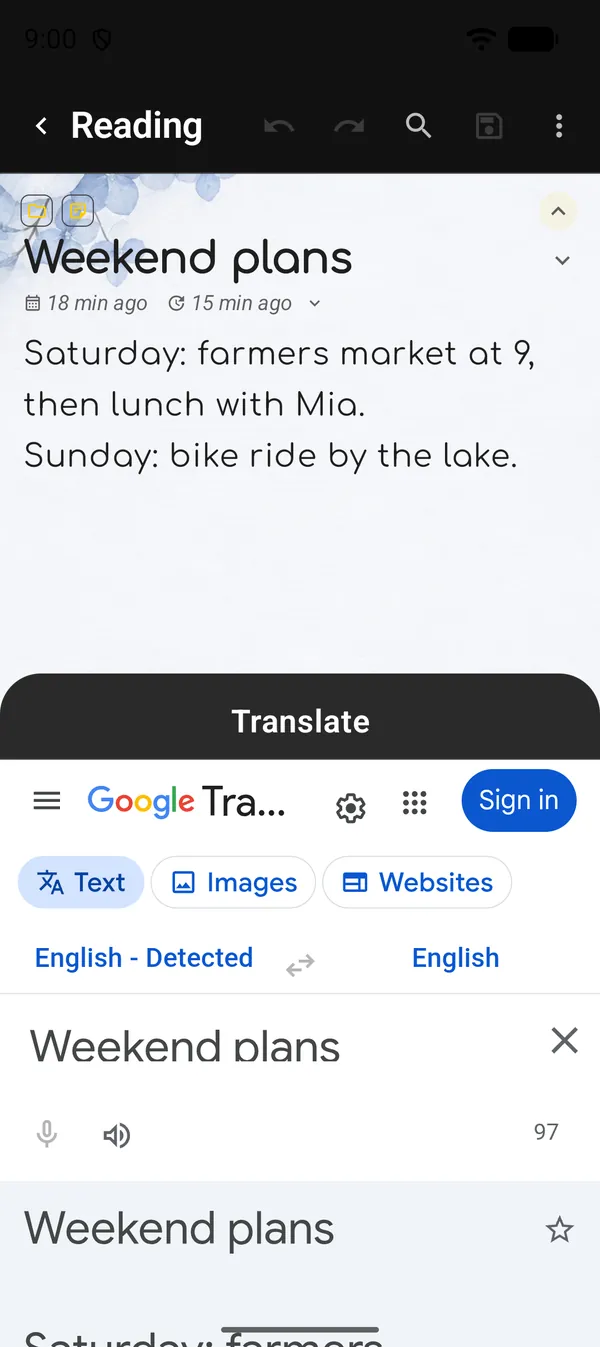
- The note’s language is detected automatically.
- The target language starts as the app’s language. To change it, tap it (on the right, above the text) and pick another one on Google’s page. In the picture the target is still English.
- The page’s sign-in button is Google’s. You don’t need to sign in to translate.
- If a passage of the text is selected, only that passage is translated. With no selection, the whole note goes.
- Text over 5,000 characters is split into parts. Use Previous and Next above the page to move through Part 1 of 3 and the rest.
Translating doesn’t change the note. To keep the translation, copy the text on Google’s page and paste it into the note.
6. Other tools on the same menu
The Tools page also has Text Tools, Annotations, Statistics and Text history.
Next guides
FAQ
Do I need internet to listen to a note?
It depends on the voice. In the Voice menu, each one shows Offline or Requires internet. With an offline voice, reading works without a connection. Translating always needs internet, because it is Google's page.
The voice sounds odd or speaks the wrong language
Tap the speed button → Voice → Language and choose the note's language. Then try another voice with the sample button. If the language isn't listed, download the voice in Android's text-to-speech settings.
Where does the Save as audio file go?
It is attached to the note itself, as audio. It plays in the same player as recordings: see the attached audio guide.
Why don't I see Translate?
The option isn't offered for private notes, because translating sends the text to Google. To translate one, move the note out of private notes first.