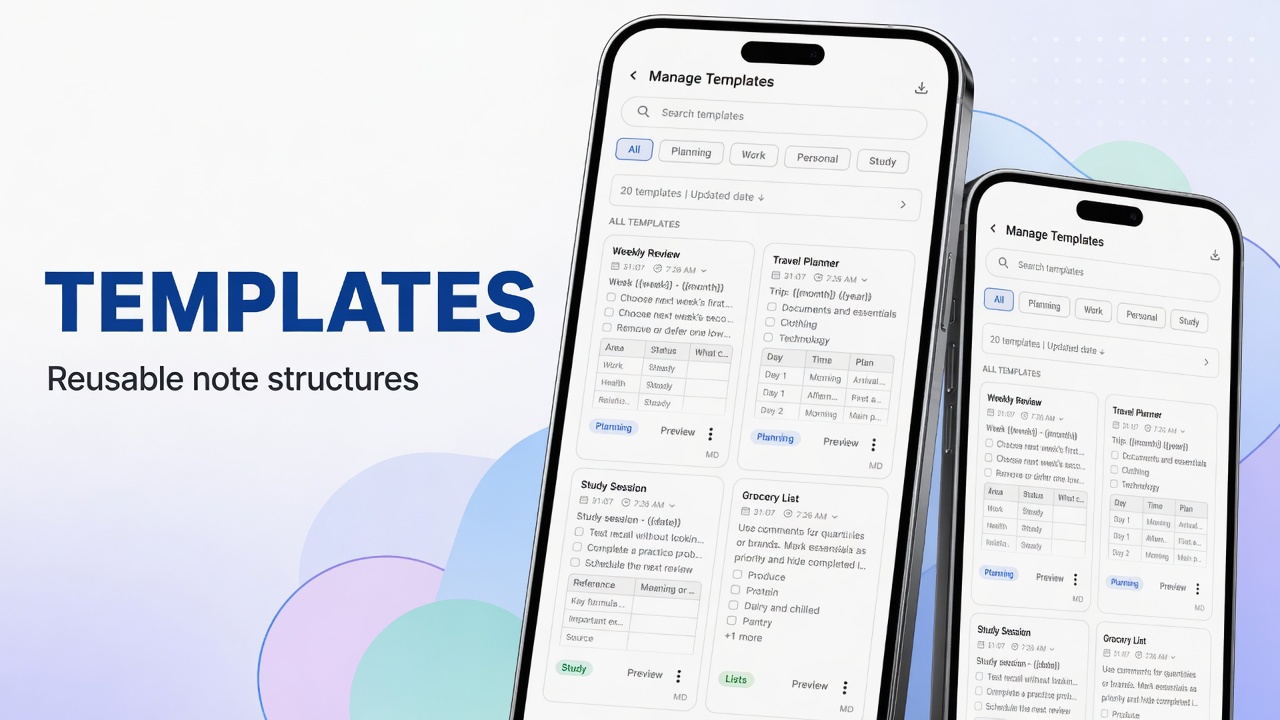
Sometimes typing gets in the way. In DicaNote you record an audio file and leave the player on the note.
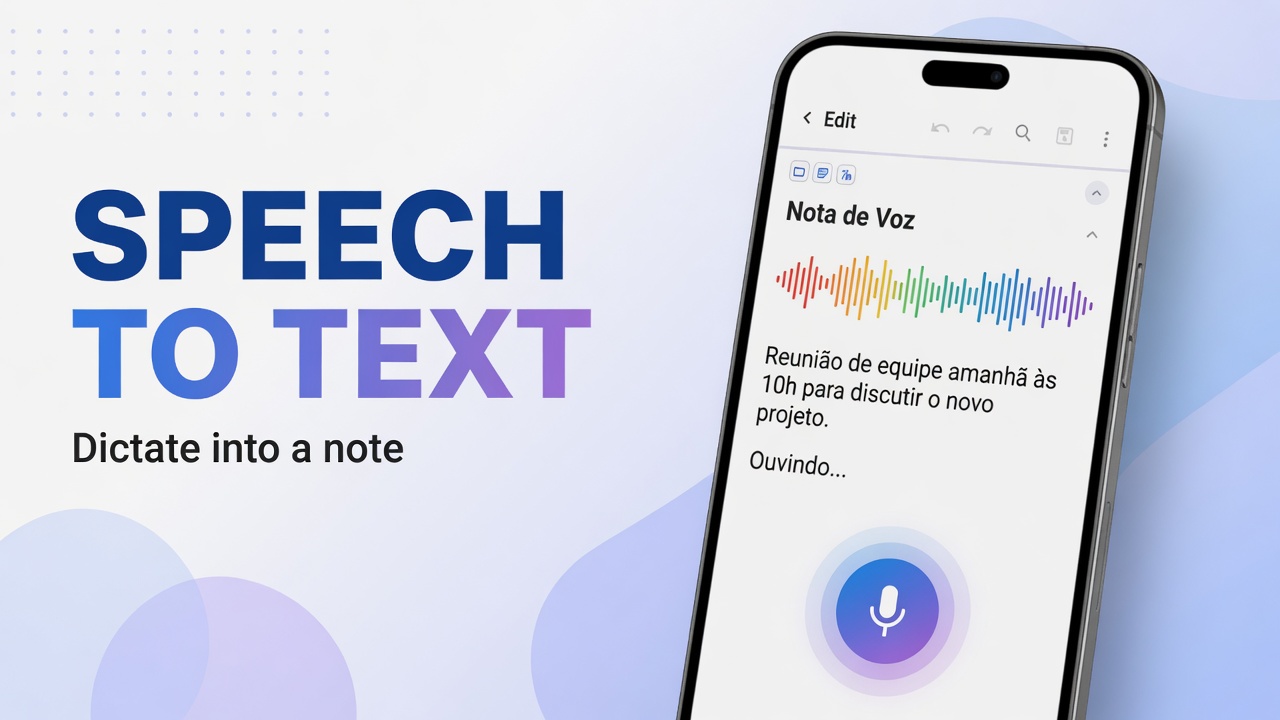
That is different from the list microphone (Speech to text / dictation). Two paths: dictation vs recording (this guide).
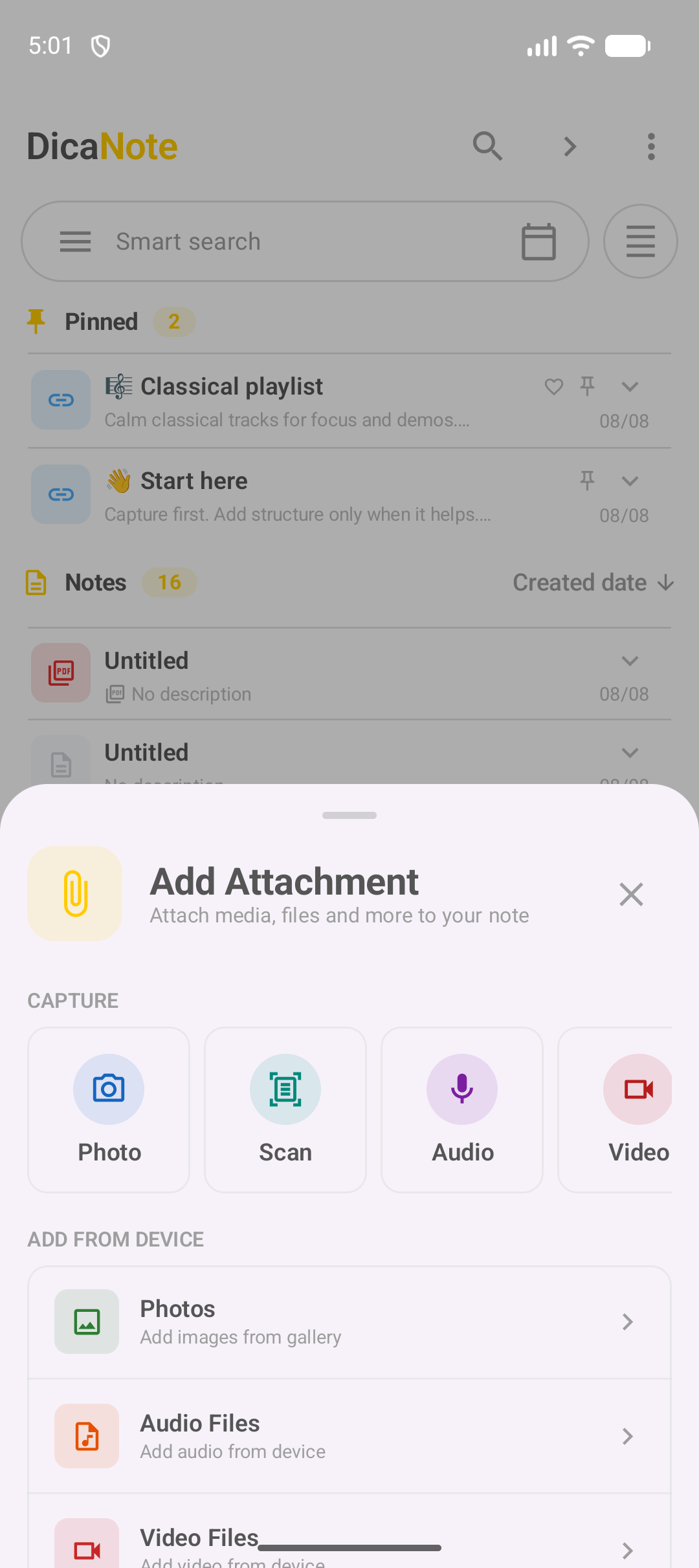
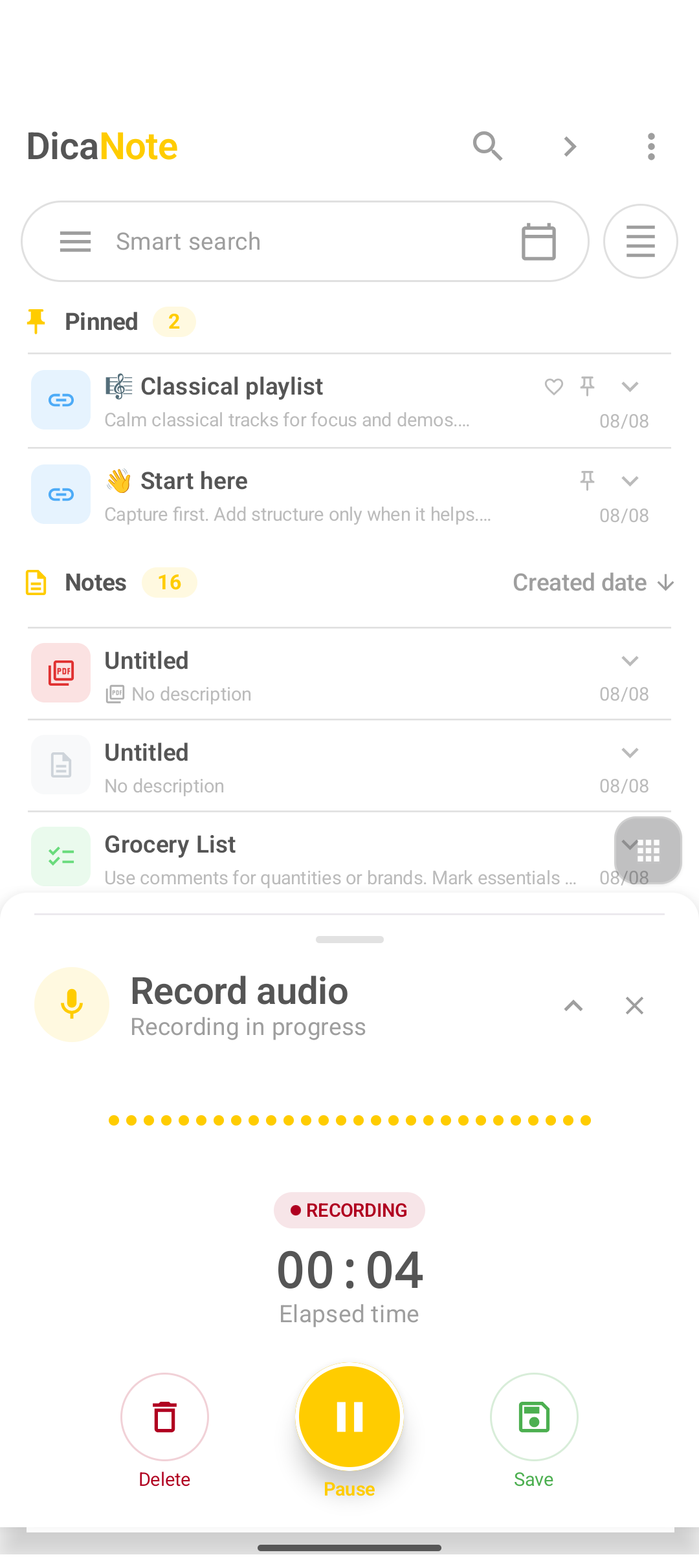
UI language: Add Attachment panel, Audio, Recording, Save buttons, etc.
Before recording
Android asks for microphone permission. If you deny it and the panel closes without a warning, enable the microphone in the app settings.
How to record and save
- Tap the paperclip (Attach) on the bottom bar.
- Under Capture, tap Audio.
- Tap the yellow button (microphone) to start. Status becomes Recording and time counts up.
- Pause / Resume if needed.
- Tap Save (green disk icon).
- Check the player and save the note.
After saving
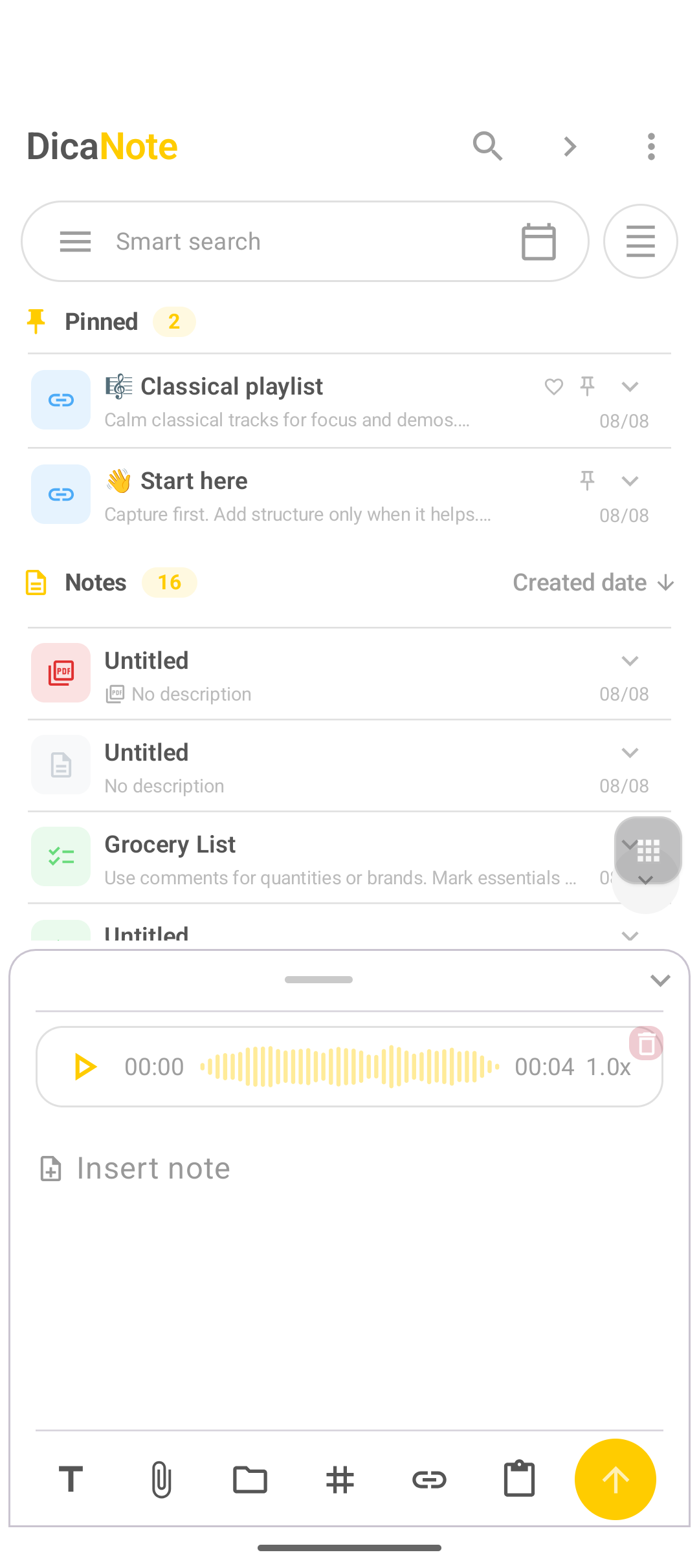
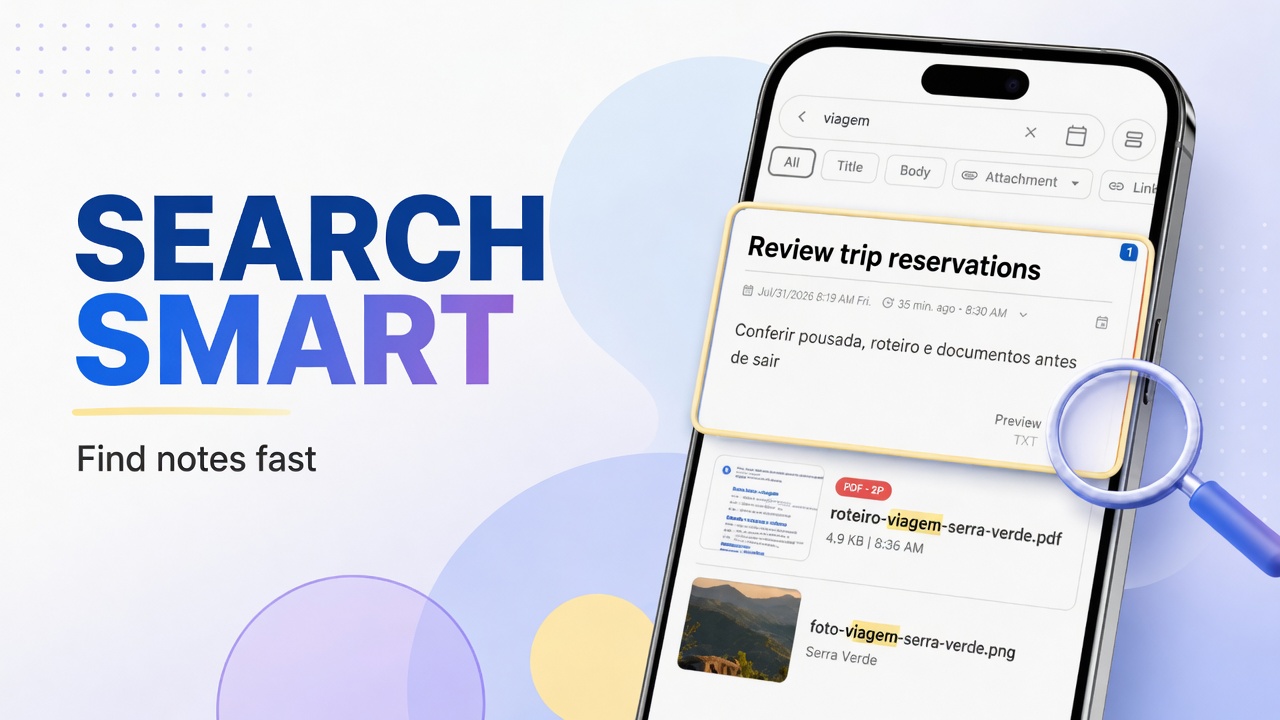
Write one line of context in the note text — search does not “hear” the file.
Audio from the device
In the same panel: Audio Files (Add audio from device).
Common problems
- Nothing when tapping Audio → microphone permission.
- Time stuck at 00:00 → tap the yellow center button again.
- Panel disappeared → paperclip → Audio again.
FAQ
Are Speech to text and Audio the same?
No. Speech tries to produce text. Audio records a file with a player.
Can I record and write on the same note?
Yes. Save the audio and type a title or summary.
Where do I find all audio files?
Attachments in the main menu.