In DicaNote you point the camera, capture the page, improve contrast and save a PDF (or images) on the note.
UI language: Scan, PDF document, Enhance, Next, etc.
Open the scanner
- Tap the paperclip (Attach).
- Under Capture, tap Scan.
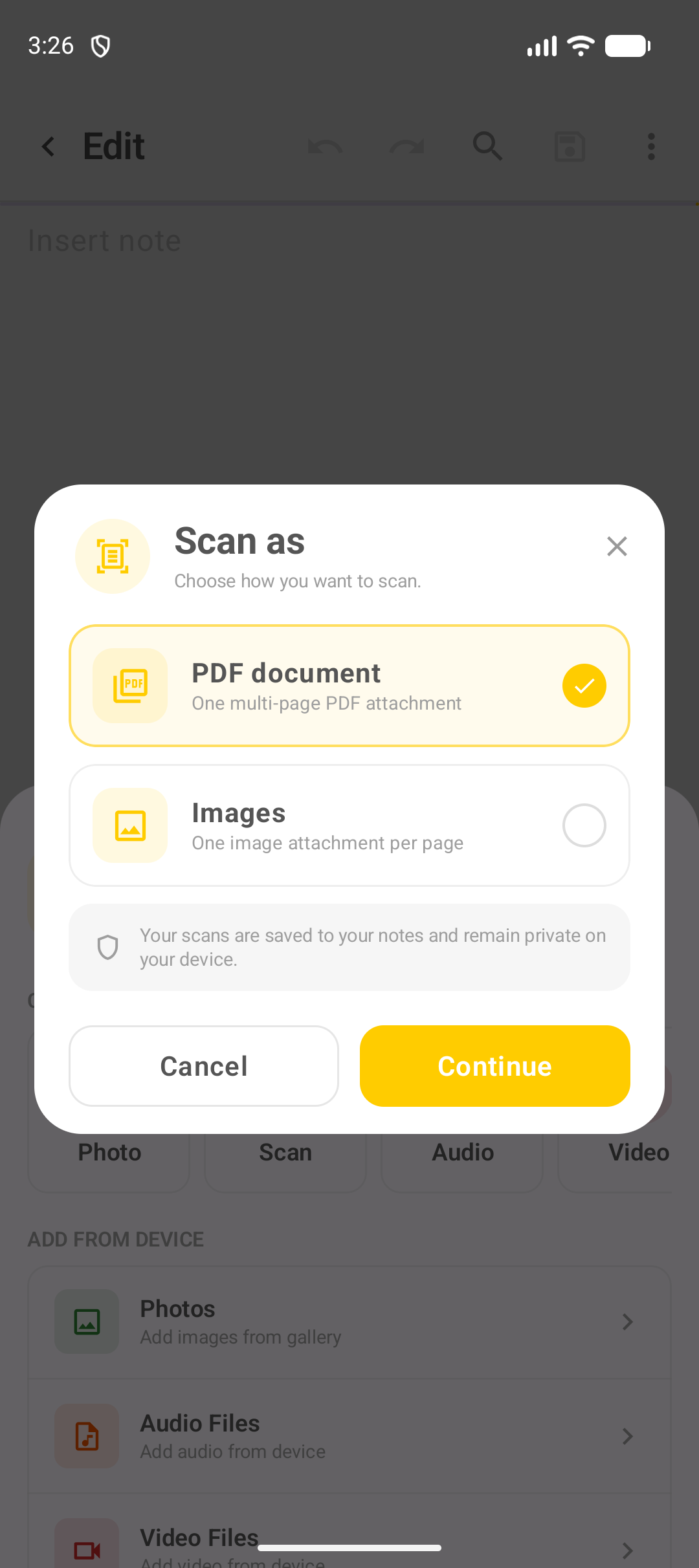
- Choose the format:
| Label in the app | Result |
|---|---|
| PDF document | One multi-page PDF |
| Images | One image per page |
Capture
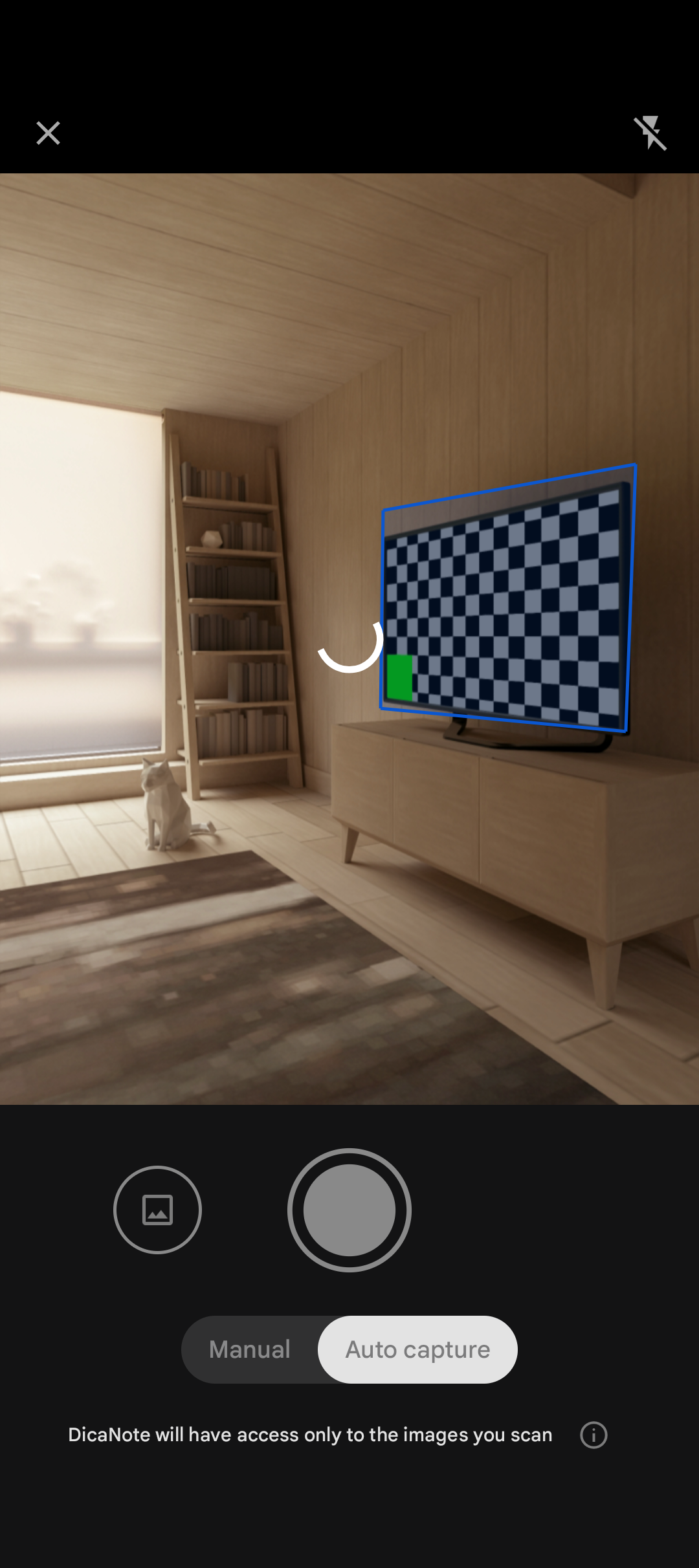
- Frame the paper.
- Capture (or Auto if active).
- Manual / Auto, flash and gallery import as shown on the bar.
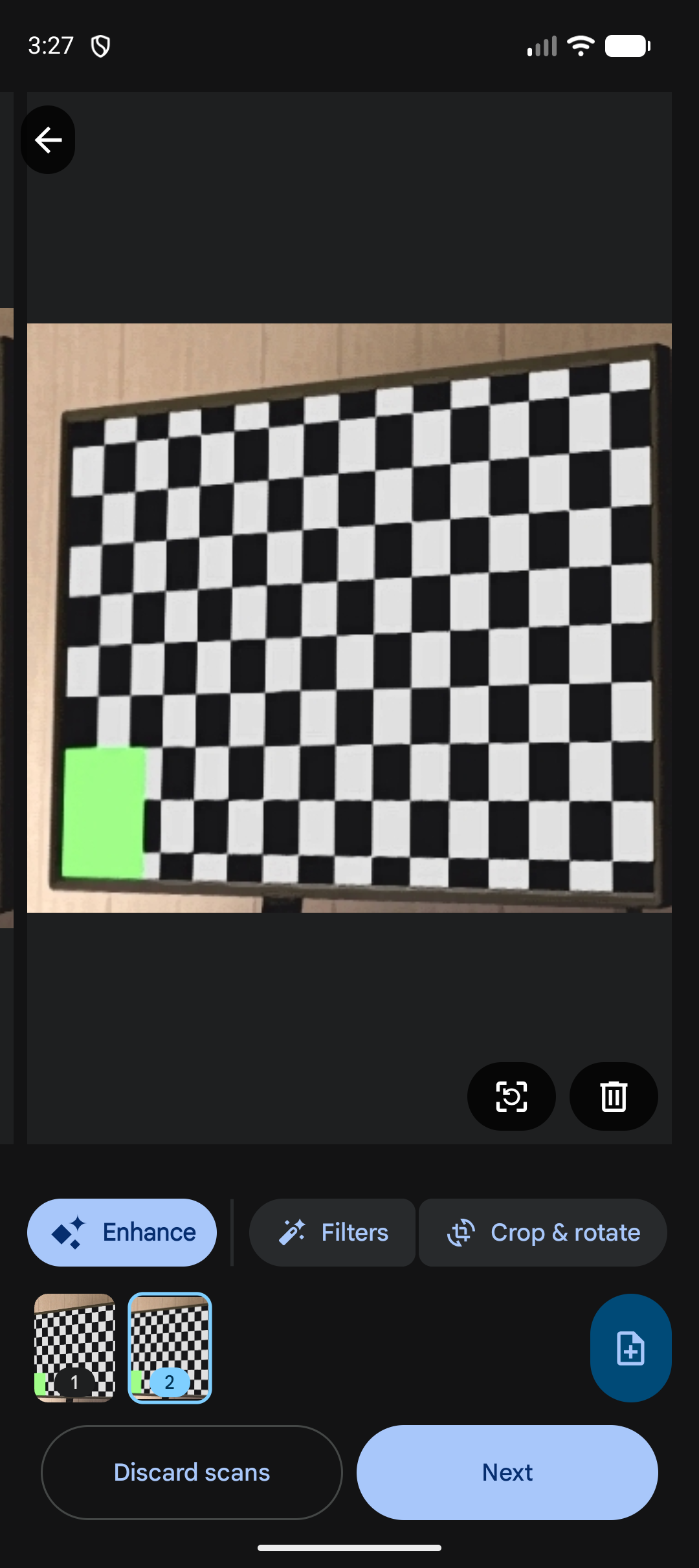
- Add page for more sheets.
Filters and review
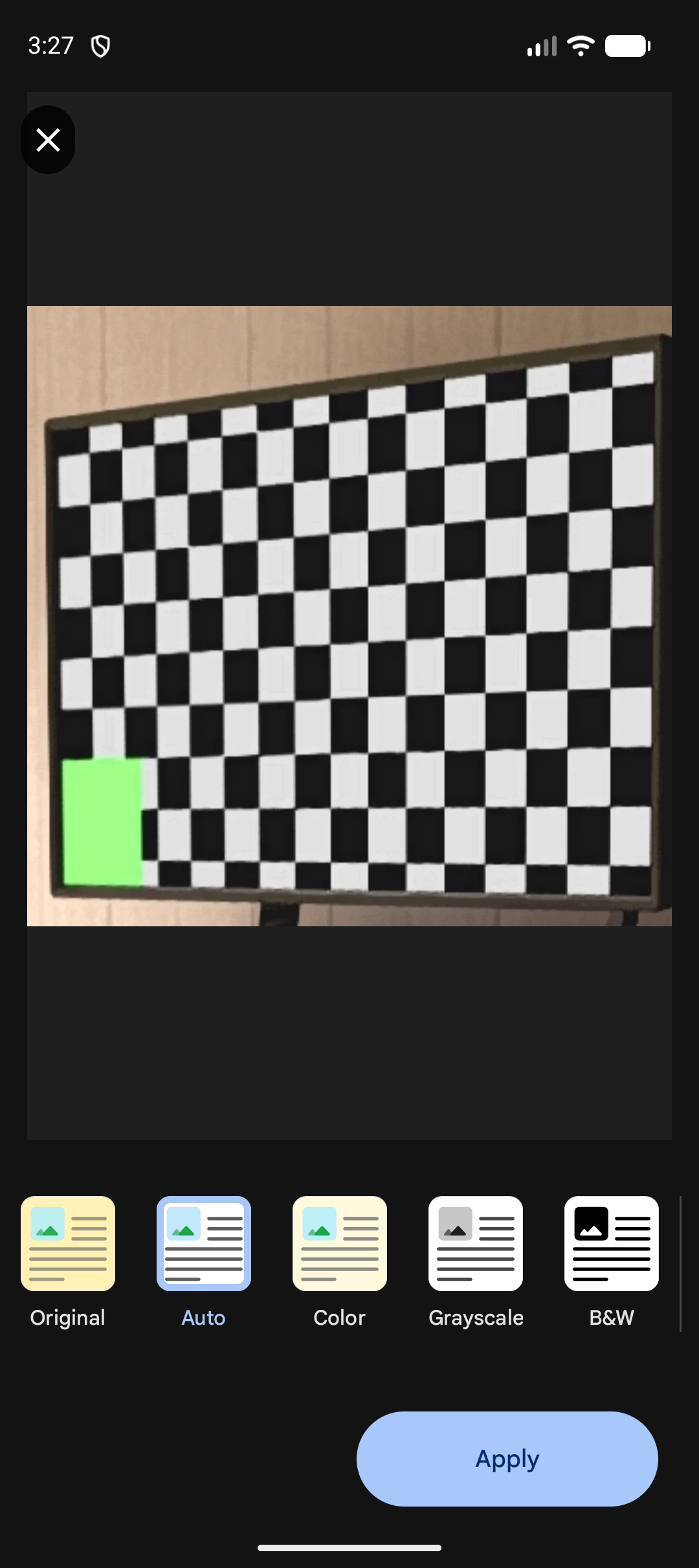
Retake, Enhance, filters (Original, Auto, Color, Grayscale, B&W), crop, Discard, Next, then the file name and Save.
On the note
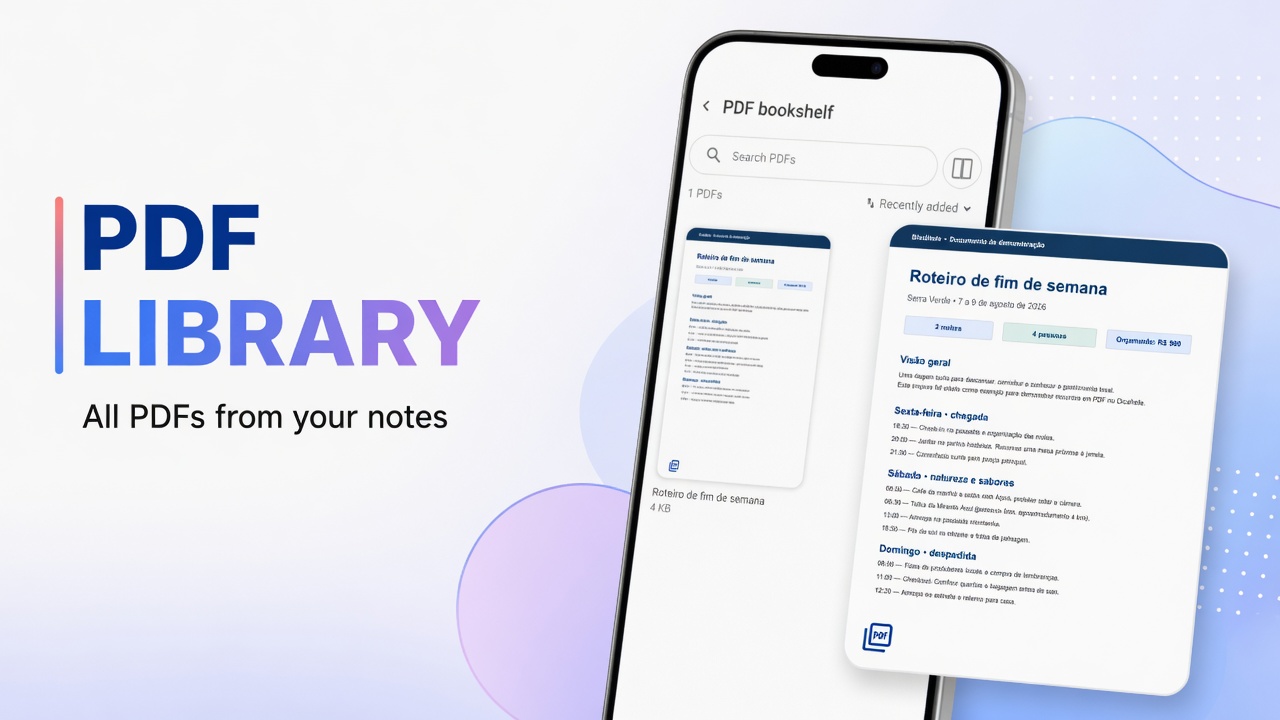
PDF preview and type indicator PDF · 2P. General shelf: PDF bookshelf.
Scan ≠ Photo: Photo saves the raw photo; Scan treats it as a document.
FAQ
PDF or photo?
PDF document or Images at the start of the flow.
Do I need internet?
Not to capture and save on the device.
Where do I find the PDF without opening the note?
Menu → PDF bookshelf.