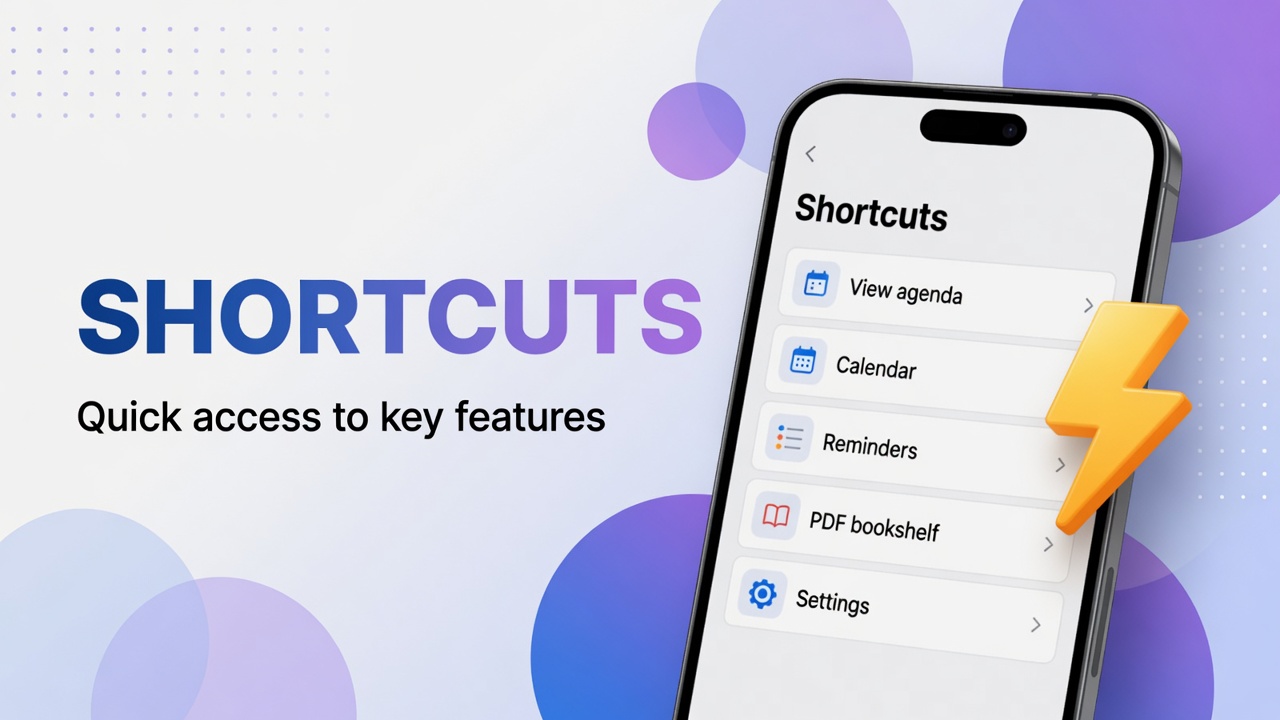
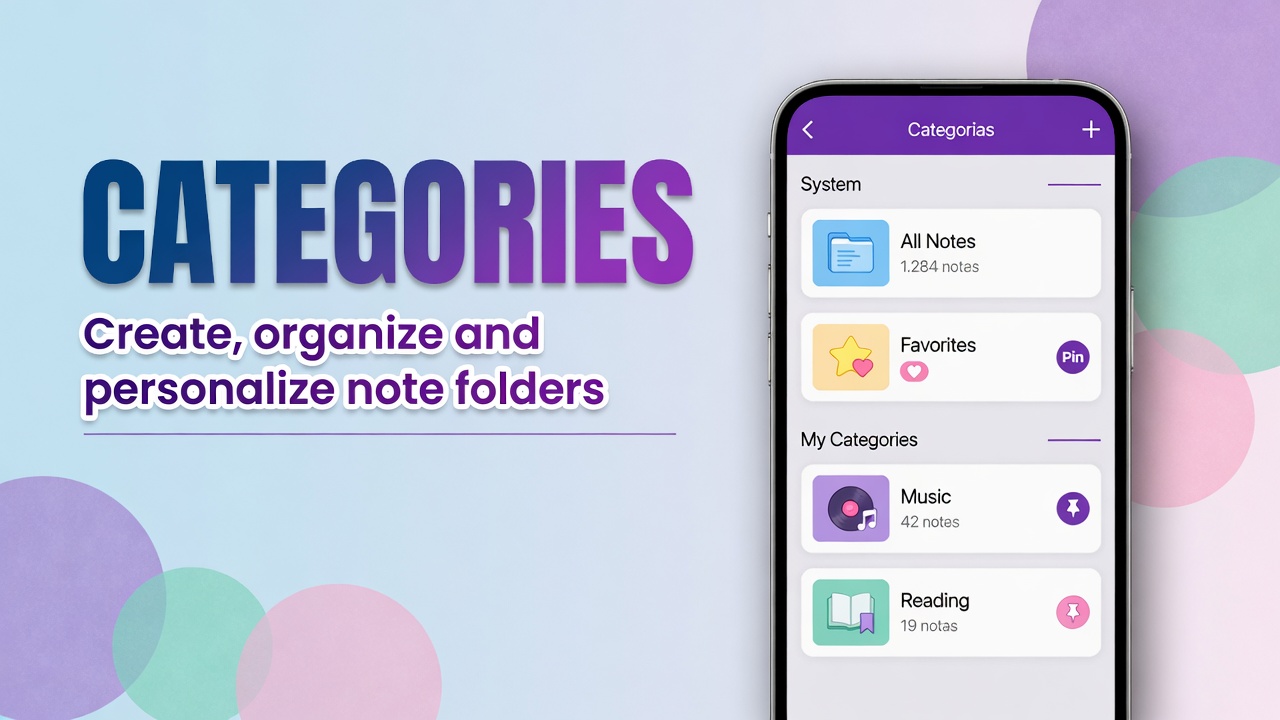
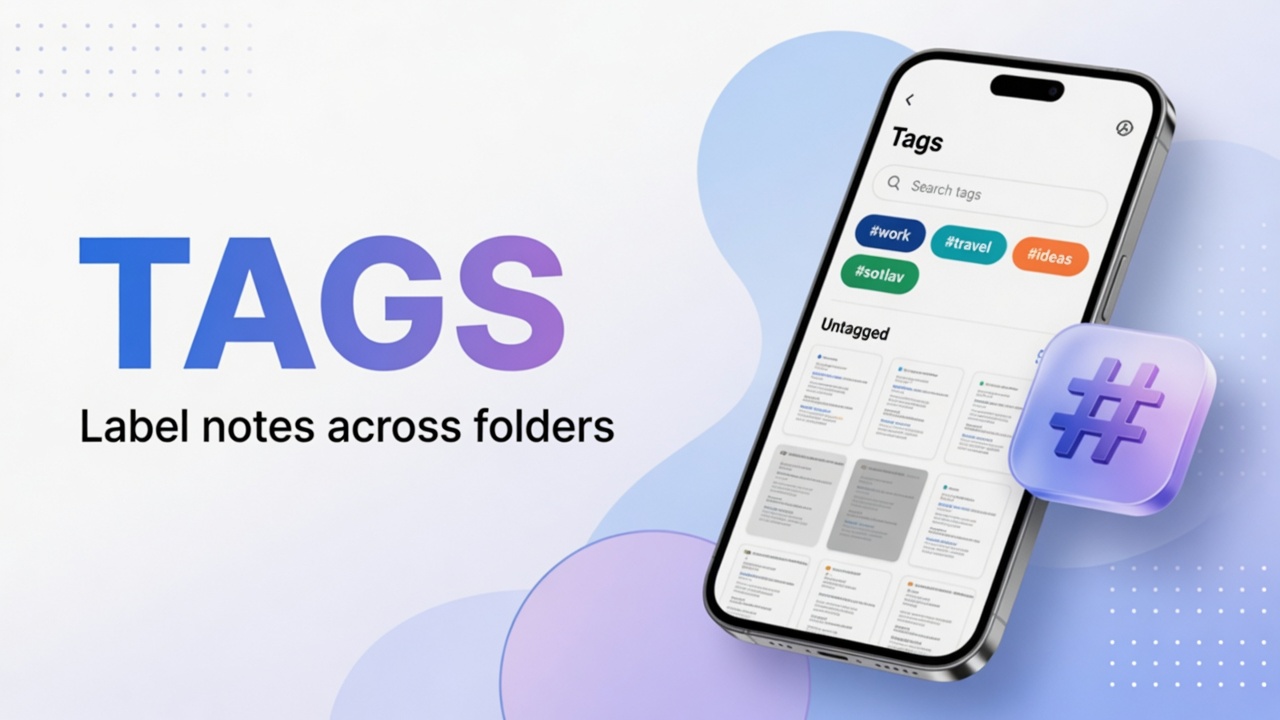
The bottom bar creates and attaches. The ⋮ menu organizes the rest: agenda, files, PDFs, templates, cleanup and settings.
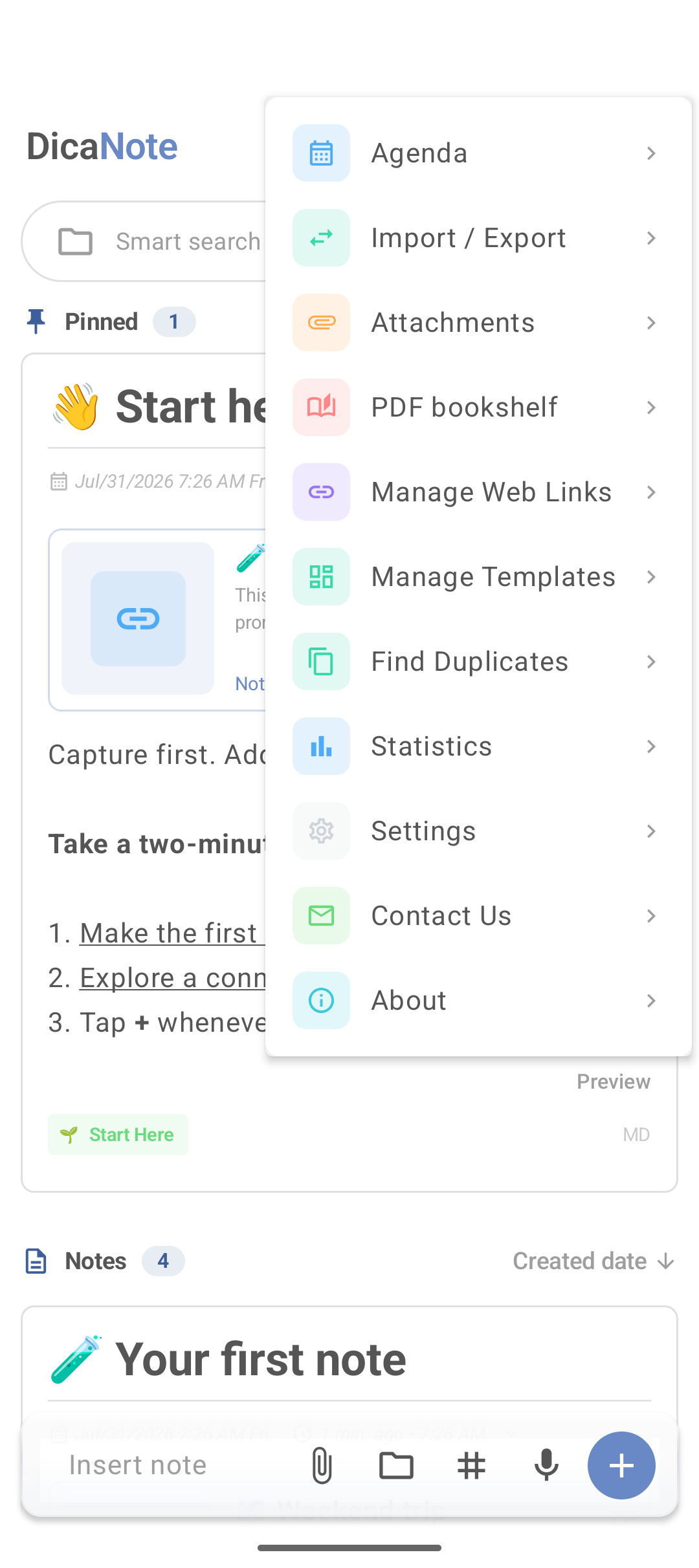
Menu items (what each one solves)
| In the app | What it is for |
|---|---|
| Agenda | Day, calendar and diary |
| Import / Export | File in and out |
| Attachments | All note attachments |
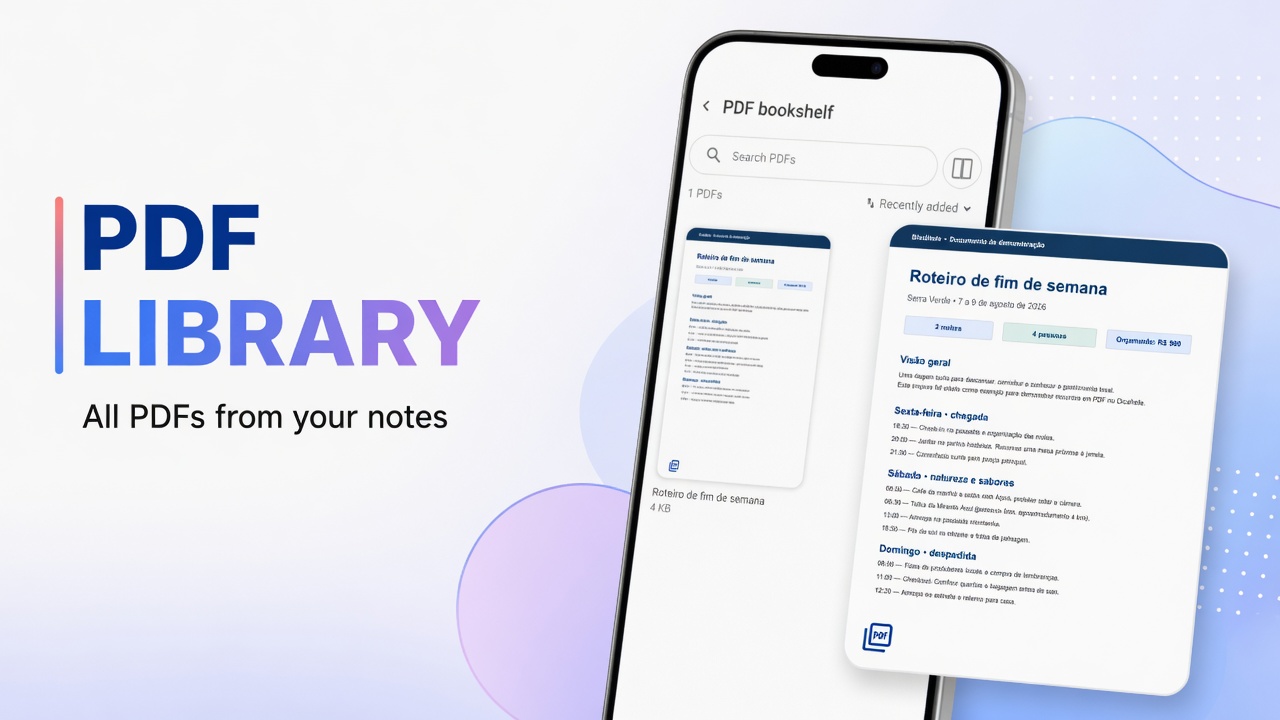
| PDF bookshelf | PDFs gathered together |
| Manage Web Links | Saved links |
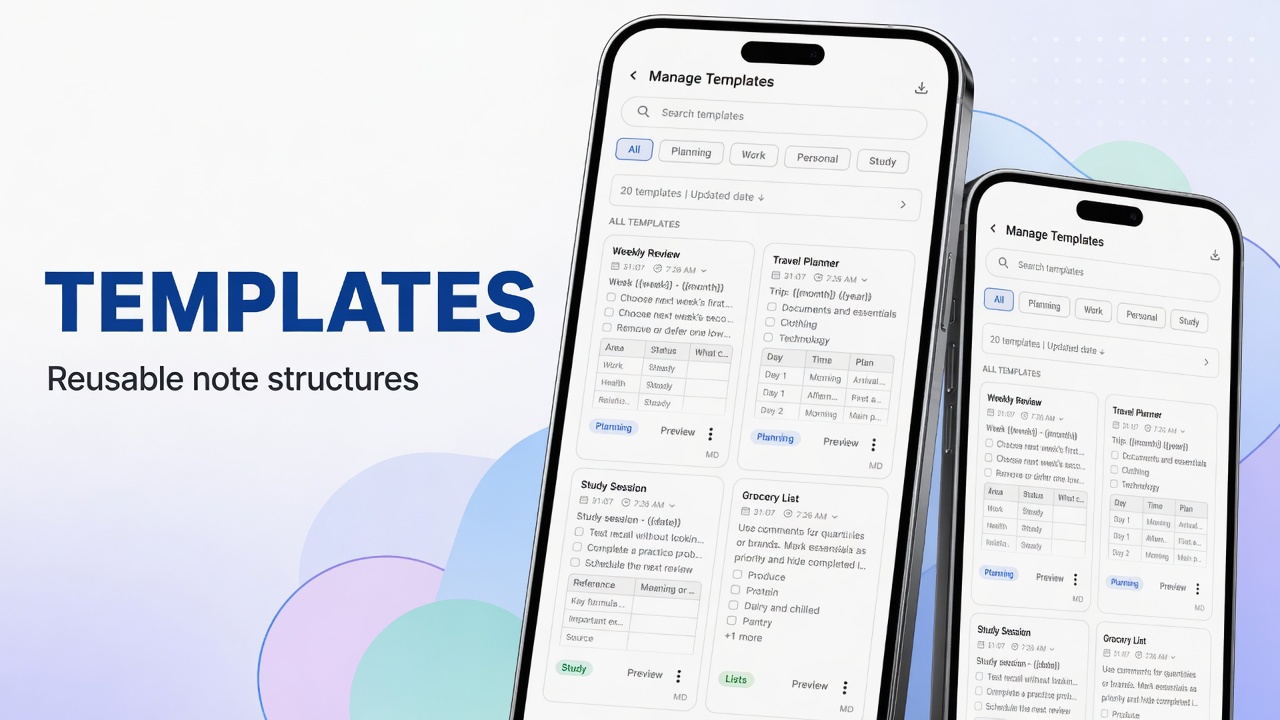
| Manage Templates | Reusable templates |
| Find Duplicates | Repeated notes — guide and merge |
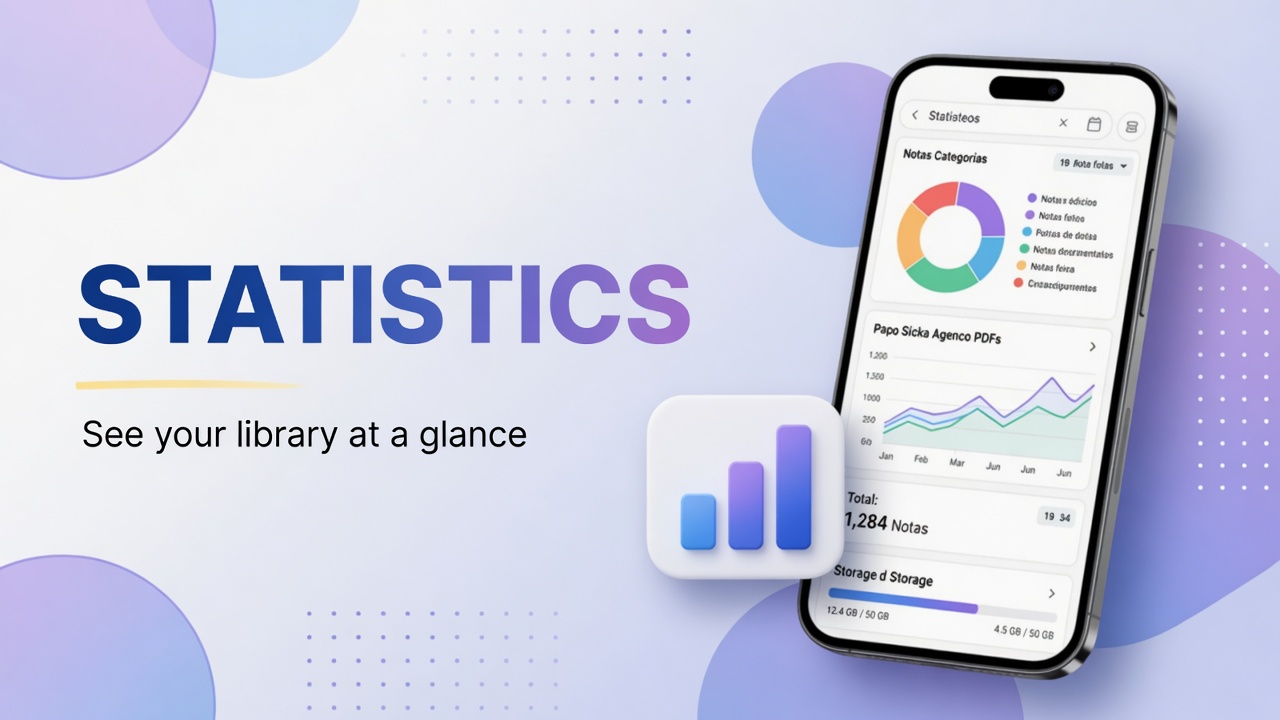
| Statistics | Overview — statistics |
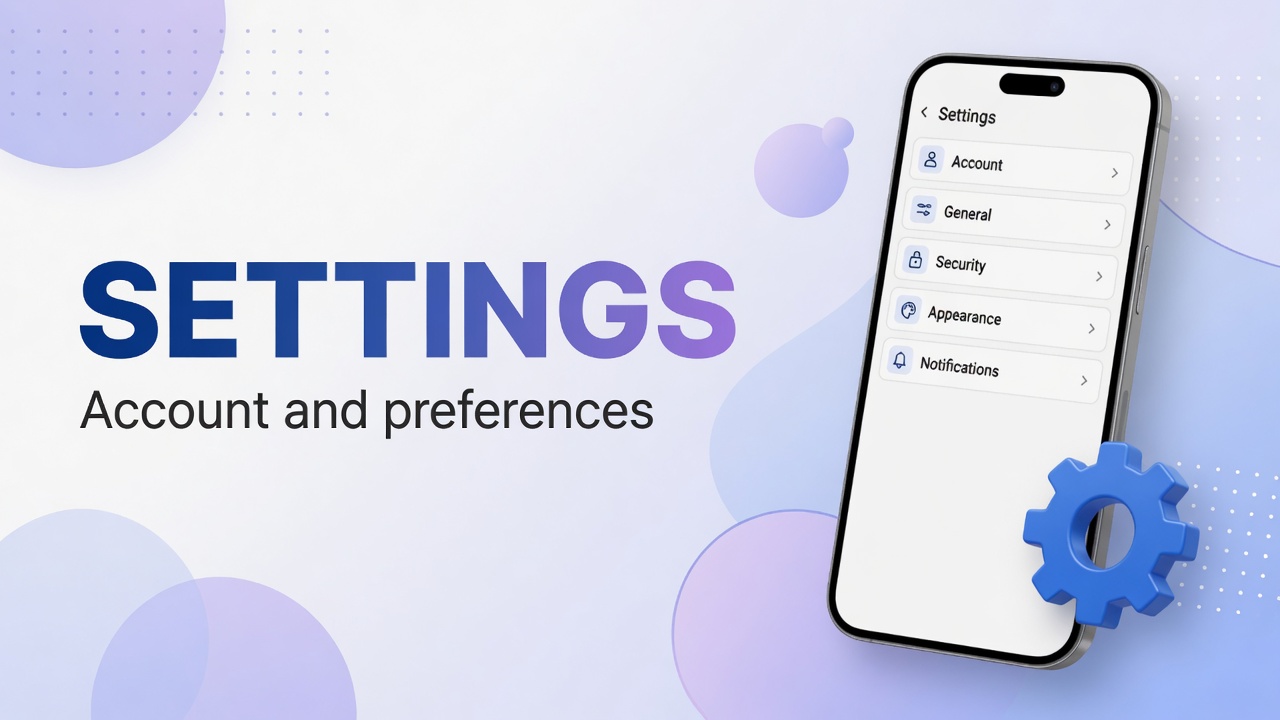
| Settings | Account, PIN, appearance, backup |
| Contact Us / About | Support and version |
Similar shortcuts also appear on the Shortcuts panel.
Templates
Manage Templates avoids rewriting the same structure. A lean meeting template:
## Goal

## Decisions

## Next actions
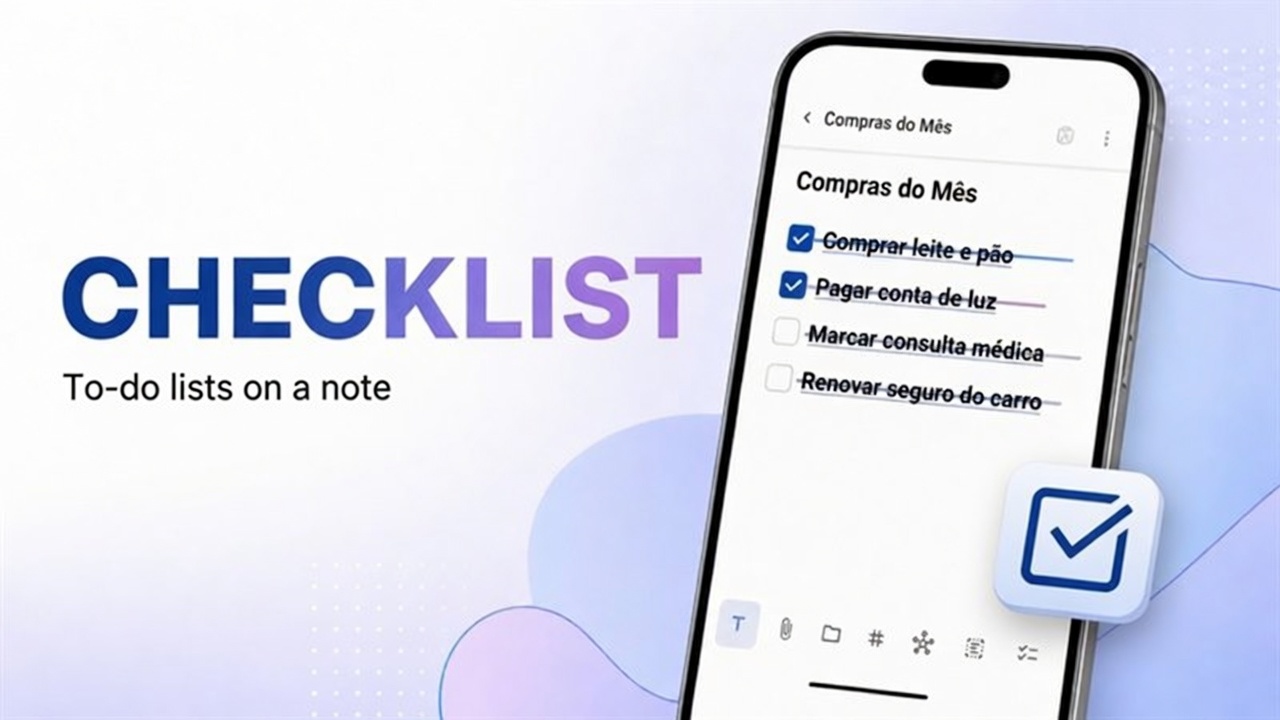
- [ ]
Dedicated guide: note templates.
Backup
Settings → Backup & Data: create, store off the phone, test restore. Step by step in import, export and backup.
Important: app backup and “being logged in” are not the same guarantee. Keep at least one backup file under your control.
Security and PIN
Settings → Security: app PIN and private notes. Details: protect notes with PIN.
Appearance and behavior
General and Appearance: layout, sorting, theme, font. The home layout button also switches Dense/Grid — see favorite, pin and layout.
Account
Settings → Account: email, Sign out, deletion. Full map: settings and account.
FAQ
Where do I see the app version?
Help & About in Settings, or the About footer in the menu.
Does Find Duplicates delete on its own?
No. The tool helps locate; deletion or merge is your decision.
Are Attachments and PDF bookshelf the same?
Attachments lists attachments in general. PDF bookshelf focuses on PDF documents.