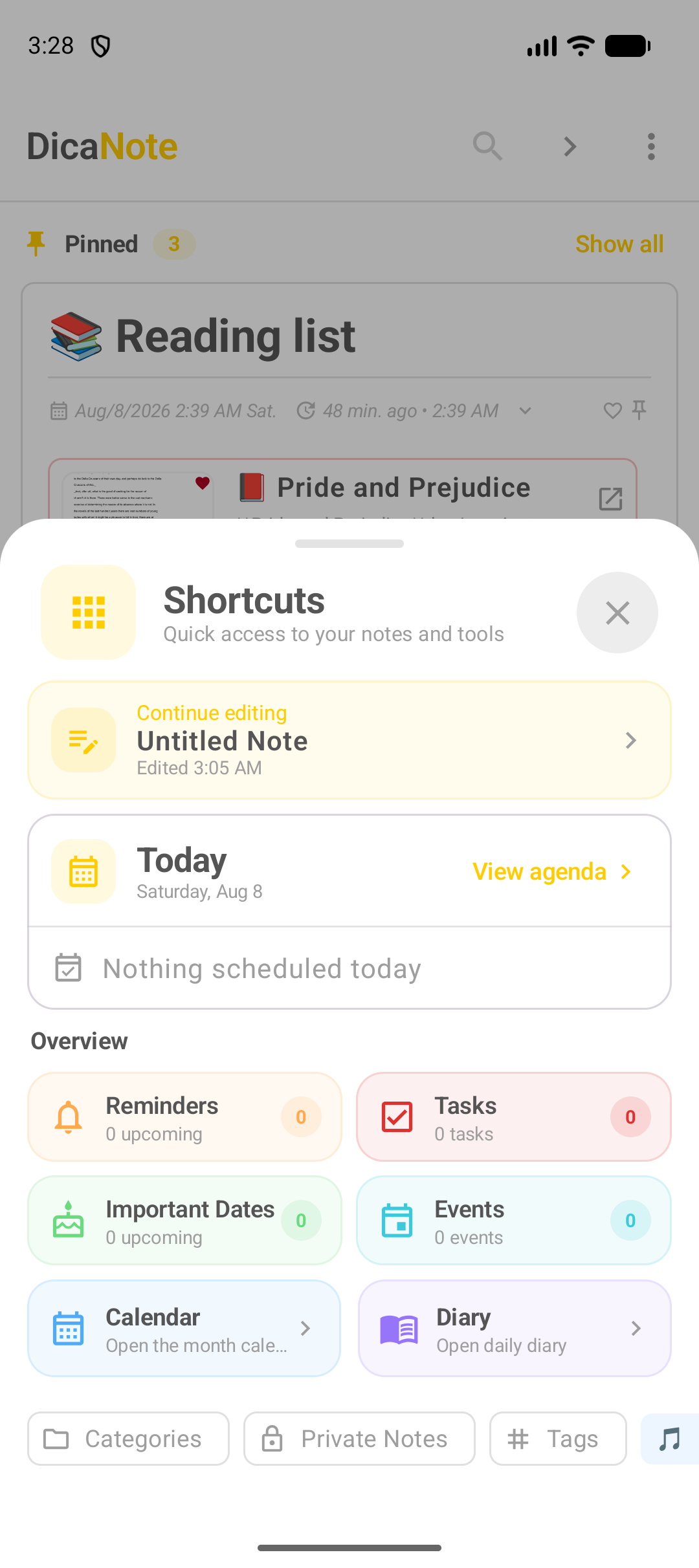
On the DicaNote home screen there is a grid button (shortcuts icon). It opens the Shortcuts panel — in the English UI that is the title you see. It is the short path to what is often buried in menus: resume a note, see the day, open the calendar, or jump straight to categories and tags.
How to open Shortcuts
- Open DicaNote on the home screen (notes list).
- Tap the grid (shortcuts) button, usually floating on the right side of the list.
- The panel slides up over home.
To close, tap X or drag the panel down.
Continue editing
At the top you see the last note being edited, for example Untitled Note, with the time of the last change.
Tap that card to go back exactly where you left off. Useful when you left the note without finishing the text.
Today and the day agenda
The Today block shows today’s date and the View agenda shortcut.
- If nothing is scheduled, the app says Nothing scheduled today.
- With events or tasks on the day, the day agenda is faster than going through the main menu.
For the full agenda and diary flow, see How to use agenda, calendar and diary in DicaNote.
Overview: reminders, tasks and dates
The Overview section gathers cards with counts:
| In the app | Meaning | What it does |
|---|---|---|
| Reminders | Reminders | Lists what has a notification coming up |
| Tasks | Tasks | Opens the set of tasks |
| Important Dates | Important dates | Dates marked as relevant |
| Events | Events | Calendar events |
| Calendar | Calendar | Opens the month calendar |
| Diary | Diary | Opens the day’s diary |
The numbers (0 upcoming, 0 tasks…) change as you add reminders and tasks. If everything is zero, the panel still works as a map: one tap and you land on the right screen.
To create tasks with date and reminder: How to create tasks and reminders in DicaNote.
Categories, Private Notes and Tags
At the bottom of the panel are organization shortcuts:
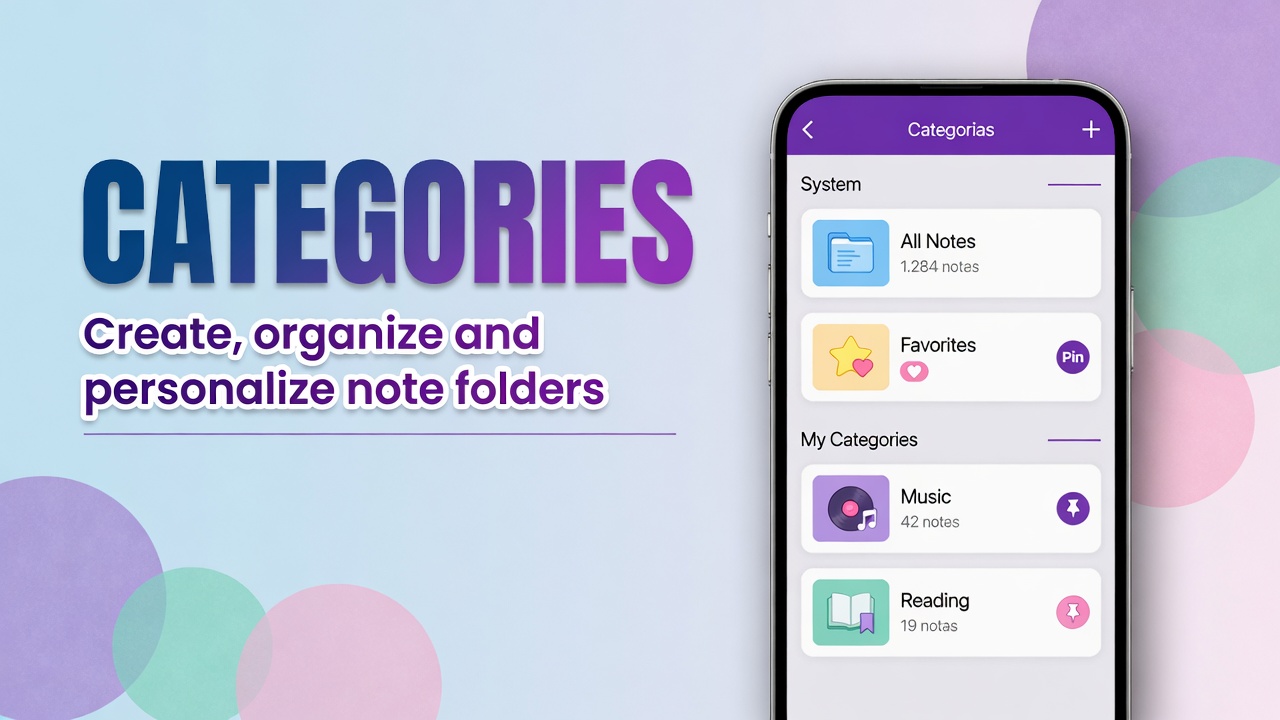
- Categories — main folders (Reading, Music, Travel…)
- Private Notes — protected / private notes
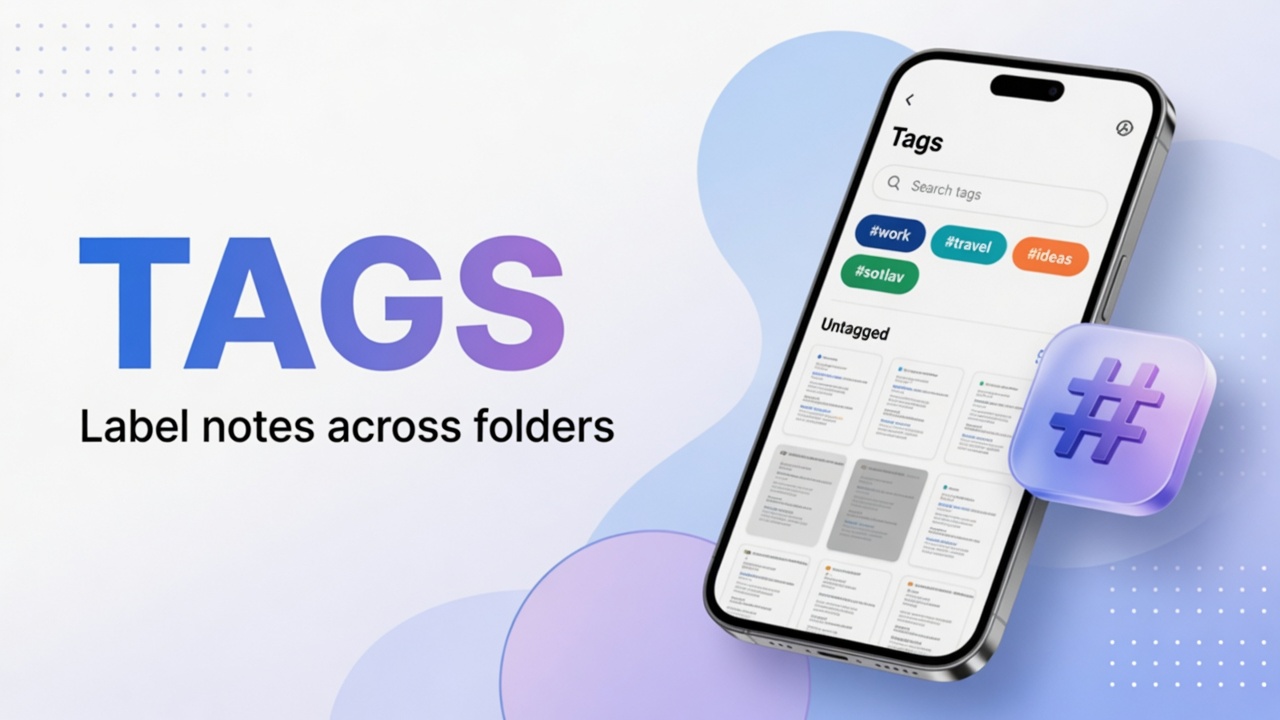
- Tags — tags (#ebook, #urgent…)
It is the same kind of organization as the search side panel, just one tap away. Details in How to organize notes with categories and tags.
When it is worth using
- You closed a note mid-way and want to return without hunting the list.
- You want the day, calendar or diary without the three-dot menu.
- You need to check pending reminders or tasks.
- You want a fast jump to categories or tags.
To create a note, template, list or drawing, the path remains the + button. Shortcuts does not replace the create menu; it organizes what already exists and what is on the calendar. + guide: Create note, template, checklist or drawing.
FAQ
Where is the shortcuts button?
On the home screen, the grid icon (Open shortcuts). It usually floats on the right side of the notes list.
Why do Reminders and Tasks show zero?
Because there are no reminders or tasks yet. After you create some, the numbers rise and the shortcut becomes more useful.
Are Shortcuts and the main menu the same?
No. The main menu (three dots) gathers settings, backup and other sections. Shortcuts is a day-to-day jump: in-progress edit, agenda, tasks and organization.
Can I customize the panel?
The Shortcuts layout follows what the app offers (notes, agenda and overview blocks). What changes are the counts and the Continue editing card, based on your use.
Private Notes and PIN: private notes. Full agenda: agenda, calendar and diary.