A smart folder doesn’t hold notes. It holds rules, and it shows the notes that match them, always up to date. The note stays where it is: in its own category and in the main list. The example in this guide is a folder called “Recent work” with everything you edited in the last 7 days.
For the Categories page as a whole, see how to use the Categories page.
1. Create a folder of this week’s edits
- Open the Categories page: Open shortcuts bubble → Categories.
- Tap the + in the bottom corner and choose Create Smart Folder.
- Under Name, type the folder’s name. It takes up to 50 characters.
- Under Quick start, tap Recently edited.
- Tap Create at the top of the screen.
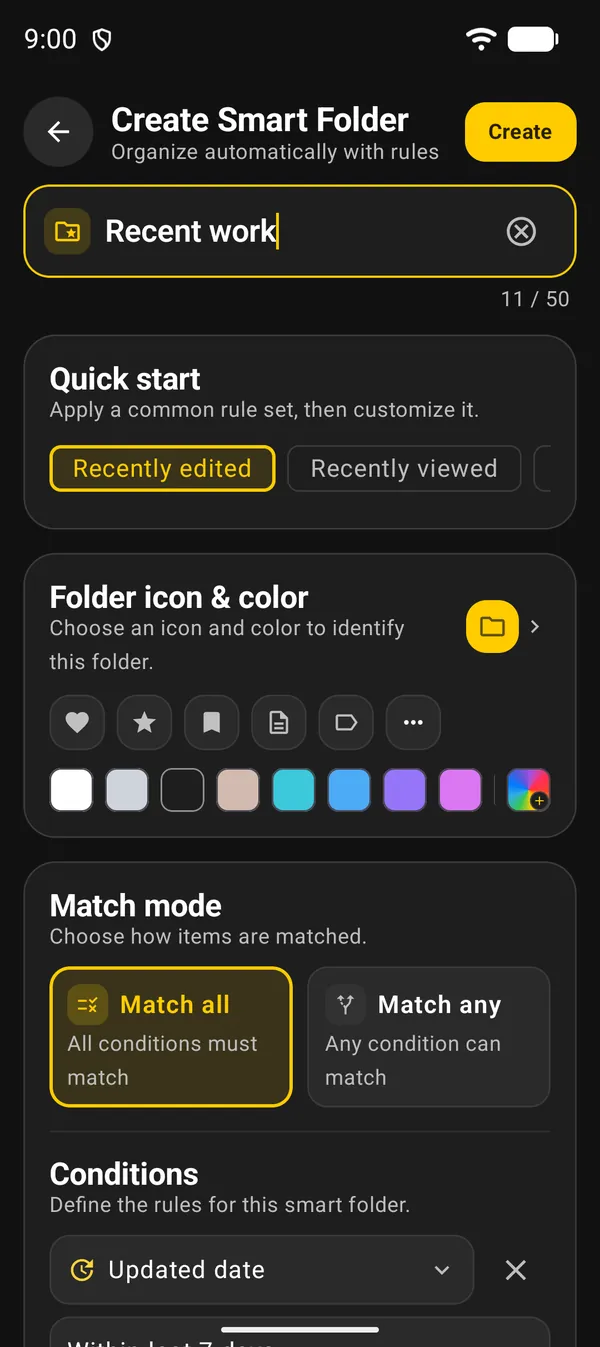
If you tap a preset while the name is still empty, the app fills in the preset’s name. Once created, the folder opens right away.
2. Check the rule and the preview
Scroll down before you create it. The preset set up a single condition: Updated date · Within last 7 days. It catches notes changed from 7 days ago up to the end of today.
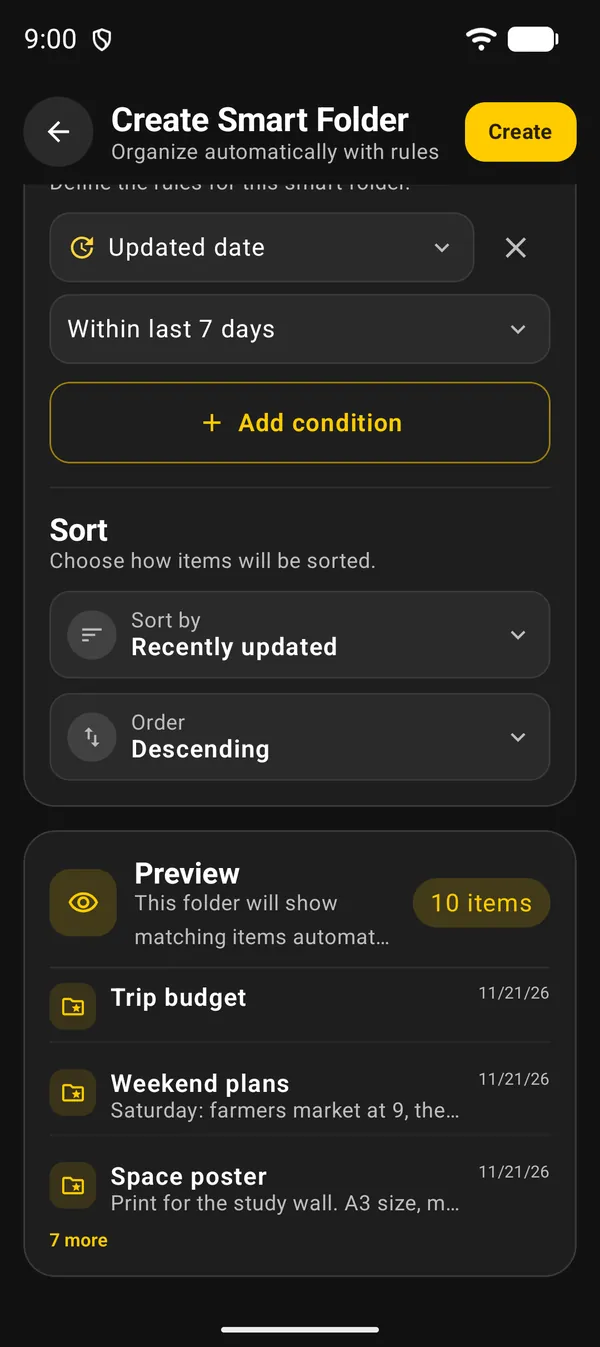
| Part | What it does |
|---|---|
| Add condition | Adds another rule (section 5) |
| Sort by | Starts as Recently updated |
| Order | Descending puts the newest on top |
| Preview | Shows how many notes match and the first few |
Rather have the calendar week than the last 7 days? Tap Within last 7 days and switch it to This week.
Create only turns on once the name is filled in and every condition is complete.
3. The folder page
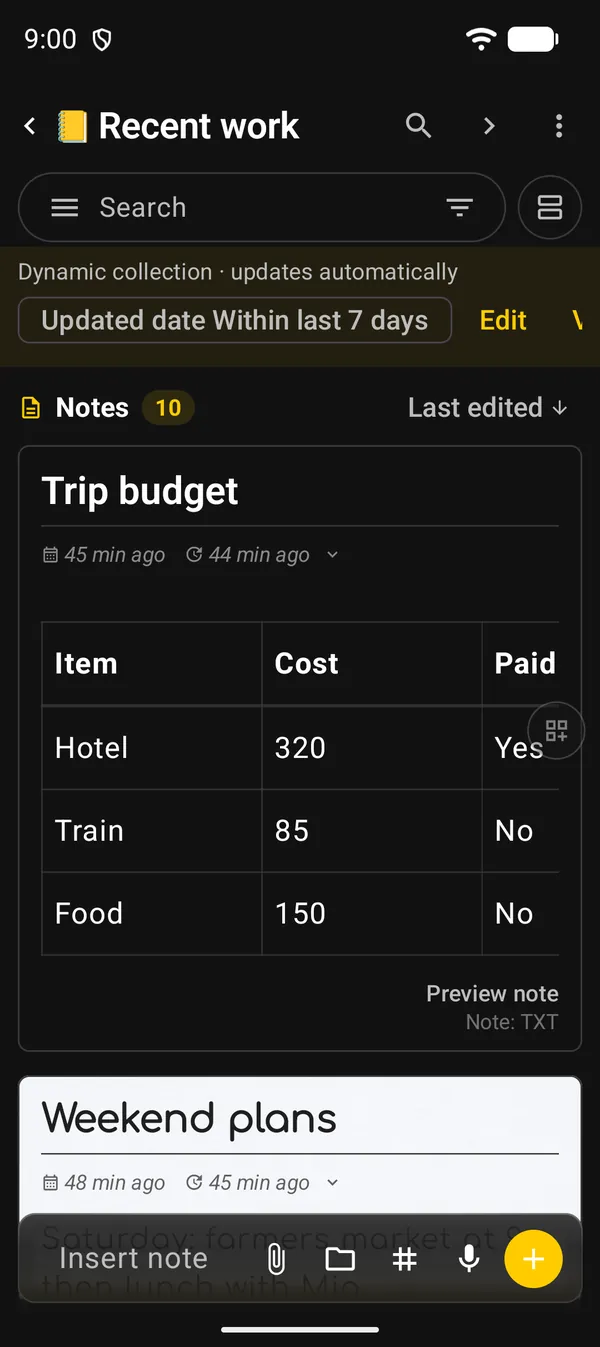
At the top is Dynamic collection · updates automatically, with the rule in a chip. Next to it are Edit, which reopens the rules, and View all, which goes back to the full notes list.
Edit a note today and it joins the folder. After 7 days without changes, it drops out on its own. If you change the sort on this page, the change is saved with the folder and doesn’t touch the main list.
To get back to the folder later:
- Categories page, Smart folders section. Tap the section title to open it;
- side menu (☰ in the search bar), Categories tab, same section.
4. Other quick-start presets
Quick start has more presets. Each one fills in the conditions, which you can adjust before creating the folder.
| Preset | What the folder shows |
|---|---|
| Recently edited | Notes changed in the last 7 days |
| Recently viewed | Notes opened in the last 7 days |
| Incomplete tasks | Notes with a task not yet done |
| Upcoming tasks | Tasks dated today or later |
| Favorites | Favorite notes |
| Has reminders | Notes with a reminder |
| Has attachments | Notes with any attachment |
| Untagged | Notes with no tags at all |
| Overdue tasks | Unfinished tasks whose date has passed |
| Due in 7 days | Tasks from today through the next 7 days |
| Events this week | This week’s events |
The last three come sorted by date, ascending: whatever is due first is on top.
5. Build your own conditions
Tap Add condition. Each condition has a field, an operator and, sometimes, a value: a date, a tag, a category or some text. The X beside it removes the condition.
| Kind | Fields |
|---|---|
| Dates | Created date, Updated date, Viewed date, Task date, Reminder date, Event date |
| Organization | Category, Tag |
| Text | Title or content |
| Yes or no | Has incomplete tasks, Has reminder, Favorite, Task note, Has event, Has drawing, Has external links, Pinned |
| Other | Checklist status, Attachment type, Contains |
For date fields, the operators include Today, Yesterday, This week, This month, Within last 7 days and Between. Task, reminder and event dates also have Upcoming and Next 7 days.
With two or more conditions, pick the Match mode:
- Match all: a note must meet every condition.
- Match any: meeting one is enough.
Example: Tag · Contains · the tag “work”, plus Updated date · Within last 7 days, with Match all, shows only the work notes touched this week.
The app warns you when a condition is repeated, or when two contradict each other under Match all. While the warning is there, you can’t create the folder.
Under Folder icon & color, choose how the folder looks in the lists.
6. Edit, pin and delete
| Where | What it has |
|---|---|
| Folder page | Edit, in the top banner |
| Categories page: touch and hold the folder | Edit, Pin, Link, Information and the red delete icon |
| Side menu, Categories tab: arrow beside the folder | Edit, Duplicate, Pin and Delete |
- Pin moves the folder to the top of the smart folders list.
- Link copies a link to the folder that you can paste into a note.
- Information shows how many notes match, the creation date and the rules.
- Delete removes only the folder. The notes stay where they were.
If a condition uses a tag or category you deleted, the empty folder says so and asks you to edit the rules.
7. A shortcut from search
Filtered your search by category, tag, attachment or content and want to keep that filter? The filter row can show Save as Smart Folder. It opens the same create screen with the conditions already filled in.
Next guides
FAQ
Does a smart folder move or copy my notes?
No. It only shows the notes that match its rules. Each note stays in its own category and in the main list.
Why doesn't a note show up in the folder?
Check the rules and the match mode. Also, smart folders don't show archived, trashed or private notes, templates, or diary entries.
Does deleting the folder delete the notes?
No. Only the folder goes away. The notes are untouched.
Are smart folders included in backups?
Yes. Backups include your folders and their rules. See the backup guide.