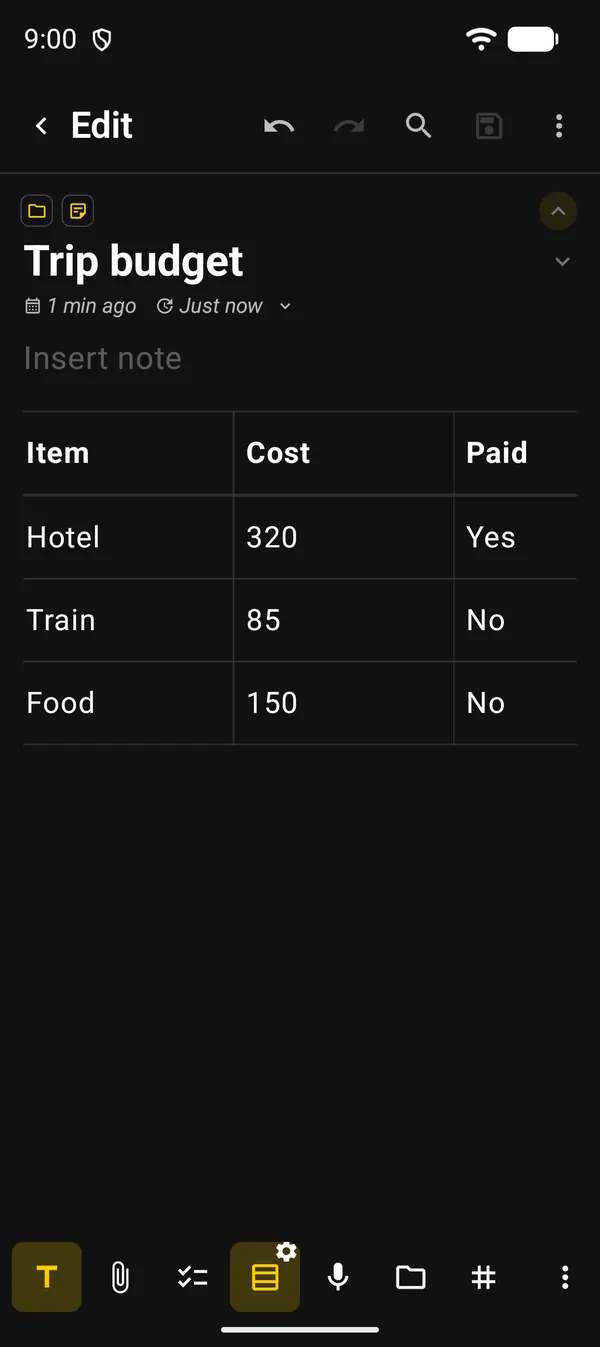
Each note can have one table, alongside its text. The example in this guide is a trip budget, in a note called “Trip budget”: what was spent, how much it cost and whether it’s paid.
1. Create the table
- Open the note.
- On the editor’s bottom bar, tap the Table button, the one with stacked rows. If it isn’t on the bar, it’s in the same bar’s ⋮ menu.
- In Choose table size, use − and + to set Rows and Columns.
- Tap Insert.
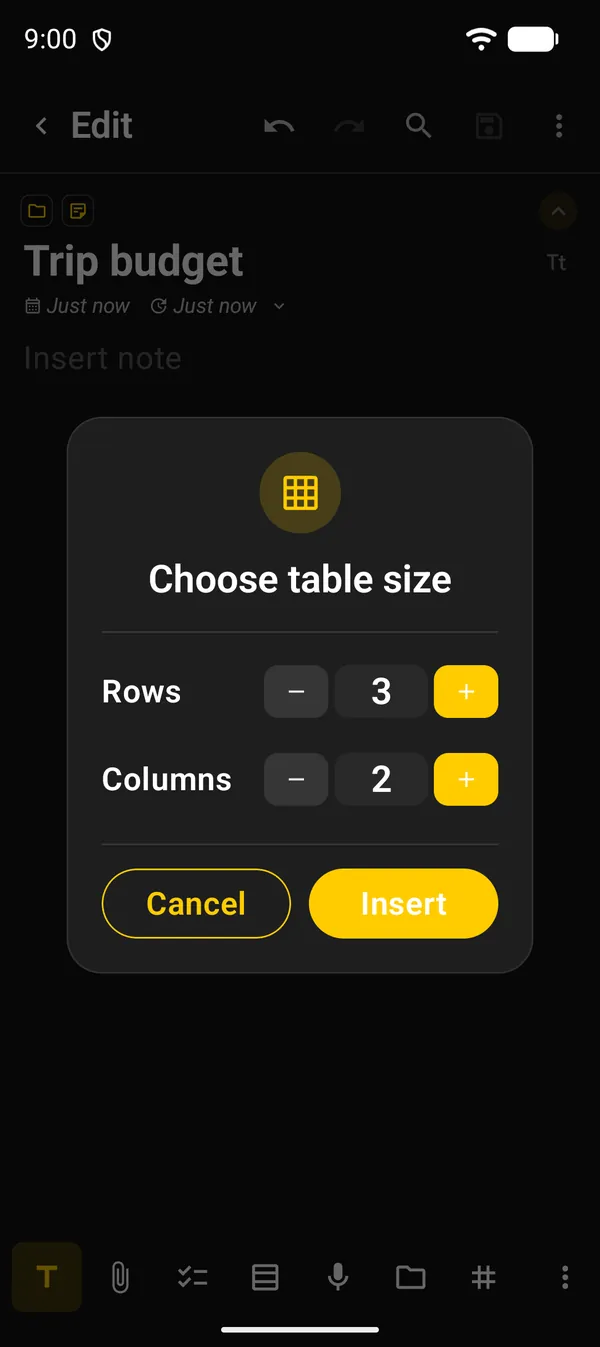
You don’t need the exact size now. Rows and columns can be added and removed later.
2. Fill in the cells
- Tap a cell and type.
- Tap the keyboard’s next key to move to the next cell. On the last cell, it adds a new row below.
- On a physical keyboard, Tab moves to the next cell and Shift+Tab goes back.
The first row is the header and is always bold.
While you edit a cell, the bottom bar shows a New line arrow, for a line break inside the cell, plus undo, redo and a ✓ to finish.
Touch and hold a cell for Copy, Clear, Add row and Add column. If the cell has a link, Open link shows up too.
Already have the data in a spreadsheet? Copy the cells in Google Sheets or Excel and paste them into a cell. The values spread to the right and down, and the app adds any rows and columns that are missing.
3. Open the table settings
Once the table exists, the Table button gets a gear. Tap it to enter Table settings. Tap it again to leave. Cells don’t open for editing in this mode.
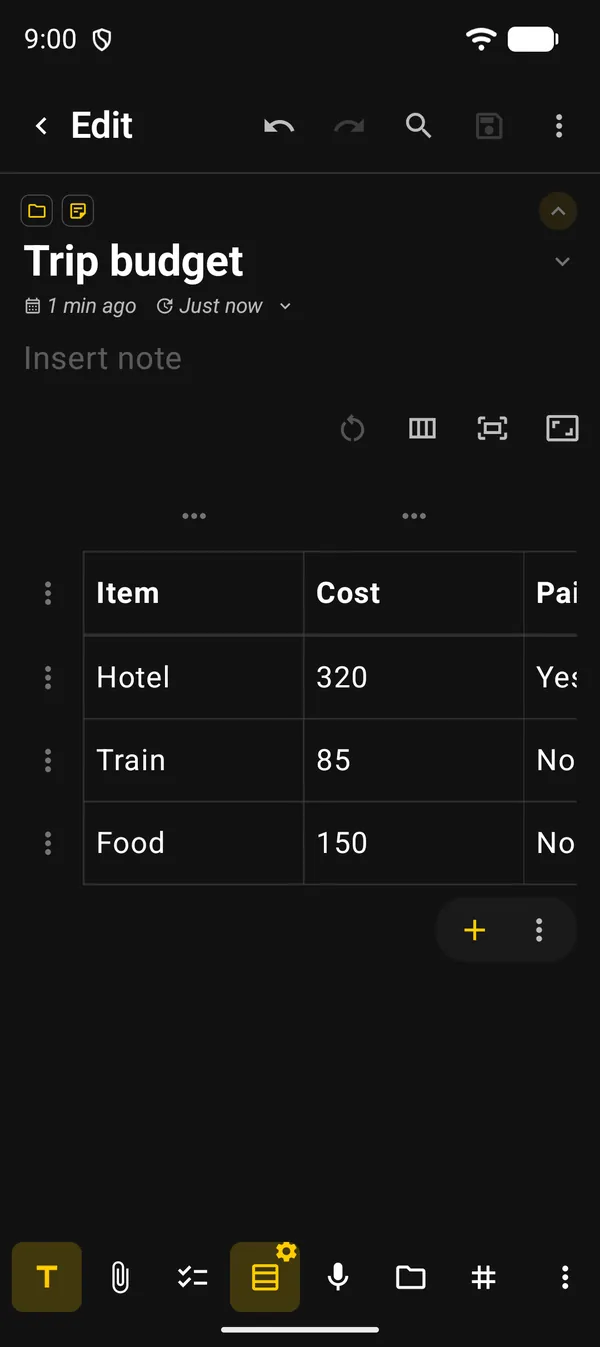
| Where | What it does |
|---|---|
| ⋮ to the left of each row | Row menu |
| … above each column | Column menu (section 4) |
| Icons at the top, left to right | Reset column widths, Equal column widths, Fit columns to content and Fit to table width |
| + below the table | Quick actions: add a row or column at the end, remove the last row or the last column |
| ⋮ below the table | Copy, import, export, colors, borders and delete (section 6) |
The row menu has Add row, Duplicate row, Copy row, Bold, Center, Right Align, Move up / Move down, Clear Row and Delete. The header has no Bold option, because it is already bold.
4. The column menu
Tap the … above a column.
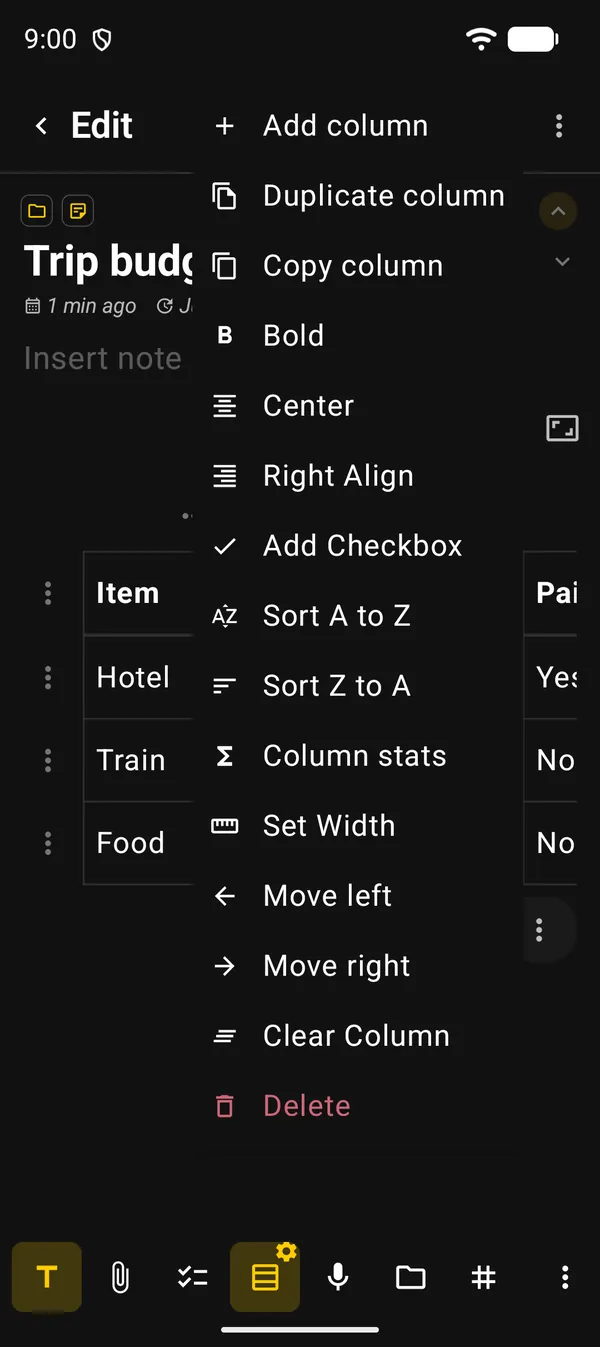
| Option | What it’s for |
|---|---|
| Add column / Duplicate column | Adds an empty column or a copy to the right |
| Copy column | Copies the values, one per line |
| Bold, Center, Right Align | Formats the whole column. Tap again to undo it |
| Add Checkbox | Turns the text into tick boxes. Only works on an empty or true/false column |
| Sort A to Z / Sort Z to A | Sorts the rows by this column. The header stays on top, numbers sort as numbers and empty cells go last |
| Column stats | Sum, average, smallest and largest value (section 5) |
| Set Width | Sets the column’s width. Off while Fit to table width is on |
| Move left / Move right | Moves the column |
| Clear Column | Erases the text and keeps the column |
| Delete | Removes the column |
Clear and Delete ask for confirmation first.
Want a “Paid” column with tick boxes? Add a new column, use Add Checkbox, then type only the header.
5. Add up a column
In the column menu, tap Column stats. In the example, the “Cost” column shows the trip total.
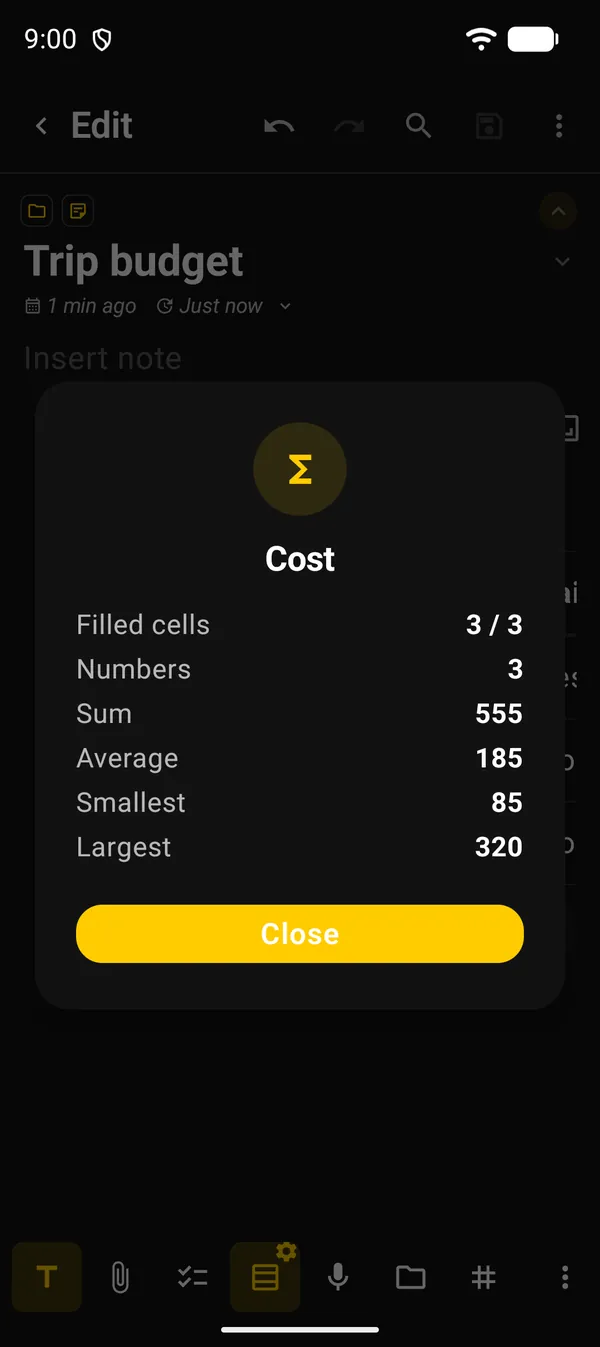
| Line | What it shows |
|---|---|
| Filled cells | How many cells have something in them, out of the total |
| Numbers | How many cells were read as numbers |
| Sum | The total |
| Average | The average |
| Smallest / Largest | The lowest and highest value |
Values such as $10, 1,234.50 and -5% count as numbers. For a checkbox column, the dialog shows how many are Checked.
6. Colors, borders and export
The ⋮ below the table has:
| Option | What it does |
|---|---|
| Copy, Import & Export | Copies the table as CSV, Markdown or HTML, saves it to a file in those formats, or imports a table from a file. Importing replaces the current table |
| Color | Opens the Font, Background, Title (for the header row) and Border tabs. Alternating rows is on the Background tab |
| Delete | Deletes the whole table |
| Row of icons at the end | The border style: Full grid borders, Rows only borders, Outer borders only or No borders |
On the home screen, the note’s card shows up to 6 rows of the table and counts the rest. In a checkbox column, you can tick boxes right on the card.
Next guides
FAQ
Can a note have two tables?
No. Each note has one table. Once it exists, the Table button opens its settings instead of making another. For a second table, use another note.
How big can a table be?
Up to 250 rows and 30 columns, with at most 3,000 cells.
Does the sum understand currency and decimal commas?
Yes. $10, 1,234.50 and 3,50 are read as numbers. Text such as "Item 2" or a date is left out of the count.
How is this different from a Markdown table?
A Markdown table is text with | that turns into a table in Reading mode. The table in this guide is edited cell by cell, with menus, sorting and sums. See the Markdown guide.