DicaNote keeps earlier versions of each note’s title and text. Use them to see how the note looked, compare it with the text you have now and bring back what you lost.
1. Open Text history
- Open the note in the editor.
- Tap ⋮ → Tools.
- Tap Text history.
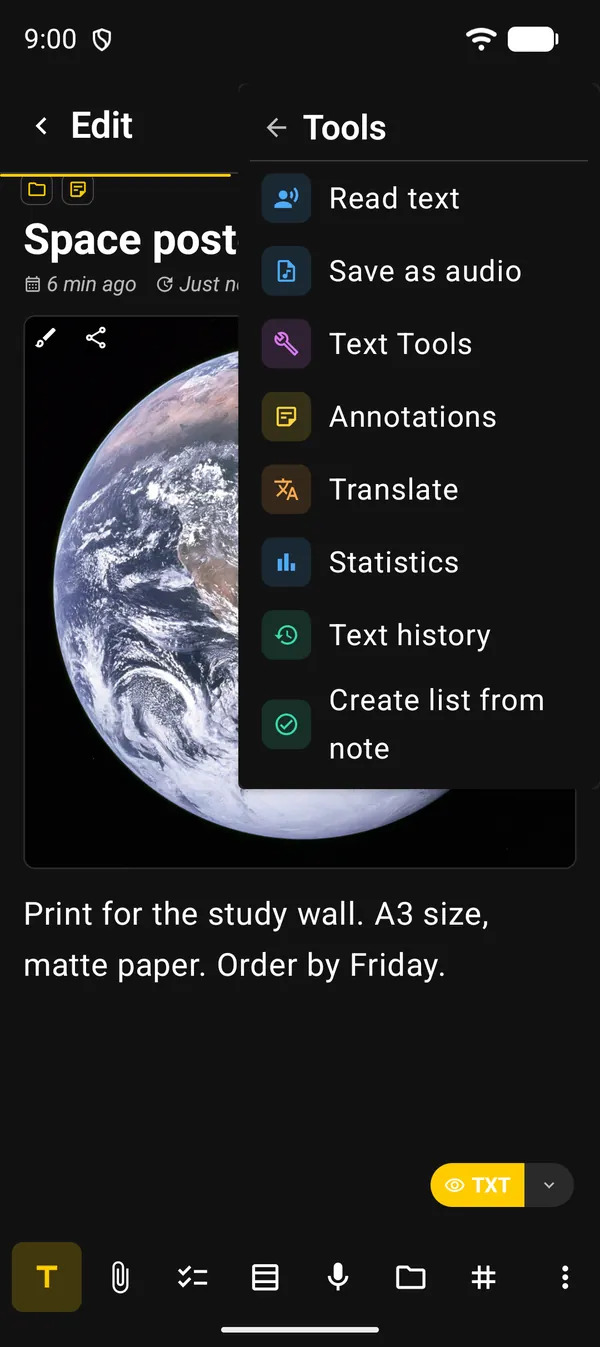
Note templates do not have this option.
2. When a version is kept
When you change the title or the text, the app keeps them as they were before the change. After that it waits 10 minutes before keeping another version. In practice you get one version per editing session, not one per keystroke.
| Question | Answer |
|---|---|
| How many versions? | Up to 15 per note. When a new one arrives, the oldest goes |
| What is kept? | The title and the text. Attachments and the note’s other components are left out |
| Where is it stored? | Only on this device. Text history is not part of backups |
| What if nothing changed? | A version identical to the last one is not kept again |
It covers any change to the text, not only what you type. Texts over 100,000 characters, such as some large web clips, get no versions.
3. The version list
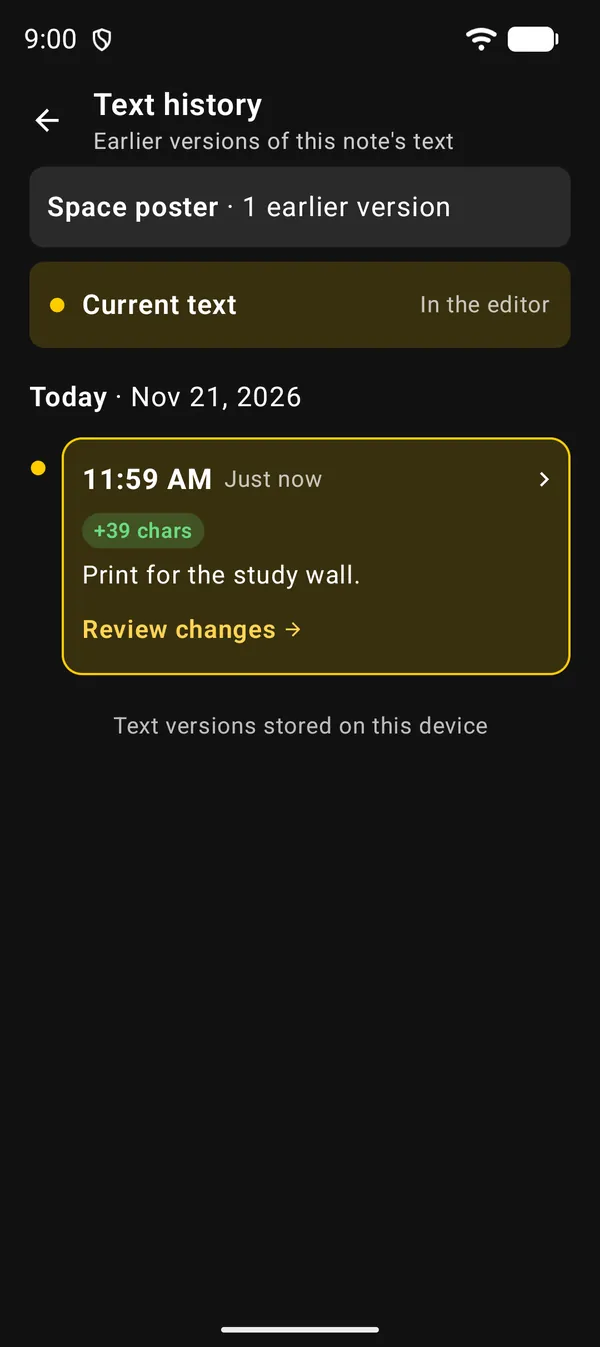
The top shows the note’s name and how many earlier versions it has. Below it, Current text marks what is In the editor right now.
Versions are grouped by day, newest first. Each card shows the time, how long ago it was, the start of the text and a pill with how many characters were added (green) or removed (red) after that version.
4. Compare with the current text
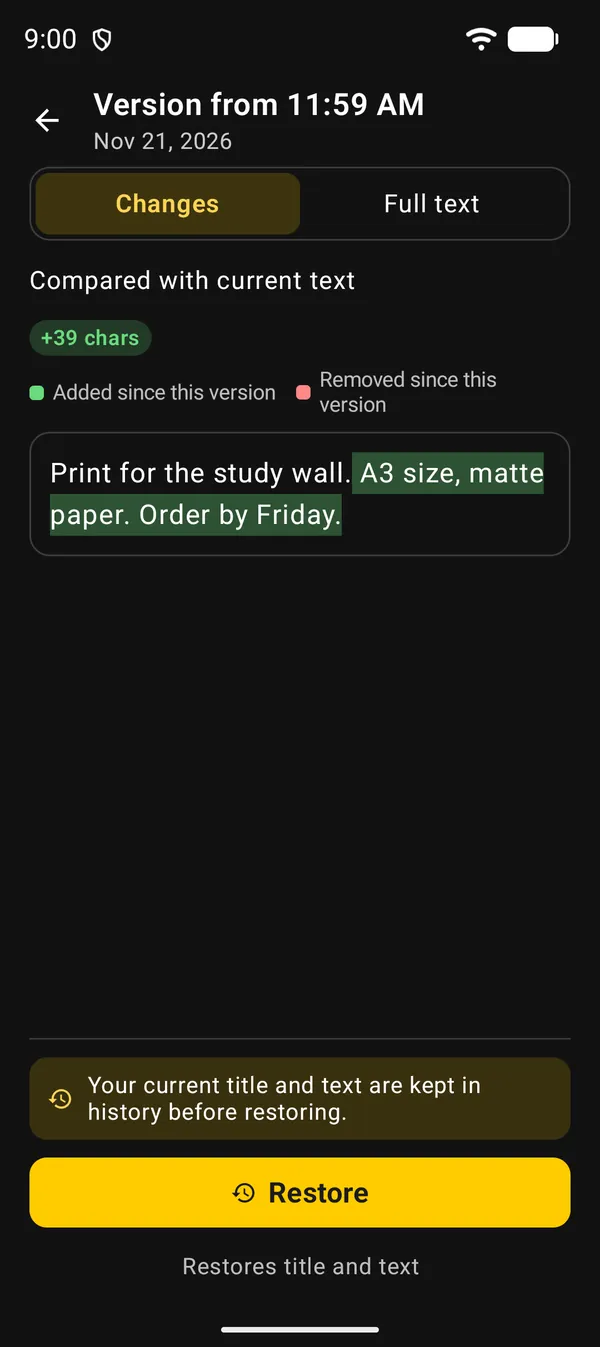
Tap Review changes or the card. The version page has two tabs:
| Tab | What it shows |
|---|---|
| Changes | The version Compared with current text. Green is Added since this version; red is Removed since this version |
| Full text | The whole version, as it was kept |
If the title changed, it gets its own line at the top of the card.
In formatted notes, the Raw text switch swaps the readable text for the note’s source (Markdown or HTML). When only the formatting changed, the app says so and points you to that switch.
5. Restore a version
Tap Restore. The app:
- keeps your current title and text in history, so you can go back;
- puts the version’s title and text back;
- shows Earlier version restored.
The restore is also a single Undo step in the editor. If the version had no title, the current title stays. When the version matches the current text, the button is disabled.
Limits
- At most 15 versions per note.
- Title and text only. Attachments and the note’s other components do not come back.
- History stays on the device. It is not in the backup and does not move to another phone.
- Very long notes, over 100,000 characters, have no versions.
Next guides
FAQ
Why is the list empty?
The first version appears only when you change a note that already had text. On a new note the app says "No earlier versions yet".
How is this different from Undo?
Undo steps back through small edits. Text history keeps the whole note as it was, up to 15 versions, and it is still there after you close the note.
I restored the wrong version. Now what?
Before restoring, the app keeps the current text in history. Open Text history again and restore the newest version. Right after the restore, Undo works too.
Is Text history in my backup?
No. Versions stay on this device only. A backup carries your notes, but not their earlier versions.