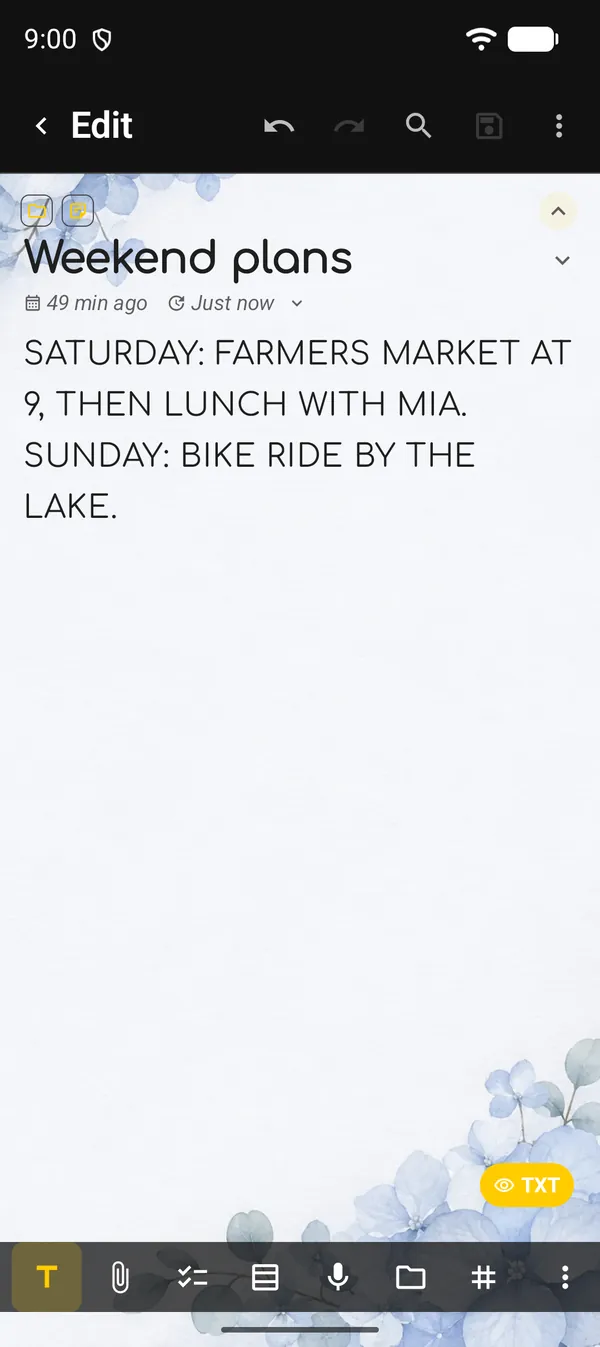
This guide covers two editor features: search inside a note, with word replacement, and Text Tools, which change the whole text in one go. The example is the note “Weekend plans”, in plain text. Bold, headings and lists are covered in the Markdown guide.
1. Find a word in the note
- Open the note. At the top of the editor, tap the magnifier, Search.
- Type the word. The current match is highlighted in the text.
- Next to the word is the counter, such as 1/1. The up and down arrows go to the previous and next match. The keyboard’s search key also moves to the next one.
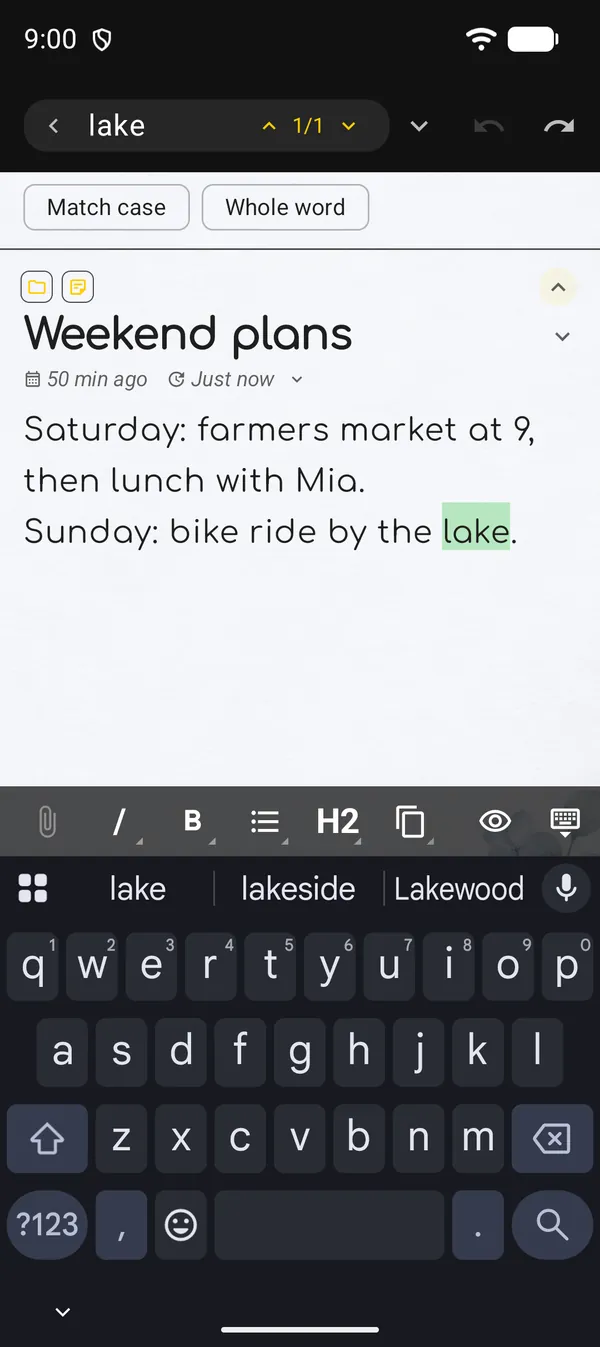
Just below the bar are two options:
| Option | What it does |
|---|---|
| Match case | “Lake” and “lake” count as different words |
| Whole word | Skips the word inside another word: “lake” won’t match “lakeside” |
If the counter shows 0, the word isn’t in the note’s text. When it also appears in the title, a to-do list or a table, an Also in line shows the count for each place.
To leave search, tap the arrow on the left of the bar.
2. Replace one match or all of them
- With search open, tap the down arrow on the right of the bar, Find and replace.
- Type the new word in the new field.
- Choose:
- the first icon, Replace current match, changes only the highlighted match and moves to the next one;
- the second, Replace all matches, changes them all at once and tells you how many it replaced.
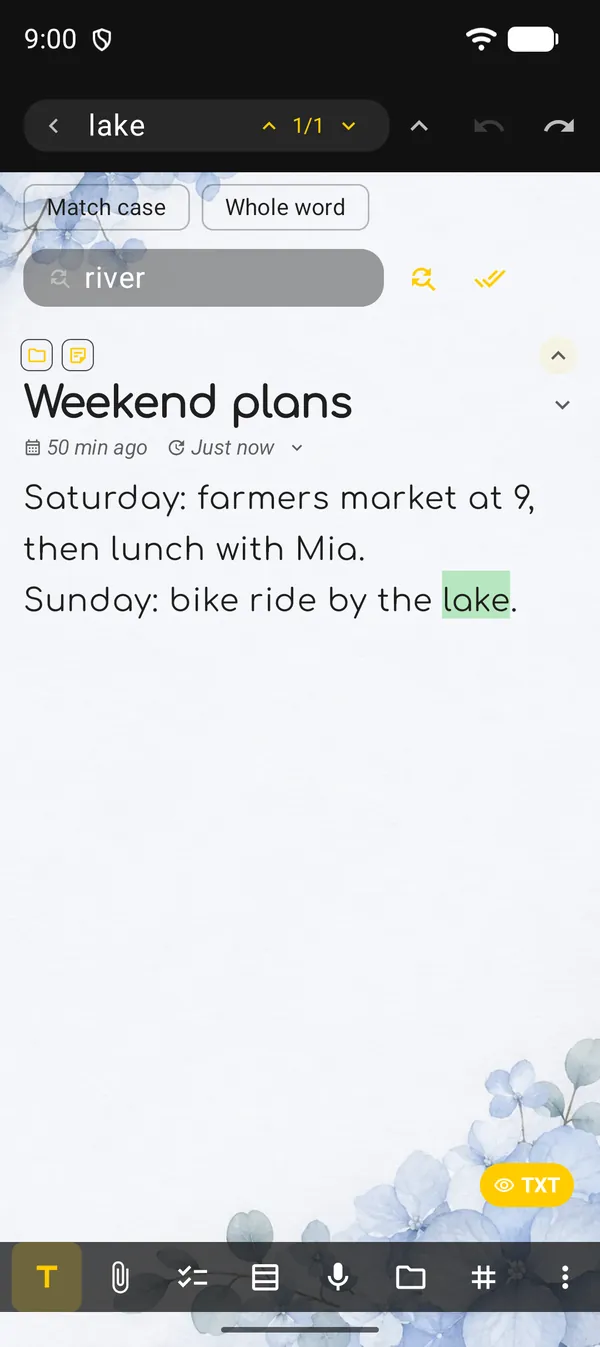
Replacing follows the same options as the search. With Whole word on, for example, “lakeside” is left alone. Replacement applies to the note’s text, not its title.
Replaced the wrong thing? Tap Undo, the curved arrow at the top.
3. Open Text Tools
In the editor, tap ⋮ → Tools → Text Tools. A sheet opens with the tools grouped by kind.
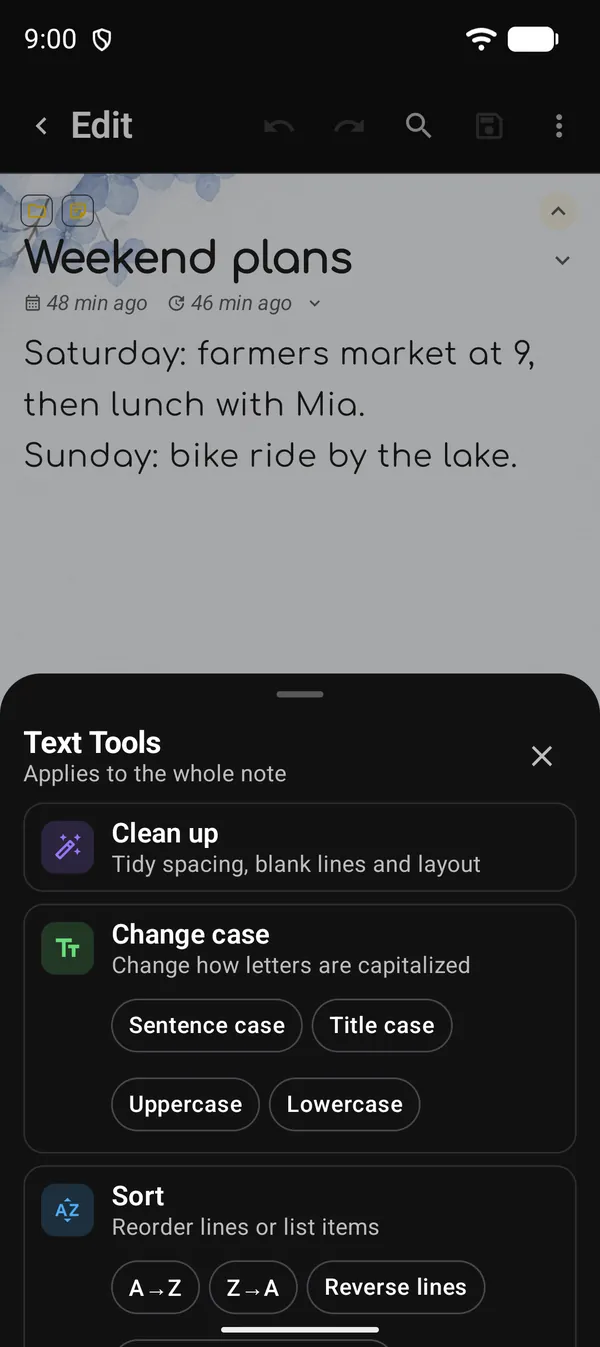
The subtitle under the sheet’s name tells you the scope:
- Applies to the whole note: nothing is selected, so the tool changes all of the note’s text.
- Applies to the selected text: you selected a passage before opening the sheet, and only that passage changes.
4. What each group does
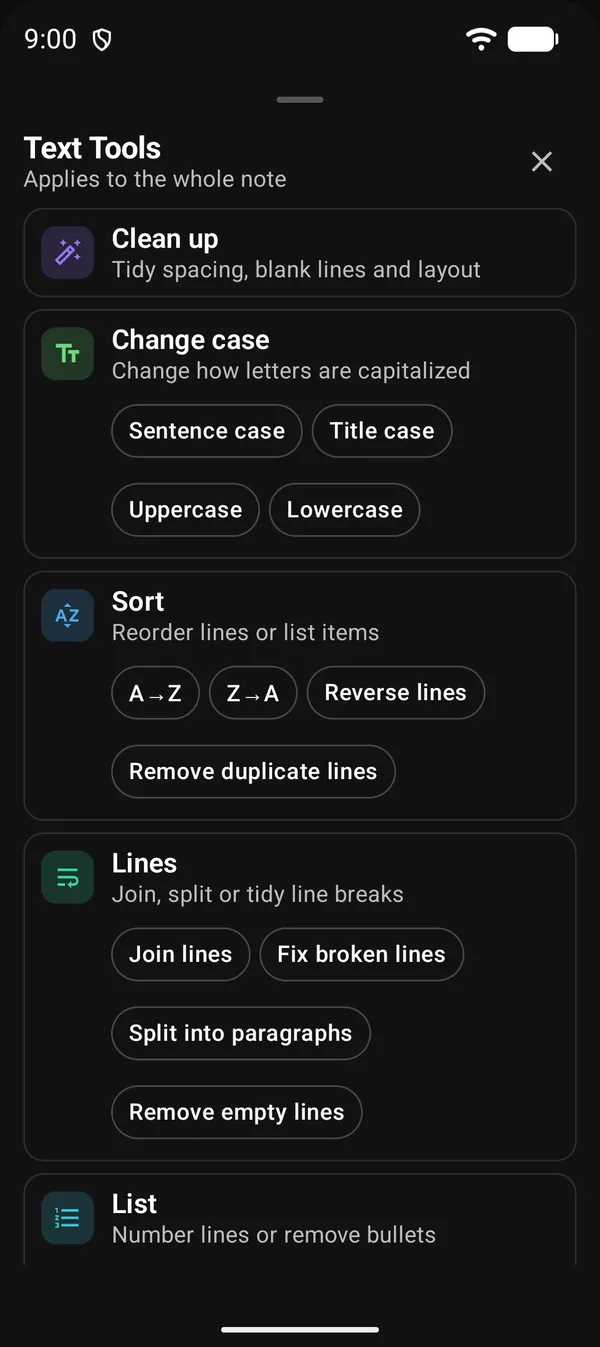
| Group | Buttons | What it’s for |
|---|---|---|
| Clean up | Tap the group itself | Tidies spacing, blank lines and layout |
| Change case | Sentence case, Title case, Uppercase, Lowercase | Changes how letters are capitalized. Links and email addresses stay as they are |
| Sort | A→Z, Z→A, Reverse lines, Remove duplicate lines | Puts lines in order, reverses their order or deletes repeated ones |
| Lines | Join lines, Fix broken lines, Split into paragraphs, Remove empty lines | Joins, splits or tidies line breaks. Handy for text pasted from a PDF |
| List | Number lines, Remove bullets & numbers | Adds 1., 2., 3. at the start of lines or removes dashes and numbers |
When sorting, numbers go by value: “item 2” comes before “item 10”. A blank line separates groups: each block is sorted and numbered on its own.
In a Markdown or HTML note the sheet has fewer options and adds Remove formatting. Some of them need a selected passage; without one, the group reads Select text to use this tool.
5. Apply, check and undo
Simple tools, such as the case changes and Number lines, act at once: the sheet closes and the changed text is already there.
Tools that delete or move lines show a Preview first: Clean up, A→Z, Z→A, Reverse lines, Remove duplicate lines, Join lines, Fix broken lines, Remove empty lines and Remove bullets & numbers. Check the result and tap Apply or Cancel.
Don’t like the result? Tap Undo at the top of the editor. A whole tool run comes back in one step.
When nothing happens: if the tool has nothing to change, such as A→Z on lines that are already in order, the text stays the same, the sheet stays open and a short notice says No changes were made. It isn’t an error: the text was already that way. Pick another tool or close the sheet with the X.
Next guides
FAQ
I tapped a tool and nothing changed. Is it stuck?
No. The tool found nothing to change, so the text stayed the same and the sheet stayed open. Try another tool or close the sheet.
How do I use a tool on just one paragraph?
Select the passage before opening ⋮ → Tools → Text Tools. The sheet's subtitle changes to Applies to the selected text.
Does Replace all also change the title?
No. Replacement applies to the note's text. The Also in line only tells you the word appears elsewhere.
I replaced the wrong word. Can I go back?
Yes. Tap Undo at the top of the editor. For older versions of the note, see text history.