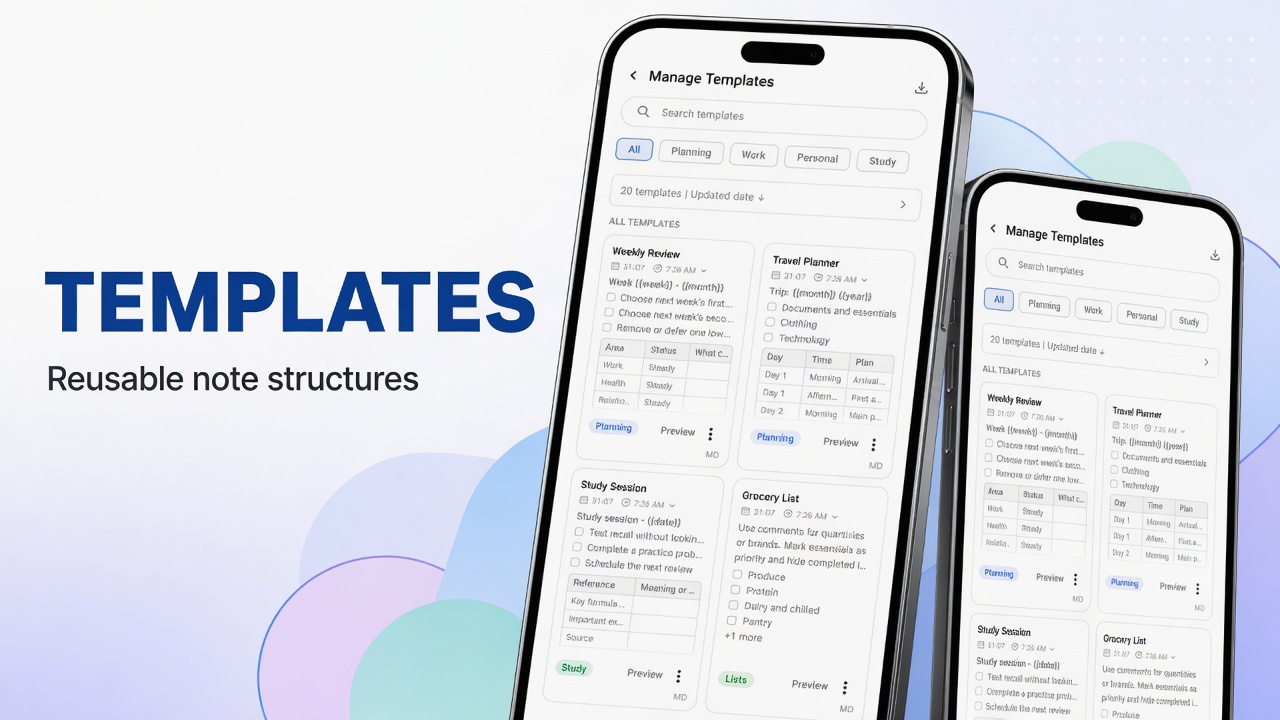
If text looks small, yellow tires you, or you prefer a dark background at night, that lives under Settings → Appearance.
Path
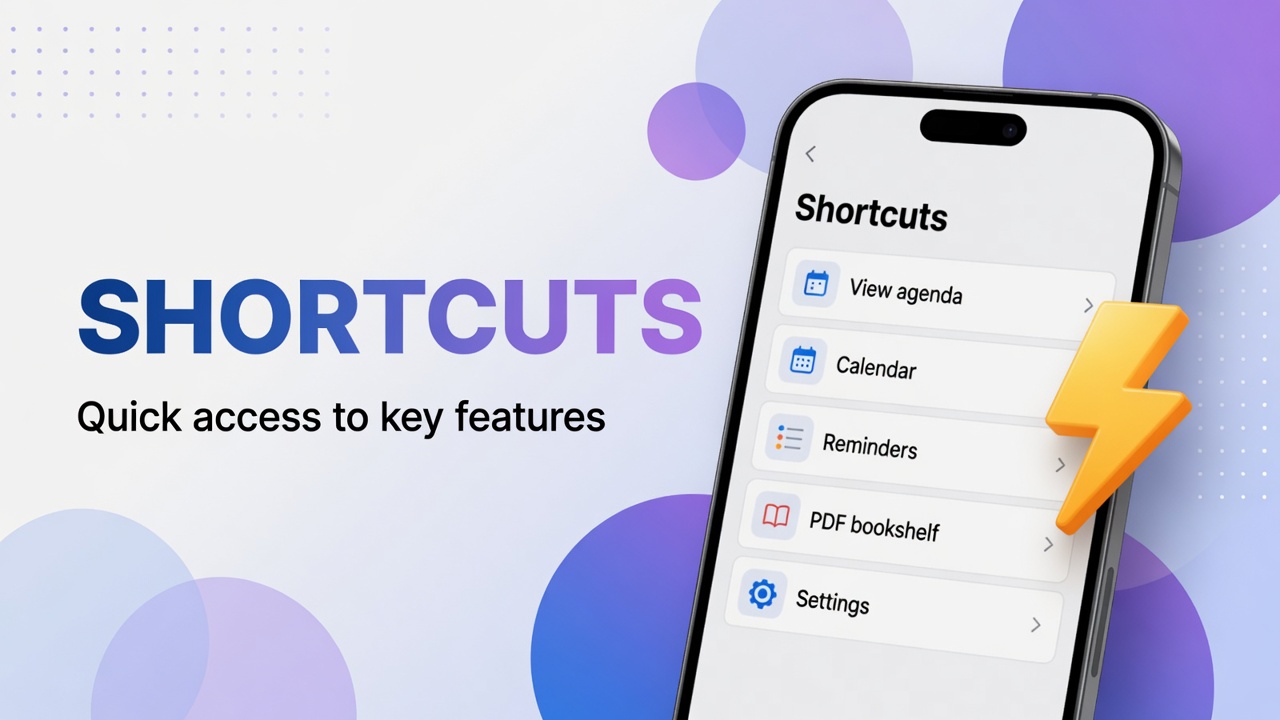
- ⋮ → Settings
- Appearance
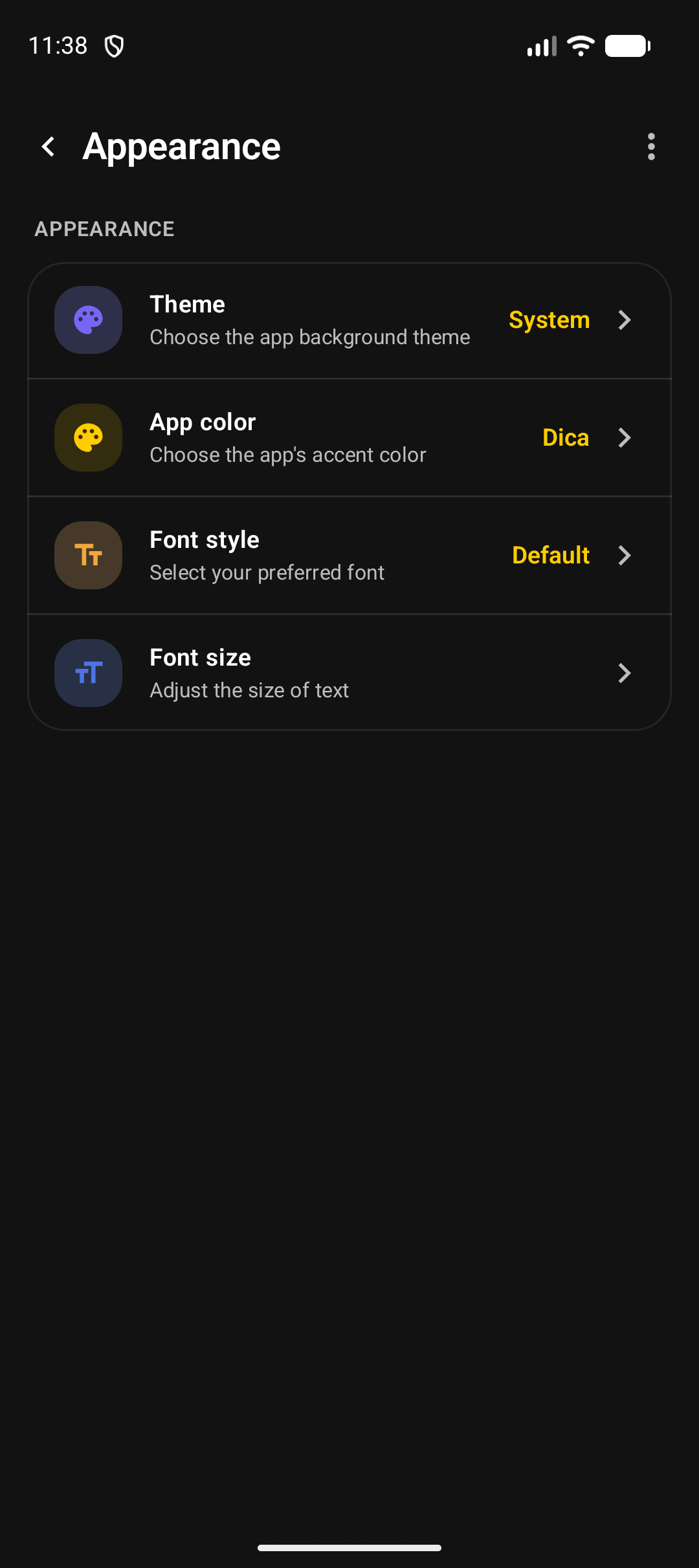
- Change theme, app color, font and text size.
- Return to the list and check the result.
What usually changes
| Option | Effect |
|---|---|
| Theme | Light, dark, or System. On this screen the value is System |
| App color | Accent color. On this screen the value is Dica |
| Font style | Typeface. On this screen the value is Default |
| Font size | Text size |
General controls other things (default layout, sorting). The layout button on home (Dense / Grid) is independent of the theme.
Practical tips
- Increase text size before complaining the list feels “tight”.
- Dark theme helps at night; outdoors, light mode contrast is often better.
- A loud accent color tires you in long sessions — prefer something sober.
Related settings
- Notifications — reminders, not visuals.
- Security — PIN.
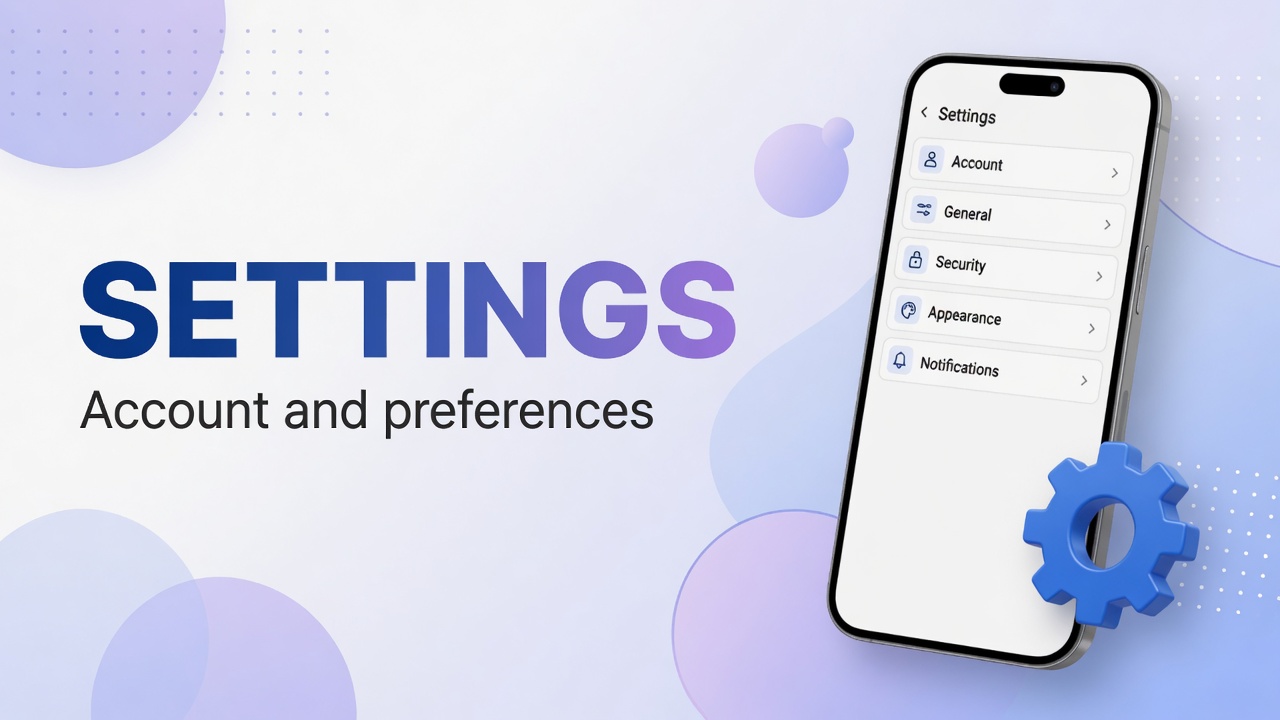
- Full map: settings and account.
FAQ
Does the theme follow Android automatically?
If there is a “System” / follow system option, yes. Otherwise pick light or dark manually.
Does this change only DicaNote?
Yes. The app theme does not change the rest of the phone.