The Web Clipper opens a page inside DicaNote and copies its text into a note. The example in this guide is the Wikipedia article on the Pomodoro Technique.
1. Two ways in
From the browser
- In Chrome or another browser, open the page and tap Share.
- Choose DicaNote. The Shared Content panel opens with a preview of the link.
- Tap Web Clipper.
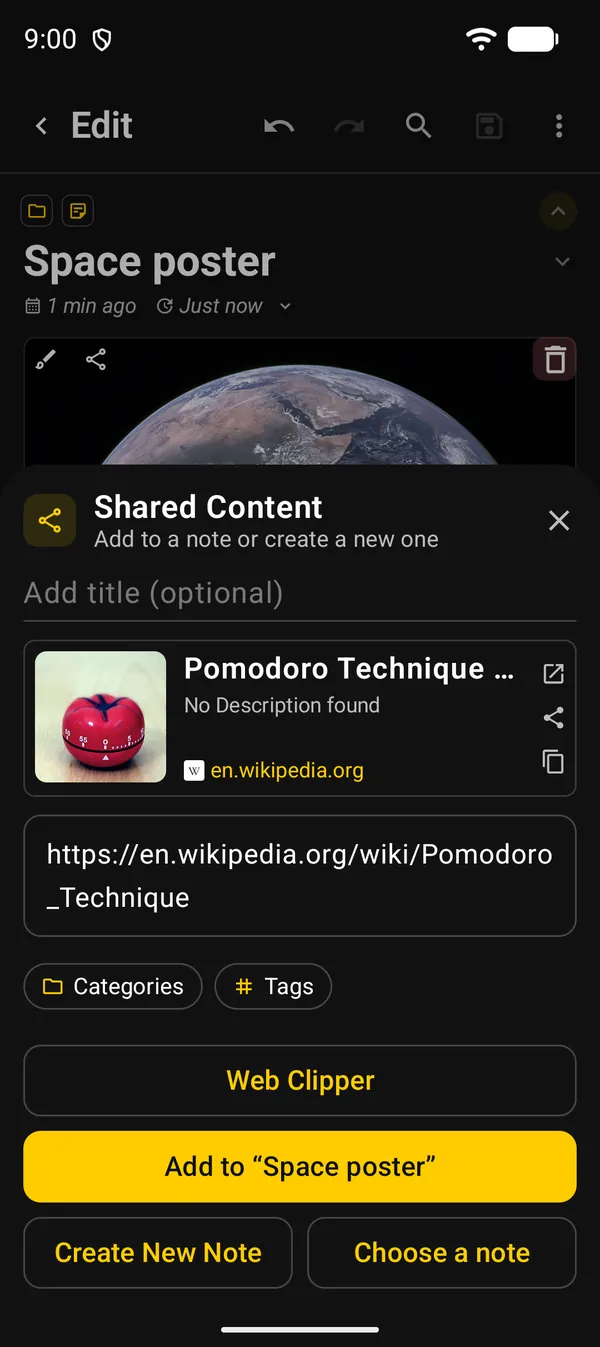
More about this panel in sharing text into DicaNote.
From a link card in a note
If the note already holds a link, tap the ⋮ on the link card and choose Web Clipper. This way, the clipped text goes straight into that note. See how link cards work in internal and web links.
2. Read the page
The page opens in Reader view: just the article text and its images, without the site’s menus or ads.
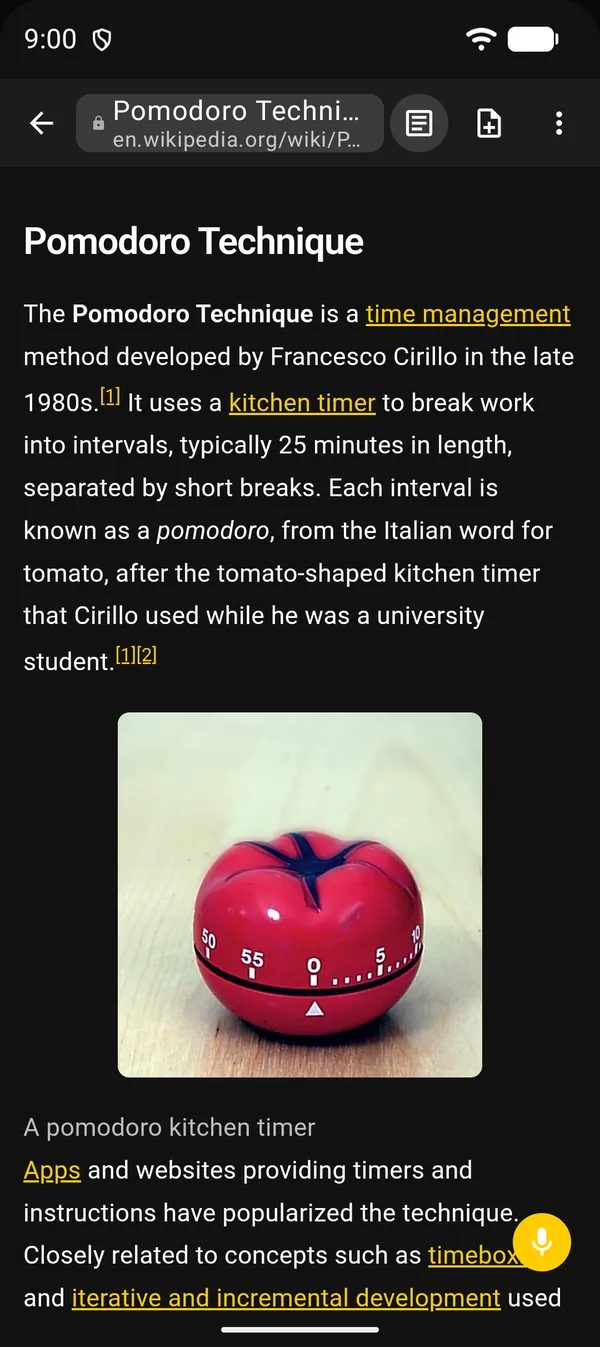
| Where | What it does |
|---|---|
| Page address | Shows the full link, with Copy link and Share |
| Article icon | Reader: switches between the clean text and the original page. The app remembers your choice |
| Note icon with + | Clip to Note |
| ⋮ | Find in page, Font size, Reload, Share and Open in Browser |
When you opened the clipper from a note, ⋮ also has Save as PDF, which attaches the page to the note as a PDF.
If the page has no article Reader can recognize, you see Reader view is not available for this page. Tap the article icon to see the original page.
3. Clip it into a note
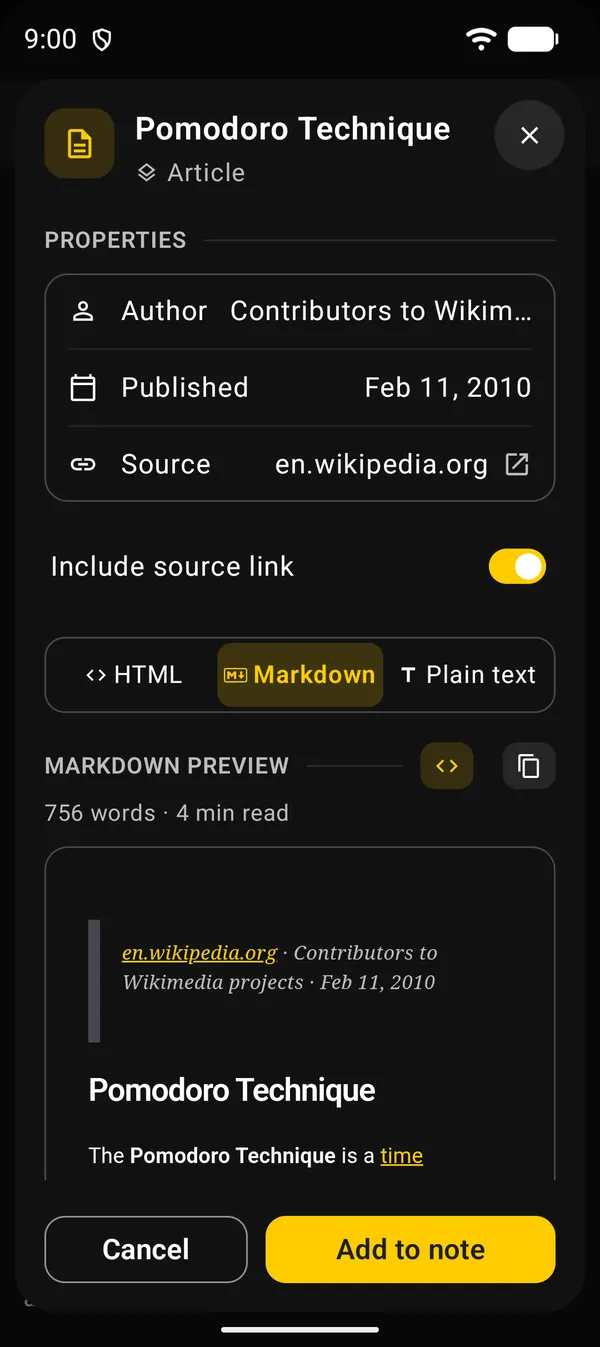
Tap Clip to Note. A panel opens with the article ready to save.
| Part | What it is for |
|---|---|
| Properties | Author, Published and Source, when the page provides them |
| Include source link | Adds a quote at the top with the link, author and date. The app remembers your choice |
| HTML, Markdown and Plain text | The text format. The app suggests Markdown for regular notes and HTML for HTML notes |
| Preview | Shows how the text will look, with the word count and reading time. The icons next to it show the source and copy the text |
| Add to note | Saves the clip |
To take only a passage, select the text on the page and tap Add to note in the selection bar. The same panel opens with just that passage.
Where the text lands depends on how you opened the clipper:
- From the browser: the text goes into the Shared Content panel, below the link. Then tap Create New Note, Add to or Choose a note.
- From a link card: the text goes to the end of the note. This path also offers Save as new note, which creates a note named after the page, in the same categories as the note it came from, and opens it.
4. What gets saved
A clip is a copy of the text at the moment you tap Clip to Note. If the site changes later, your note does not.
- In Markdown and Plain text, reference markers such as [1] and [2] are left out.
- For long articles the preview says it was shortened, but the whole text is saved.
- If you clip the same page into the same note again, the panel says it was already added and the button becomes Add again.
5. Dictation and YouTube videos
The mic button, Dictate to note, writes down what you say while you read. Review the text and tap Add to note.
On a YouTube link, the card’s ⋮ shows Subtitles instead of Web Clipper. The clip button then fetches the video’s captions, and the panel offers Clean subtitle or Time markers. Use Captions to change the language. If the captions do not load, start the video and tap again.
Next guides
FAQ
Do I need internet?
To open and clip the page, yes. After that the text is stored in the note, on the device.
Does the note follow changes on the site?
No. The clip keeps the text as it was at that moment. To update it, clip the page again.
Which format should I pick?
Keep the one the app suggests: Markdown for regular notes and HTML for HTML notes. Use Plain text when you only want the words, without formatting.
Can I save just one paragraph?
Yes. Select the passage on the page and tap Add to note in the selection bar.