1. The two widgets
| Widget | What it shows | When you tap it |
|---|---|---|
| Quick capture | A Take a note… bar with checklist and drawing buttons | Opens a new note, checklist or drawing |
| Pinned note | The title and text of one note | Opens the note |
Pinned note updates when you save the note. A note or checklist opened from Quick capture and left blank is discarded when you leave it.
2. The first-time invitation
Once you create your first note of your own (the example notes don’t count), the app shows Keep DicaNote one tap away once. It does not appear if a DicaNote widget is already on your home screen.
- Add widget asks Android to place Quick capture on your home screen.
- Not now closes it, and it does not come back.
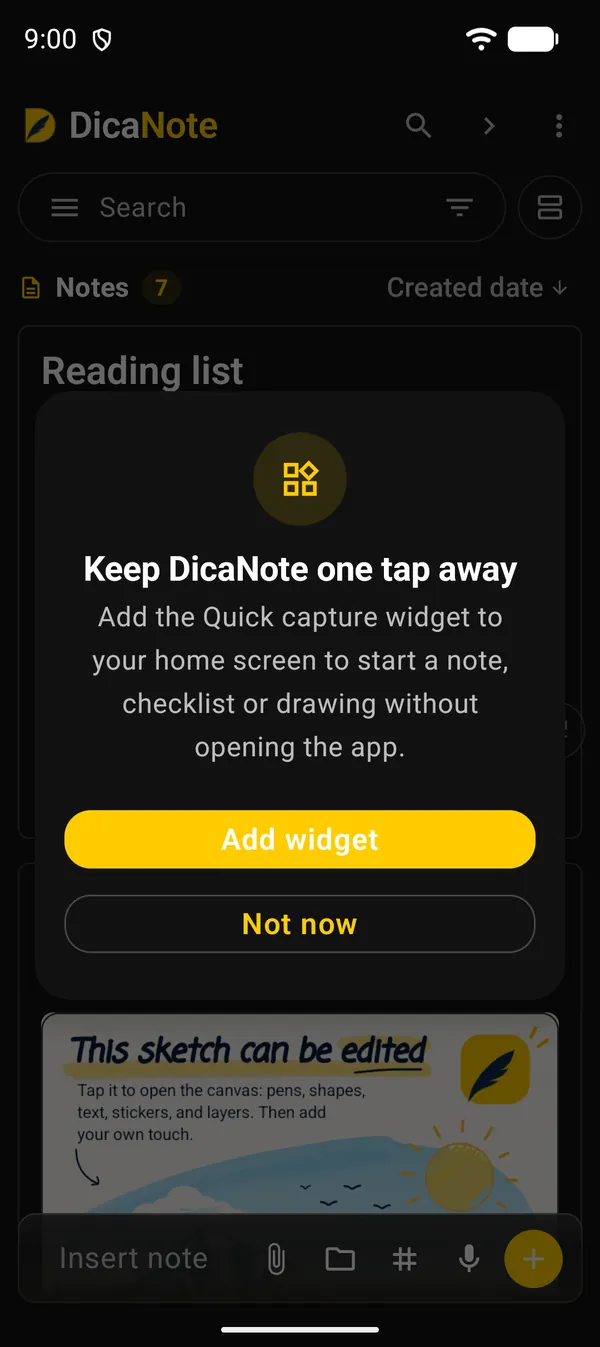
With a widget on your home screen, the widget task in the Try these 7 things checklist ticks itself.
3. A note on your home screen, from the app
- Open the note and tap ⋮ → Add to → Home screen.
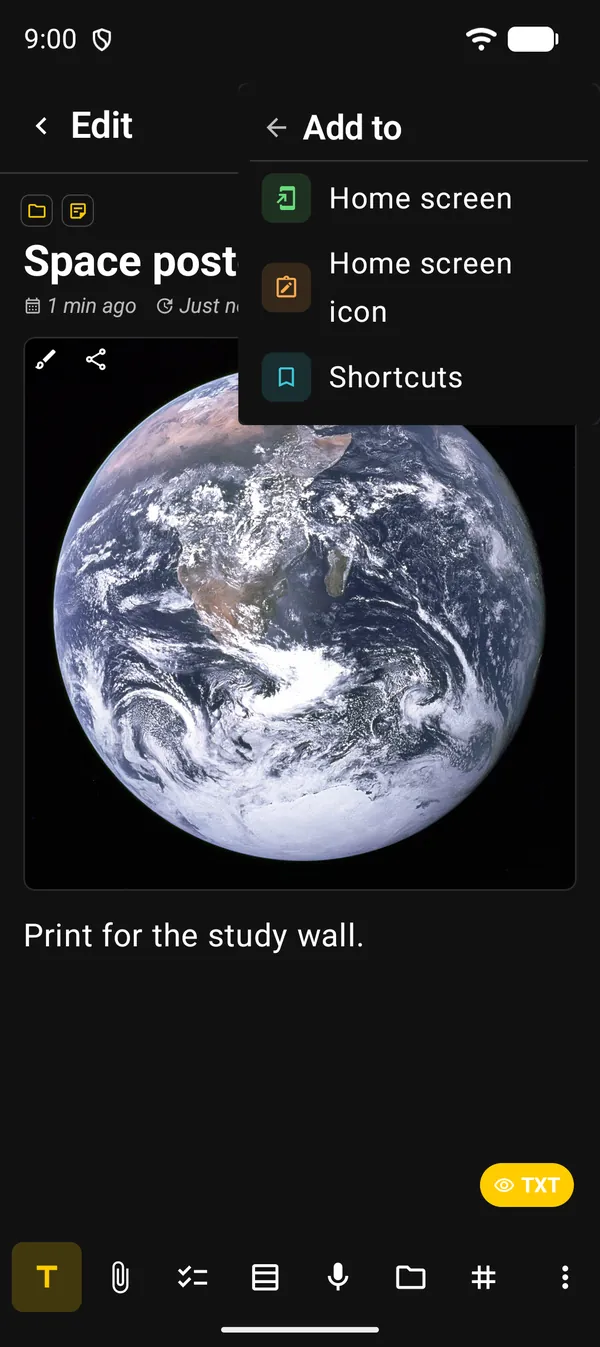
- In the Customize widget panel, choose the look:
| Option | What it is for |
|---|---|
| Preview size | Compact, Wide or Tall. It only changes the preview; you set the real size on the home screen |
| Color | Auto follows your phone’s theme. There are also Classic, White, Mint, Sky, Rose, Lavender, Stone and Midnight |
| Text size | Small, Medium or Large |
| Show title and Show footer | The note title and the word DicaNote in the corner |
| Spacing | Comfortable or Compact |
| Tasks | Only for notes with a checklist: Hidden, Incomplete or All |
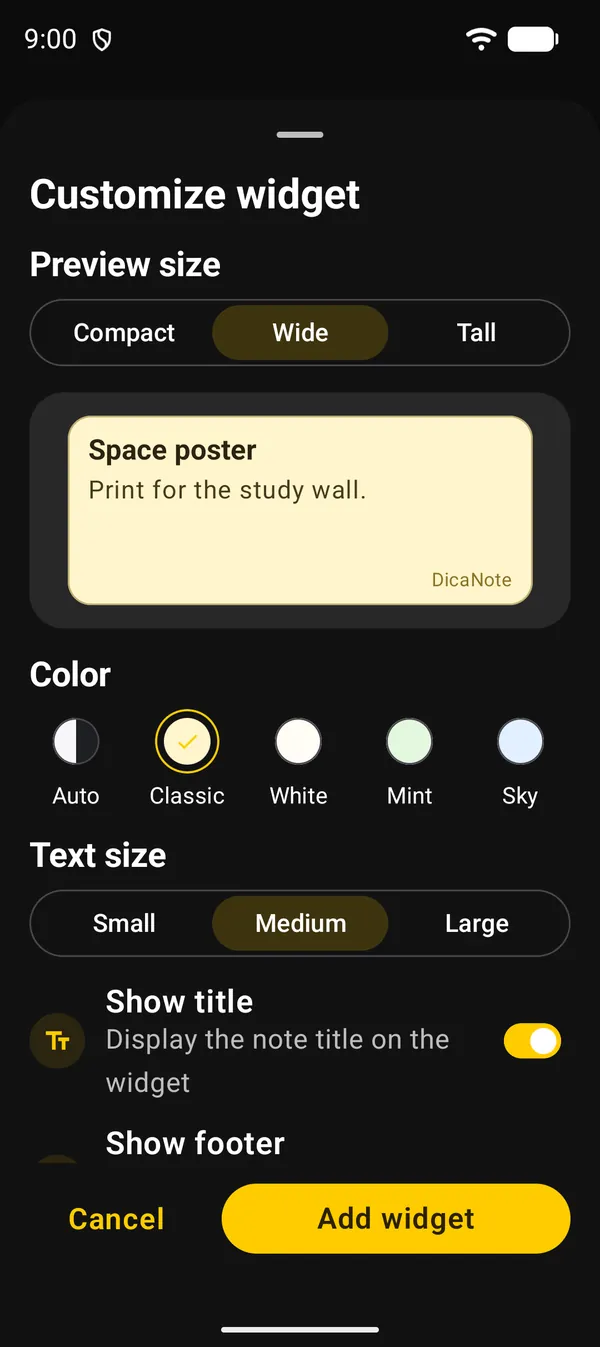
- Tap Add widget. Android asks you to confirm; confirm and the widget appears on your home screen.
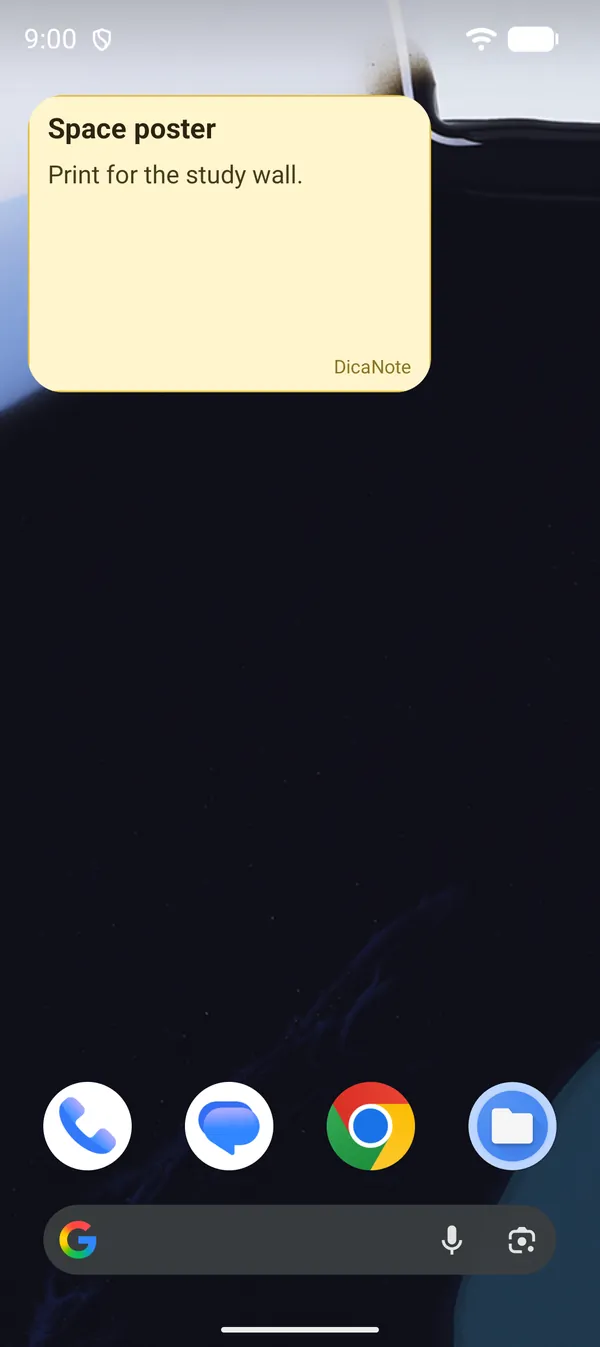
To change the look later, take the same path. The Home screen row then shows Customize widget, and the button becomes Update widget.
If nothing appears, your launcher may be blocking the request. Allow DicaNote in the launcher’s settings, or use the path in section 4.
4. From the Android home screen
- Touch and hold an empty spot on the home screen.
- Tap Widgets.
- Find DicaNote and drag Quick capture or Pinned note onto the screen.
- For Pinned note, DicaNote opens Choose a note, with search. Tap the note the widget should show.
The widget starts with the default look. To change color and text, follow section 3.
5. Other shortcuts
| Where | What it does |
|---|---|
| ⋮ → Add to → Home screen icon | Places an icon with the note’s name. One tap opens the note |
| ⋮ → Add to → Shortcuts | Adds the note to the app’s Shortcuts panel, opened by the Open shortcuts bubble |
| Touch and hold the DicaNote app icon | Shortcuts to create a note, checklist or drawing, plus the last note you opened |
| Android Quick Settings | The New note tile. Edit the panel’s tiles to add it |
| Settings → General → Default notes app | On Android 14 or newer, on supported devices, writes a note from the lock screen or a stylus button |
On the lock screen, DicaNote only lets you write a new note. None of your saved notes appear there.
Next guides
FAQ
Does the widget update by itself?
Yes. When you save the note, the widget shows the new text.
Can I put a private note in a widget?
No. Private notes are not listed for the widget and do not have the home screen options. With app lock on, the widget shows Protected note instead of the text.
Can I have more than one widget?
Yes. Add a Pinned note for each note you want to see on your home screen.
I missed the invitation. Can I still add Quick capture?
Yes. Touch and hold the home screen, open Widgets and look for DicaNote.