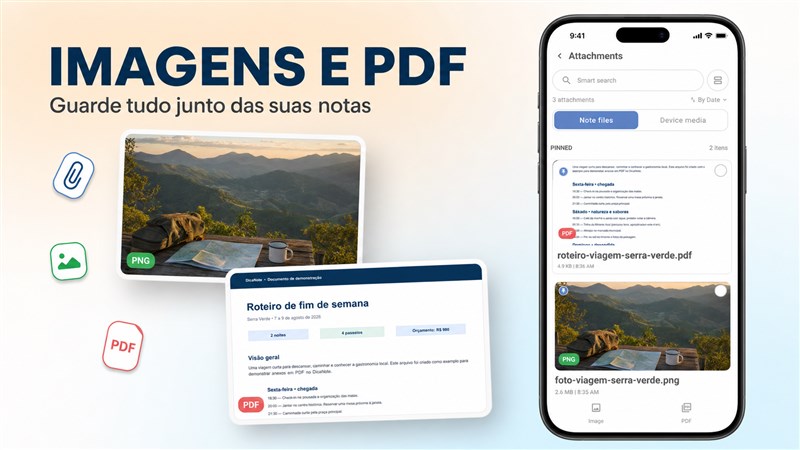
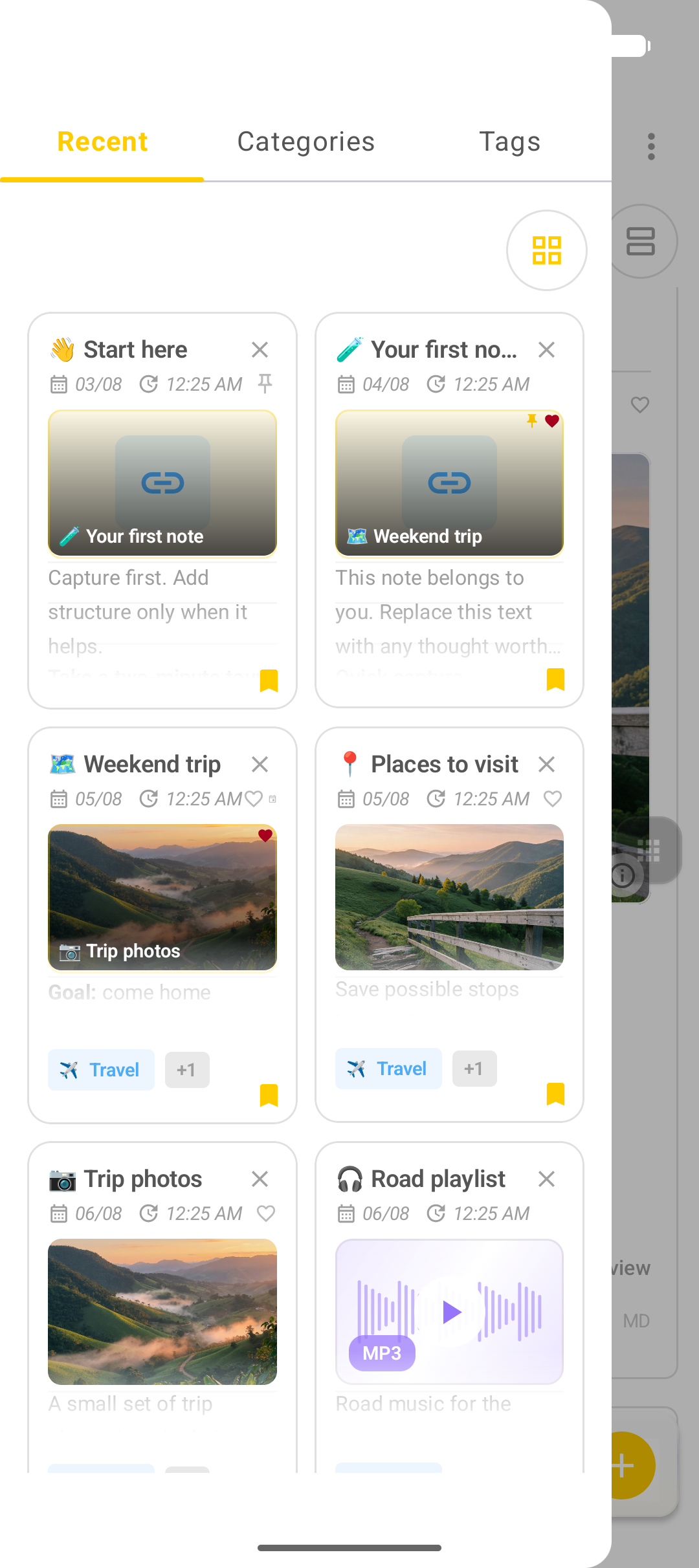
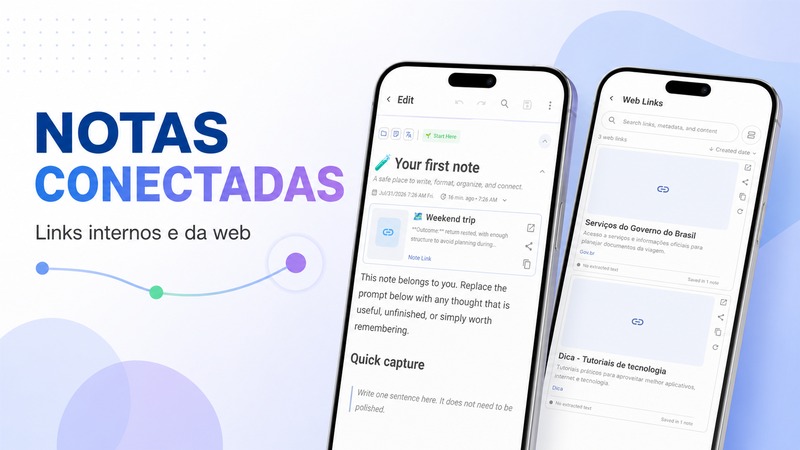
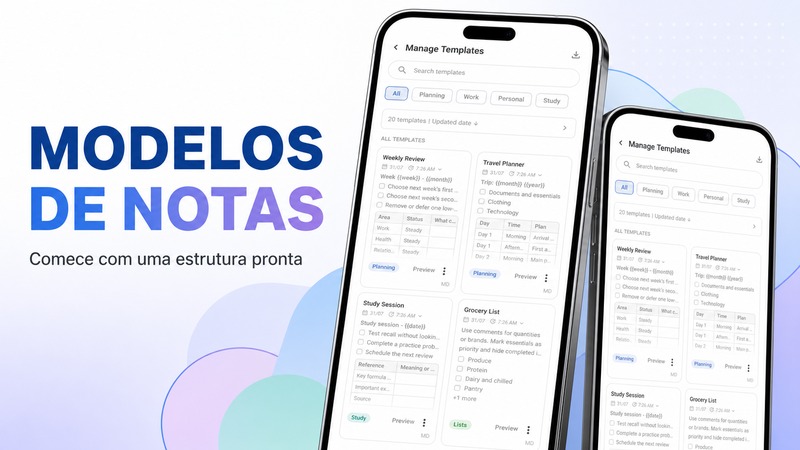
A note can hold more than text. In DicaNote you can attach images, PDFs, audio, and video. For a clean library (and better screenshots), give each media type its own note, then link those notes from your main plan.
Attach something to a note
- Open the note that should receive the file.
- Tap the paperclip on the bottom bar.
- Choose the content type (image, file, audio, video, and so on).
- Pick or capture the file.
- Confirm, then save the note.
Android may ask for permission to photos, camera, microphone, or files. Allow only what that action needs.
Recommended setup: one media type per note
| Note | Content |
|---|---|
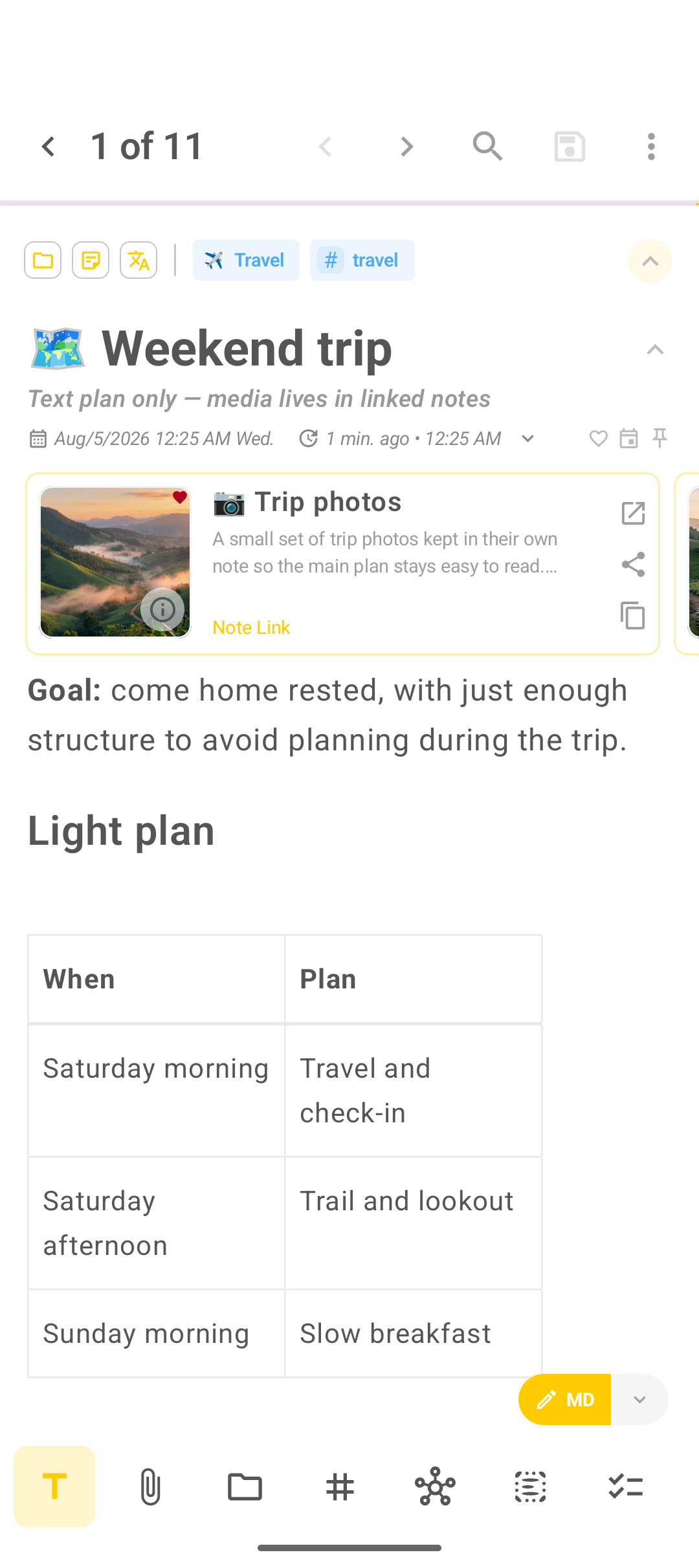
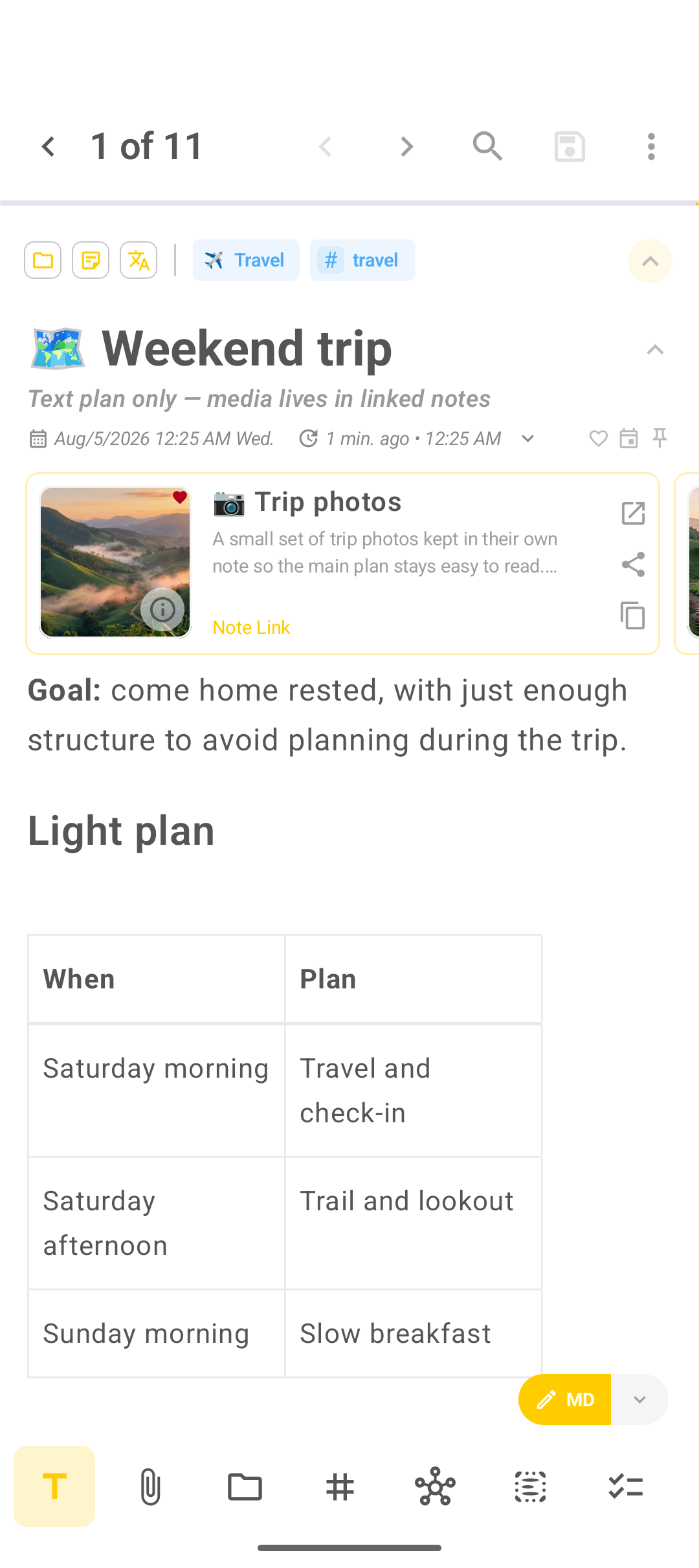
| Weekend trip | Plan text + links |
| Trip photos | Images only |
| Road playlist | Audio only |
| Lookout clip | Video only |
| Weekend itinerary | PDF only |
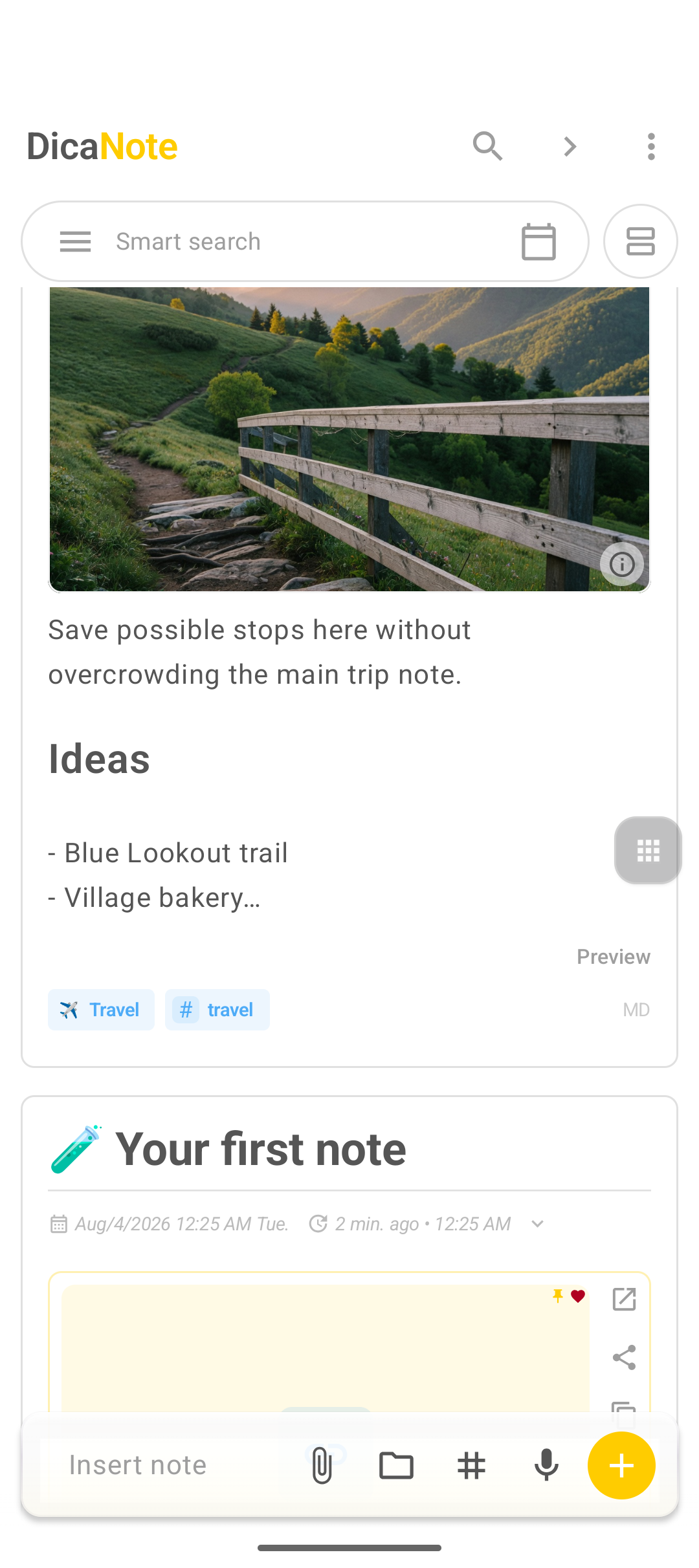
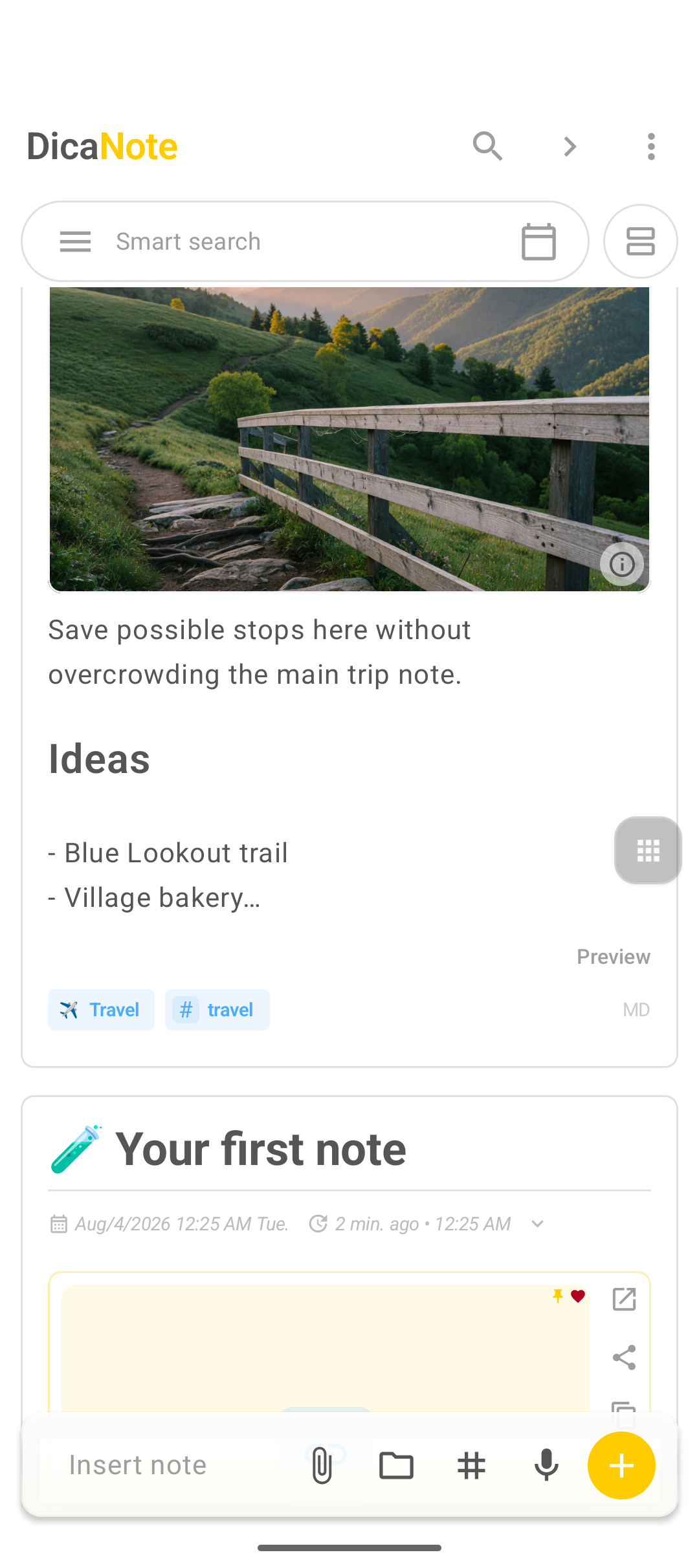
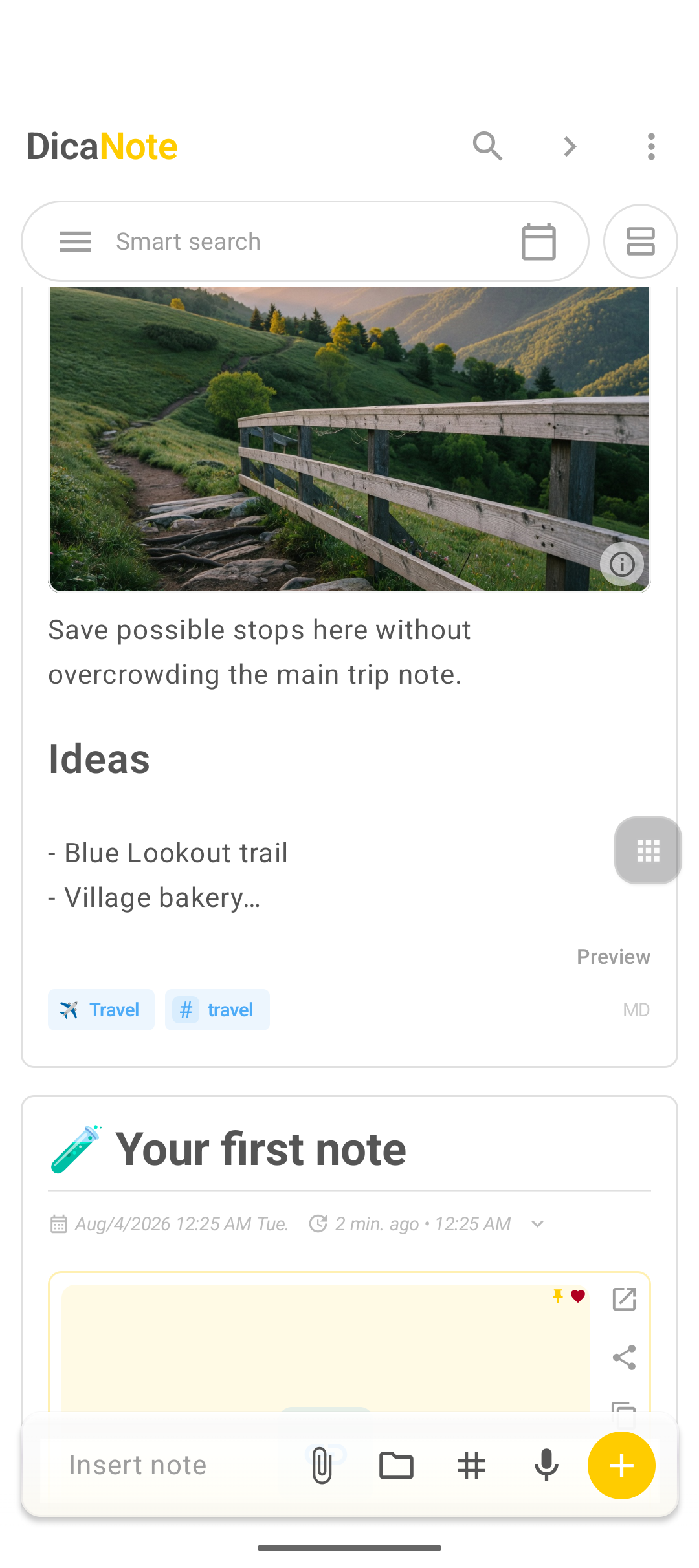
Images
- Create or open a note such as Trip photos.
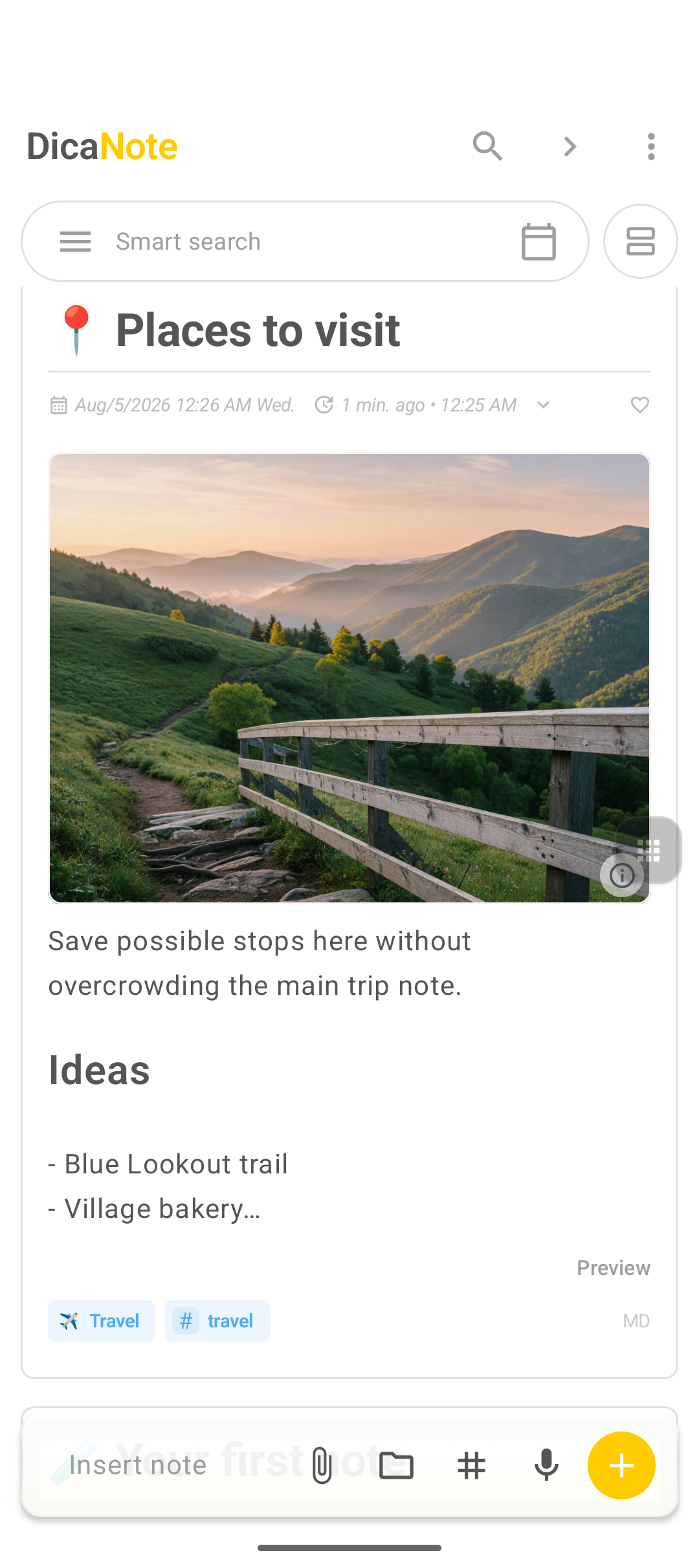
- Attach one strong cover image (or a small gallery).
- Pin the image if you want it as the card preview.
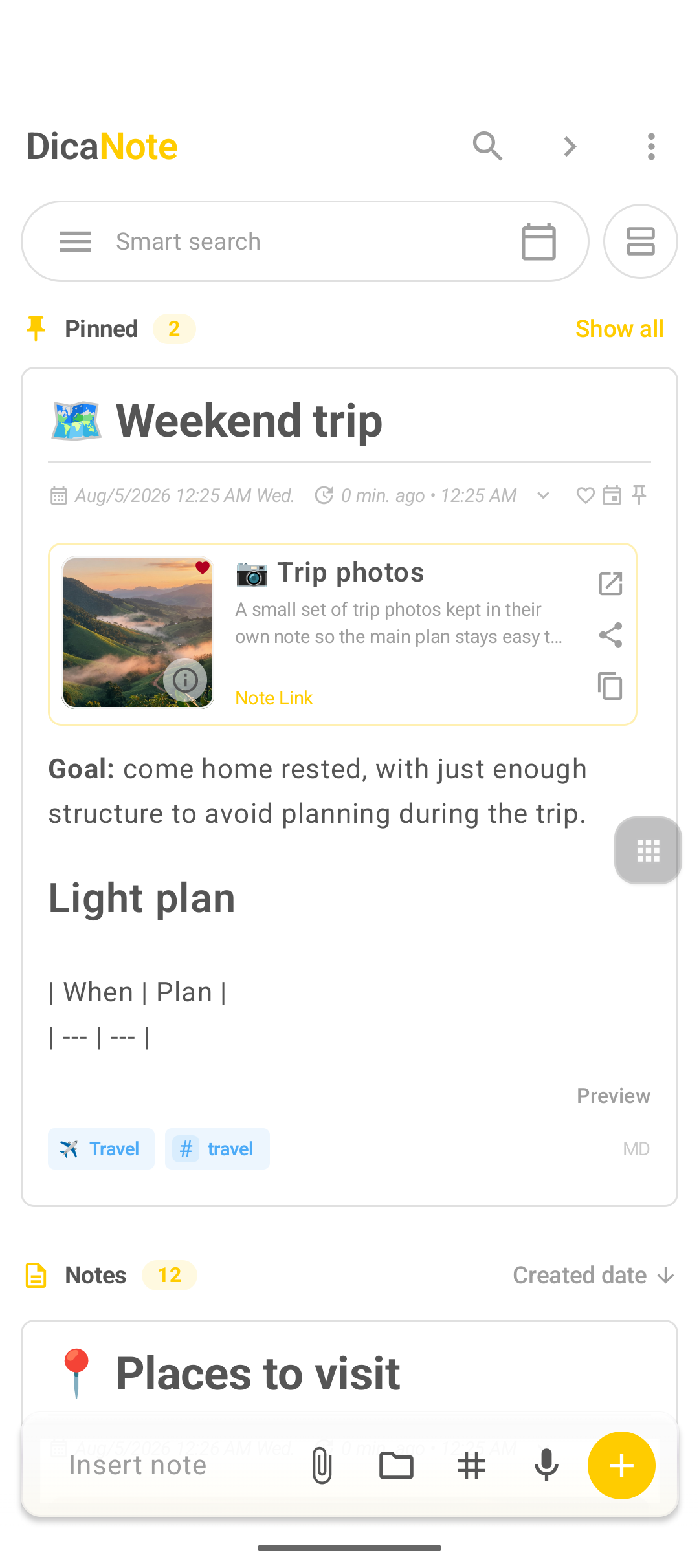
- From your plan note, insert a note link to Trip photos.
PDF documents
- Create a note such as Weekend itinerary.
- Attach a single PDF.
- Open it from the attachment row when you need the full document offline.
Audio
- Create a note such as Road playlist.
- Attach one audio file (or record if the app offers recording).
- Play it from the note without mixing it into a photo gallery.
Video
- Create a note such as Lookout clip.
- Attach one short video.
- Keep long video libraries separate from photo notes.
FAQ
Can I put image, audio, and PDF on one note?
Yes, the app allows it. For tutorials and everyday clarity, separate notes linked together are easier to scan and look better on the home screen.
Why is my note link showing a thumbnail?
When the linked note has a pinned image, DicaNote can show that image on the note-link card instead of a generic icon.
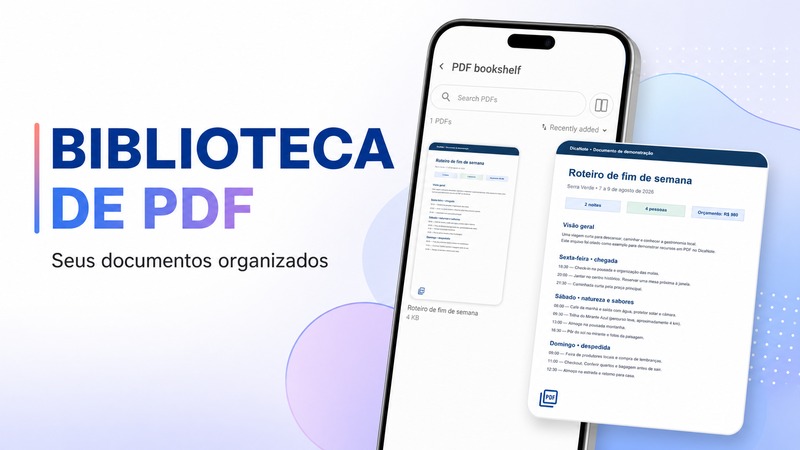
Where do I manage all PDFs?
Use the main menu PDF library when you need a document-wide view across notes.