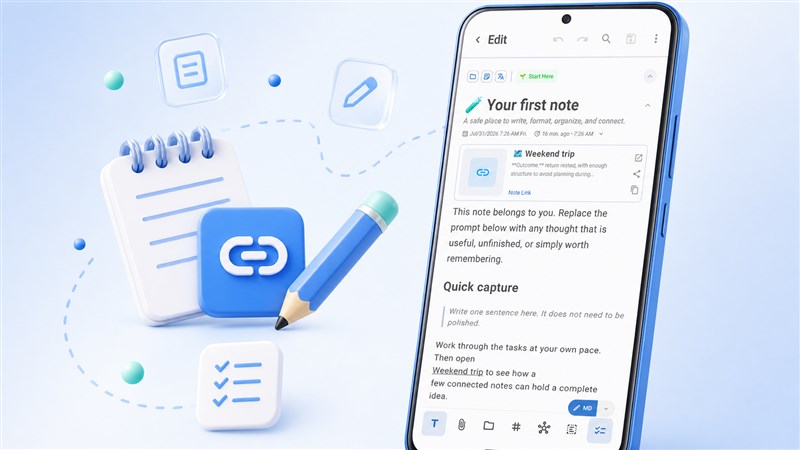
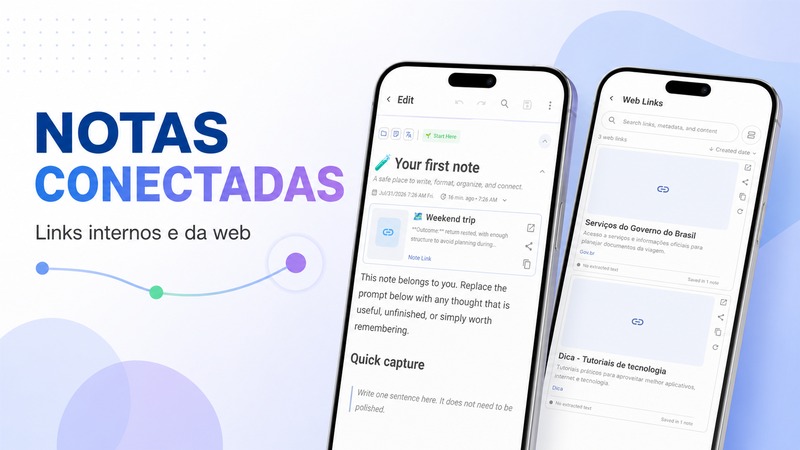
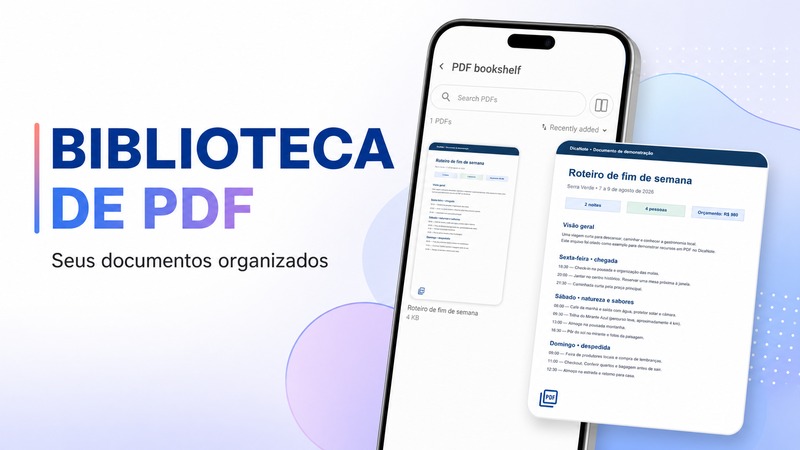
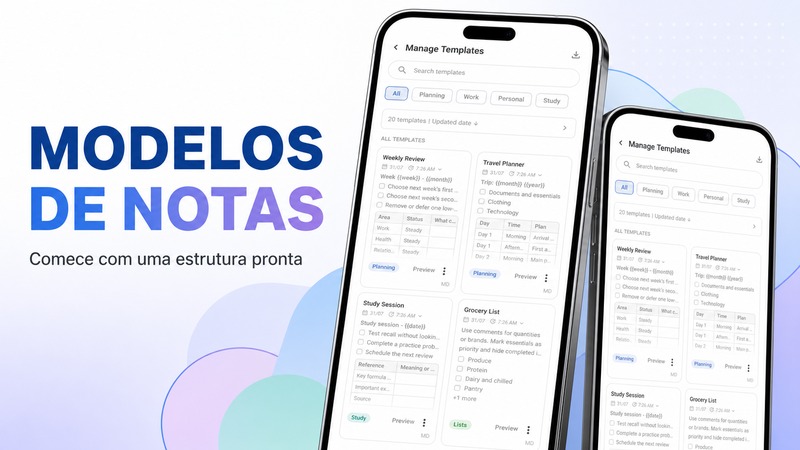
DicaNote is built for quick capture. Start with a sentence, then add a title, checklist, category, or link when you need more structure.
This tutorial walks through the basic path: create a note, write in it, and save.
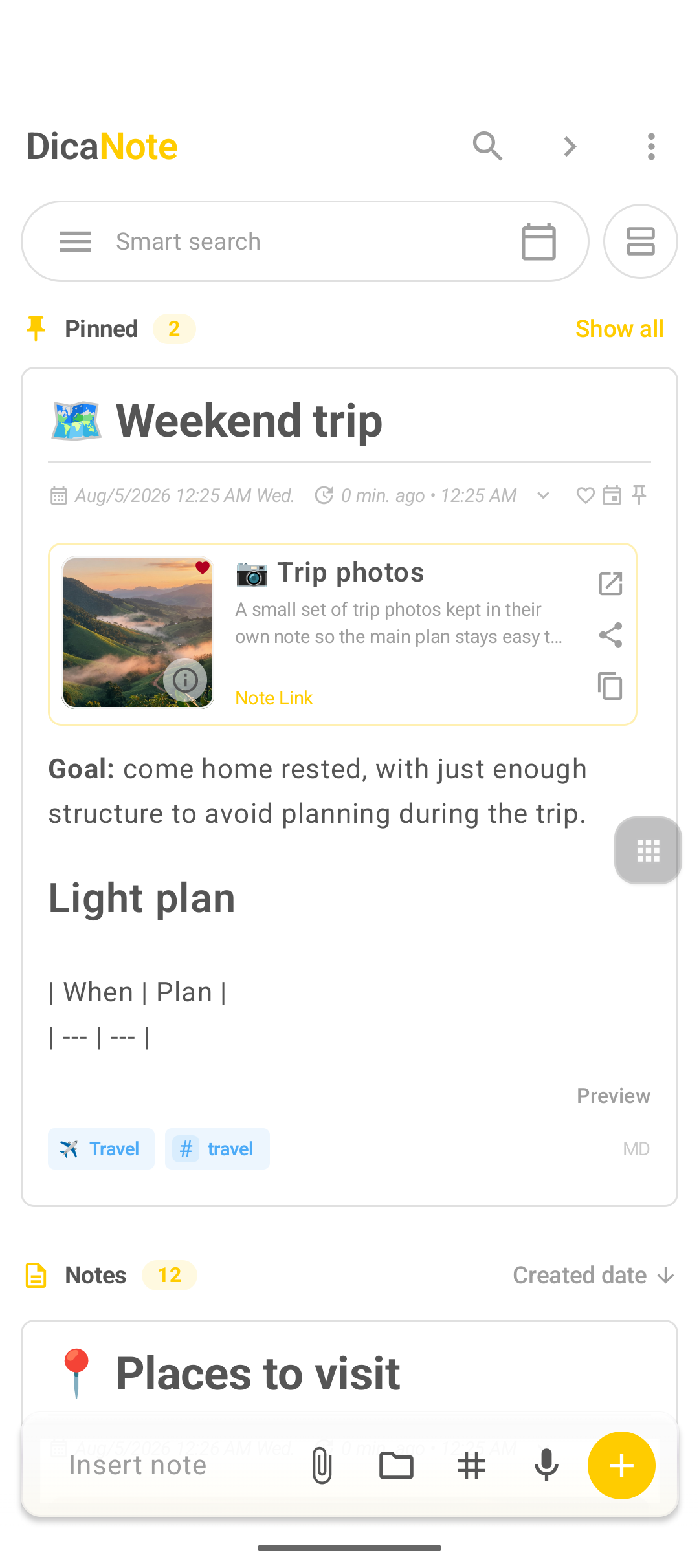
Create a note
- Open DicaNote.
- Tap the yellow + button in the lower right.
- Choose Create note (blank note).
- Type a title you will recognize later.
- Write the body of the note.
- Tap Save (disk icon) at the top when you are done.
Tip: you do not need perfect folders first. Capture the idea, then add categories or tags only if they help you find it again.
Use the editor toolbar
When a note is open, the bottom bar gives you the main actions:
- T — text and formatting options
- Paperclip — attach a file (prefer one media type per note)
- Folder — categories
- # — tags
- Connected nodes — related notes
- Checklist — to-do items inside the note
Format with Markdown (optional)
Turn on MD mode to write with simple Markdown:
# Main title
## Subtitle
- List item
- [ ] Open task
- [x] Done task
**bold text**
Switch to preview when you want to check the result.
Link related notes
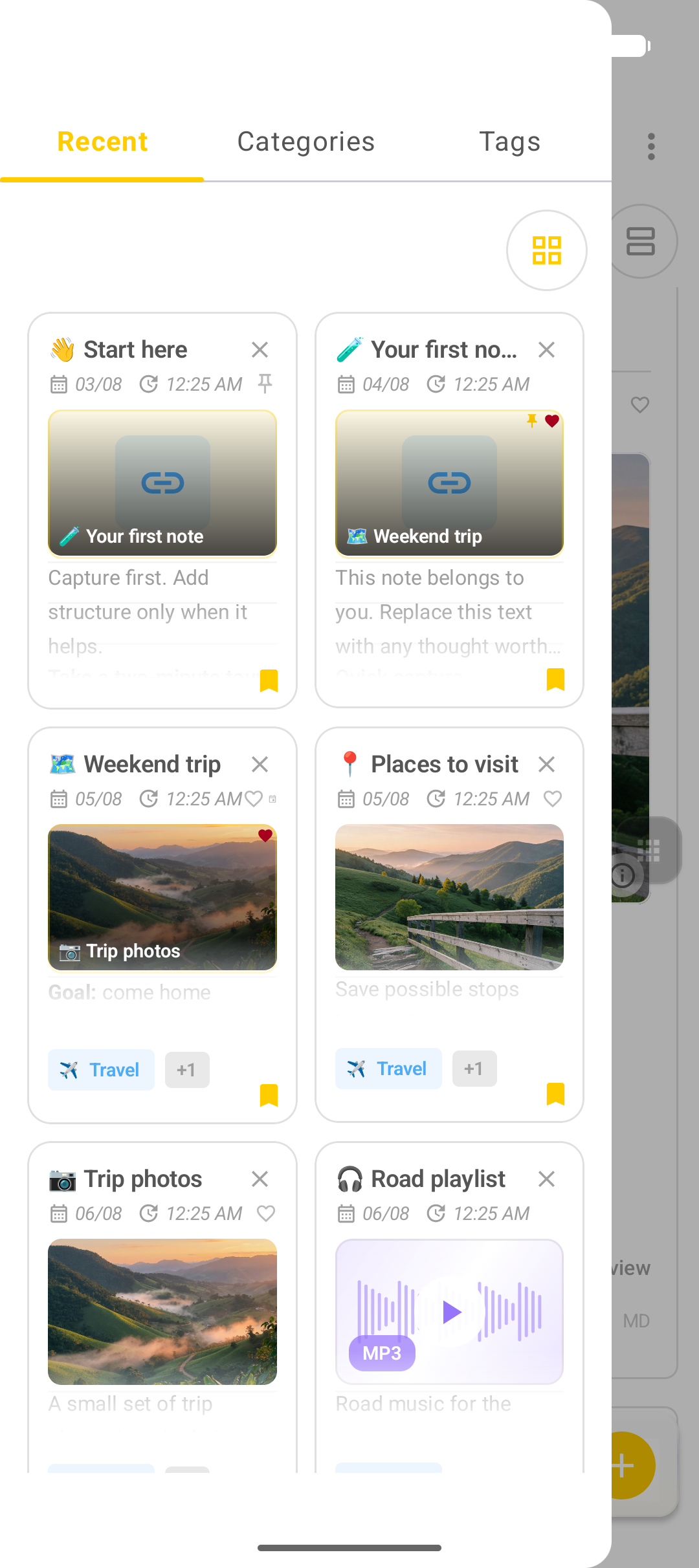
Large topics work better as several short notes. For example:
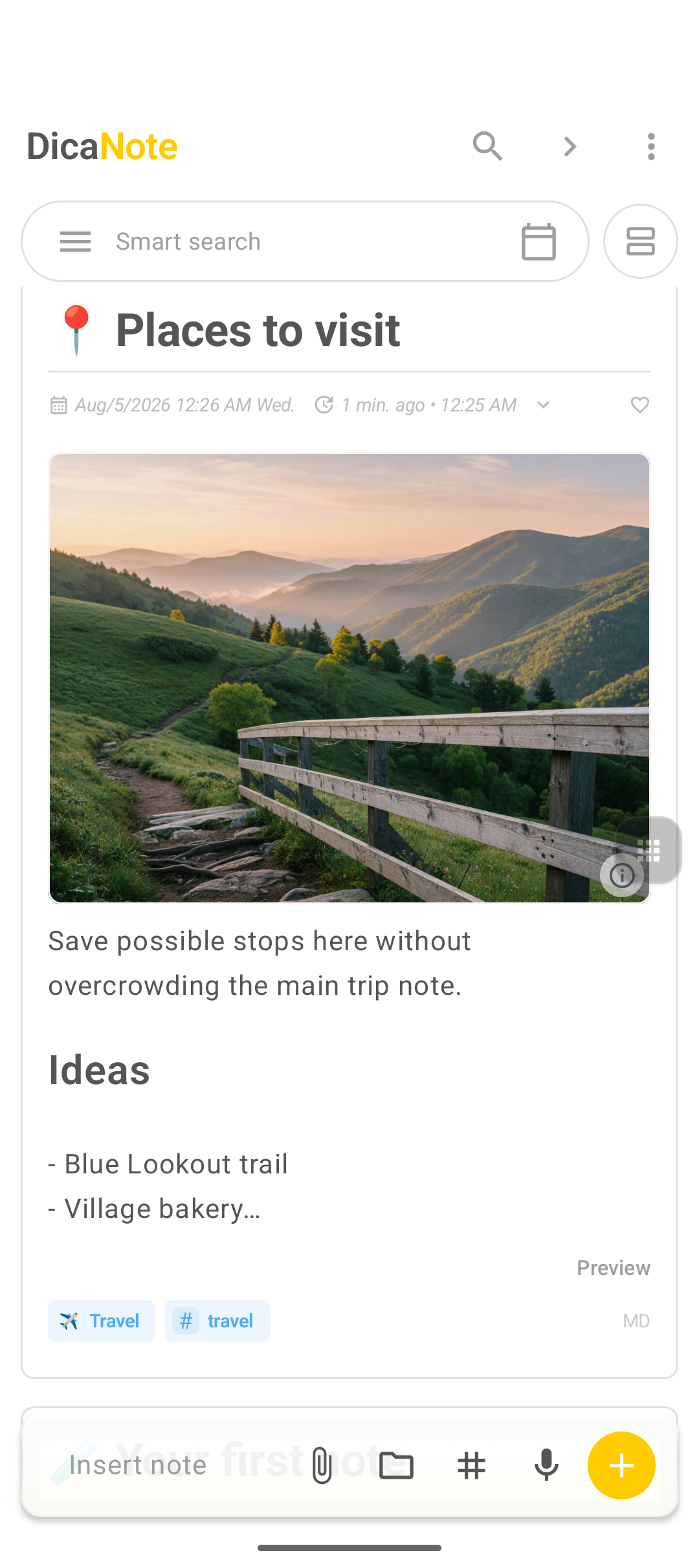
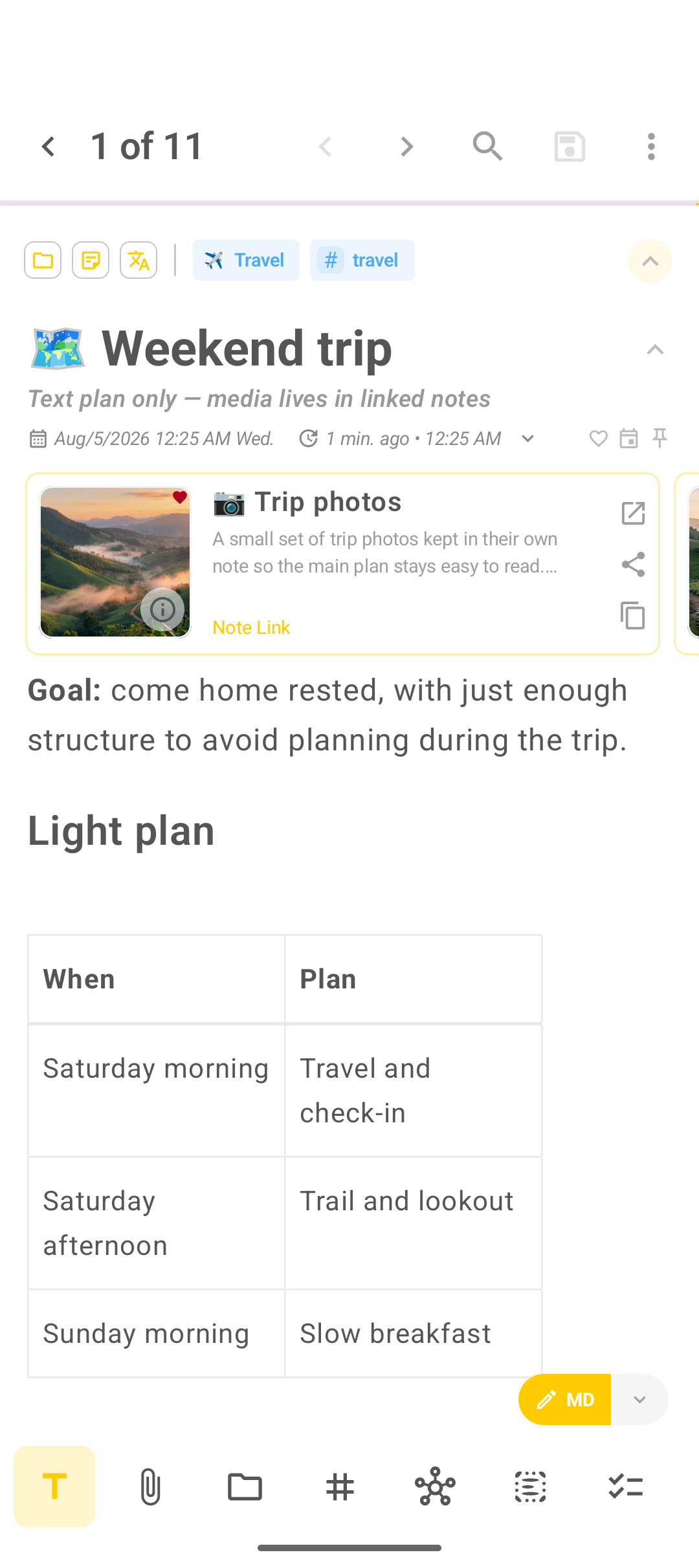
- Weekend trip — the plan
- Trip photos — images only
- Packing list — checklist only
Link them with note links so you can jump between them without deep folders.
FAQ
Does DicaNote save automatically?
Changes are kept as you work; still use Save when you leave an important note so the latest version is stored clearly.
Should I put photos and PDFs in the same note?
You can, but tutorials and real use stay clearer when each note focuses on one kind of content: plan text, photos, audio, video, or PDF.
Where do new notes appear?
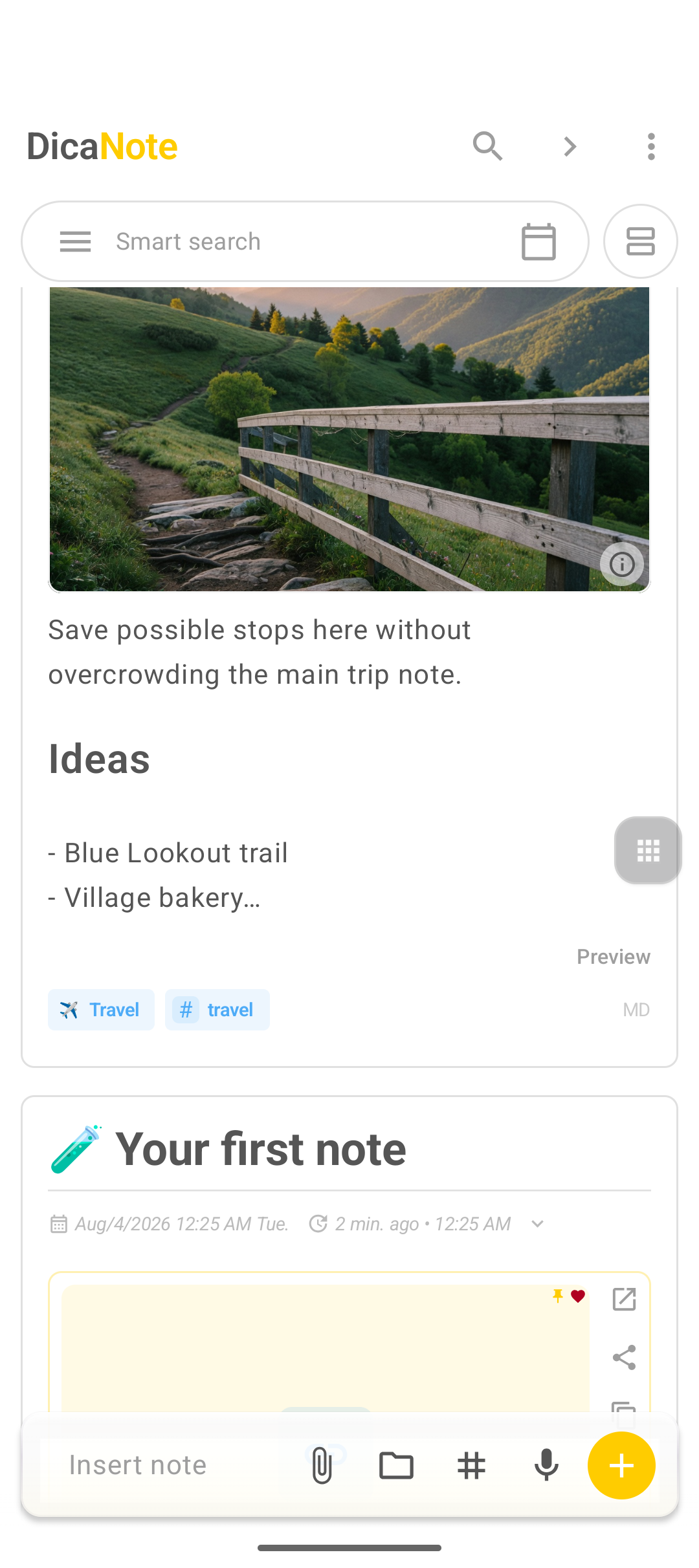
On the home list under Notes. Pin important ones so they stay at the top.