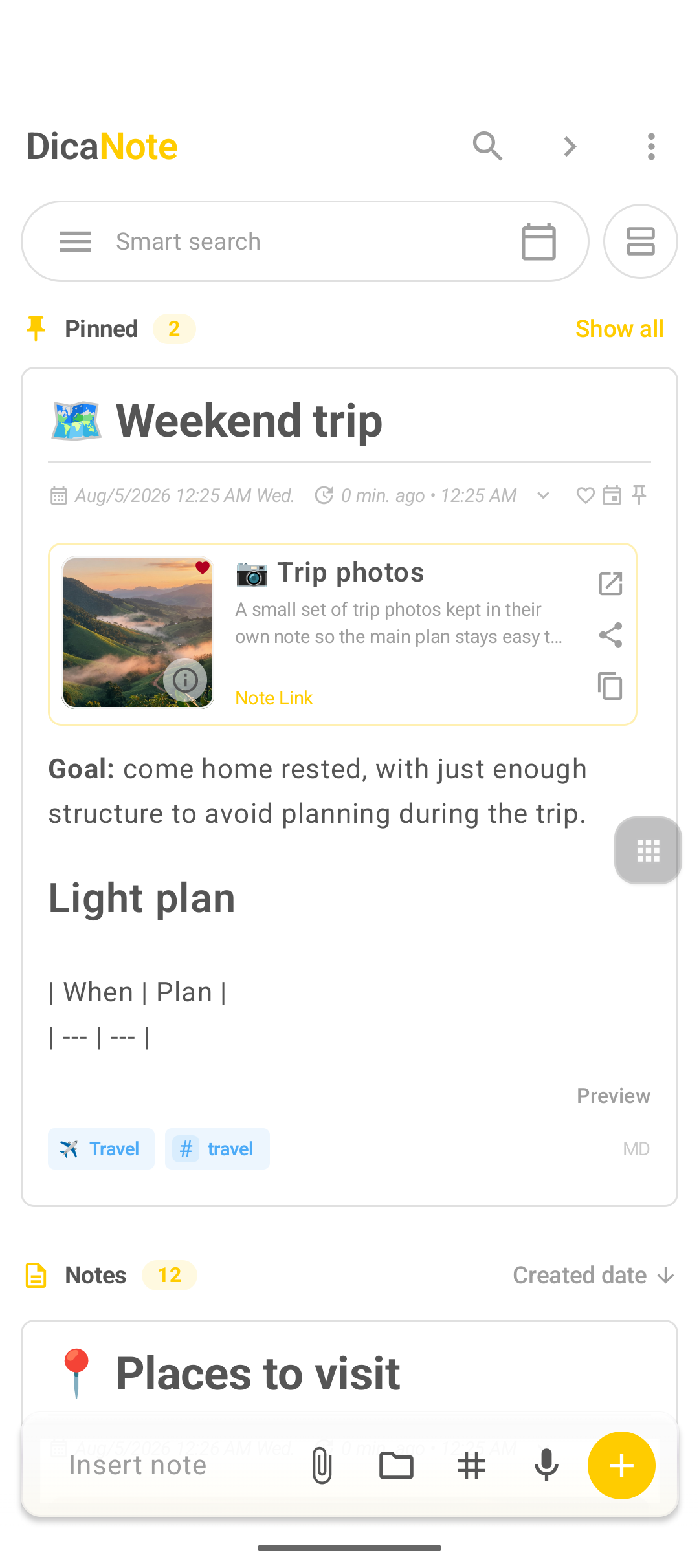
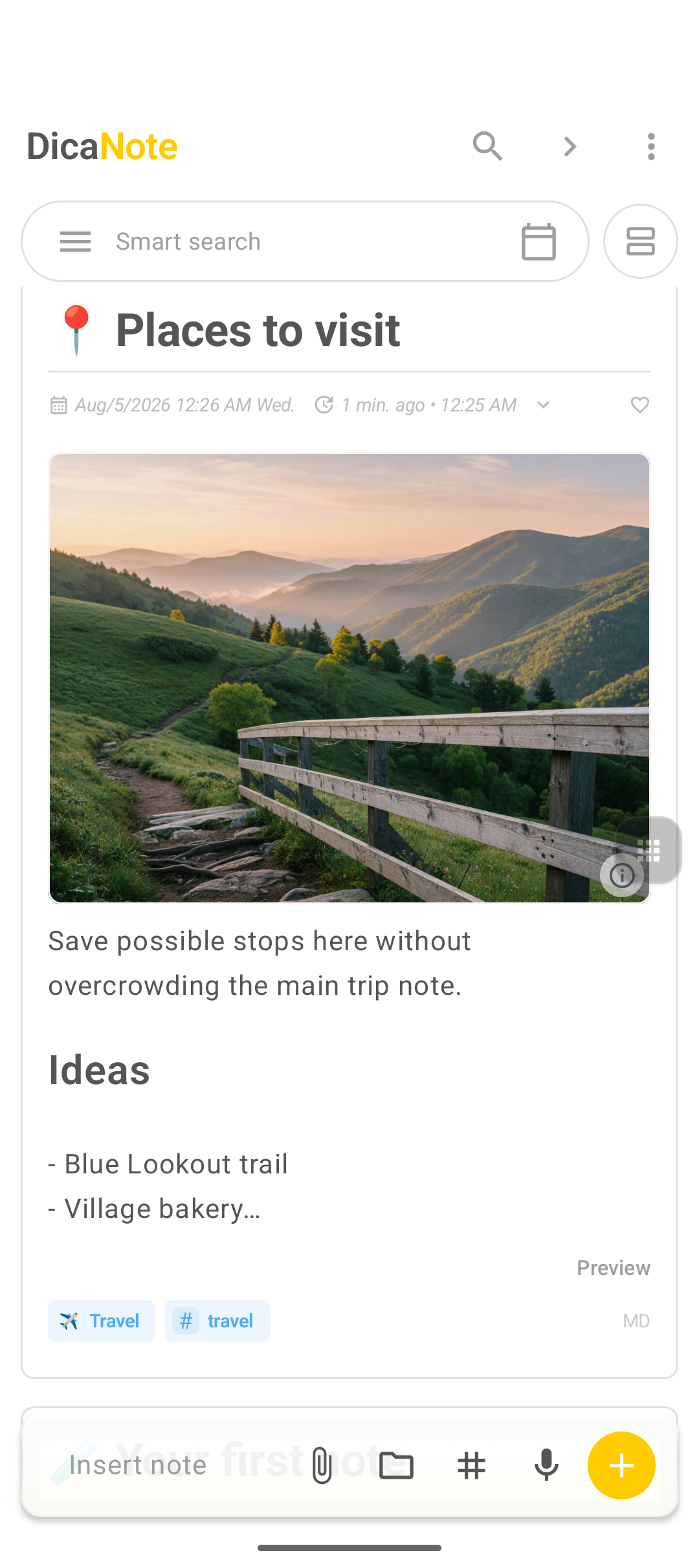
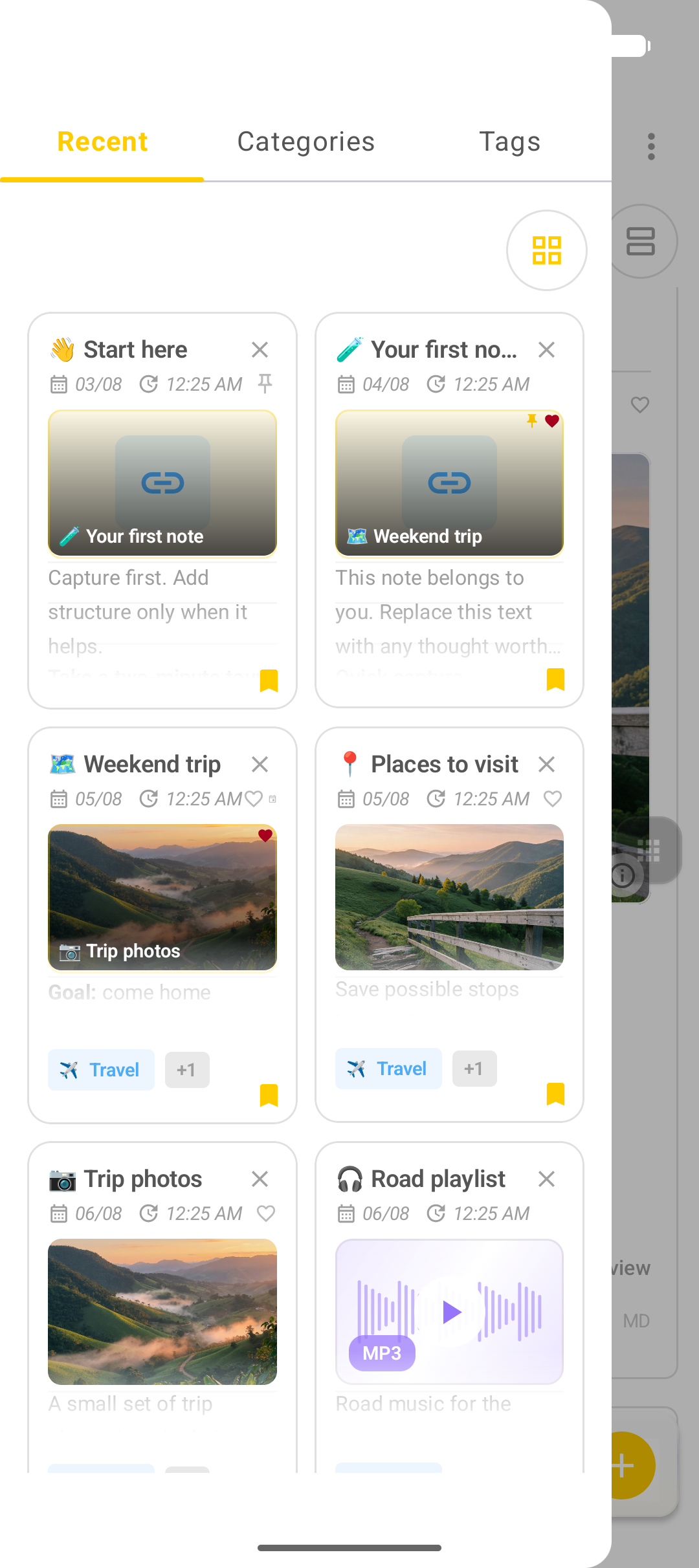
DicaNote does more than open a blank page. Tap the yellow + button and you get a menu with four create options. This guide covers the basics: which path to use and how to start.
For a deeper walkthrough of the editor after you create a blank note, see How to create your first note in DicaNote (local English draft) or the published Portuguese guide Como criar sua primeira nota no DicaNote.

Open the create menu
- Open DicaNote.
- On the home screen, tap the yellow + (bottom right).
- Choose one of the four options.
| Menu option | Use it when |
|---|---|
| Create note | Free text: ideas, plans, journal |
| Note template | You want a saved structure |
| To-Do List | Checklists, shopping, packing |
| Drawing | Sketch, diagram, handwriting |
Tip: not sure? Use Create note. You can still add checklists, attachments, categories, and tags from the bottom bar.
1. Create note (blank)
- Tap +.
- Choose Create note (Start a blank note).
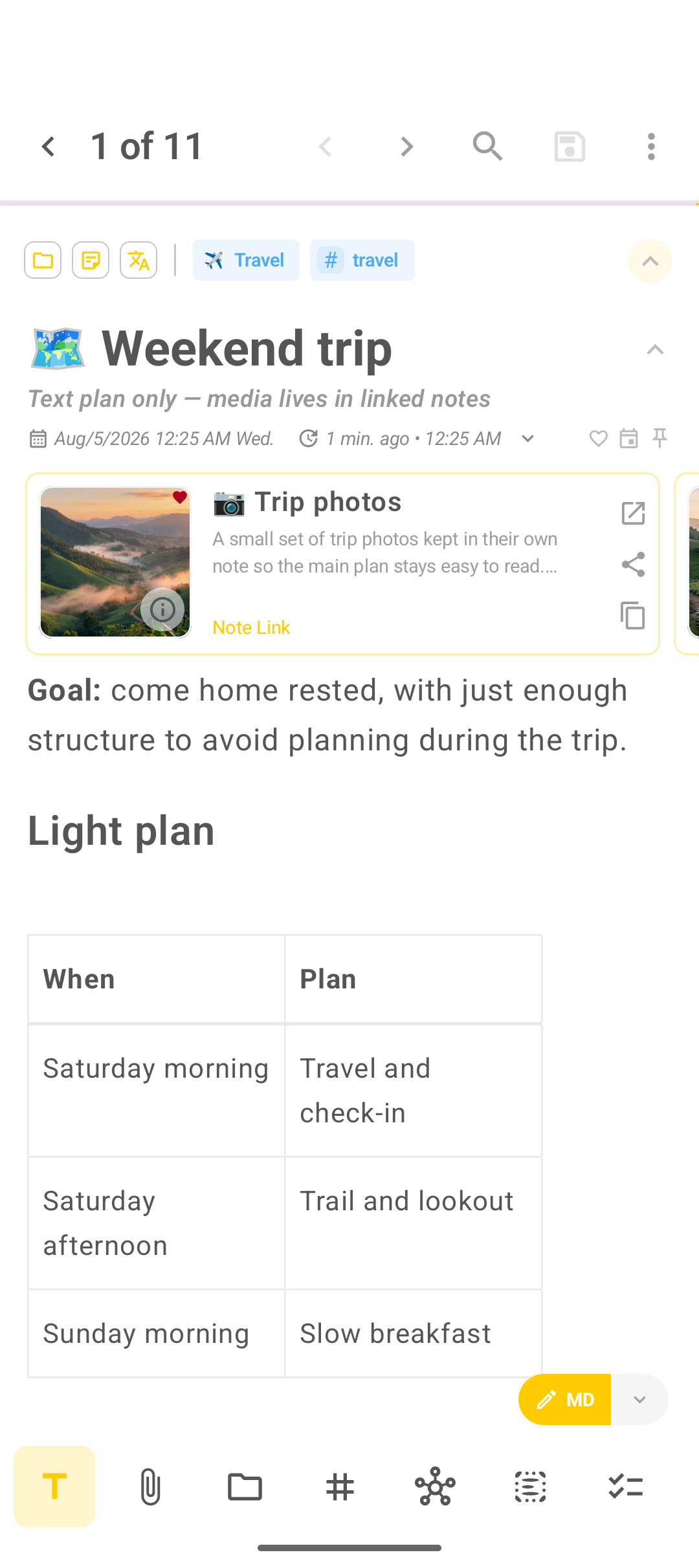
- Type a clear title.
- Write the body.
- Tap Save (disk icon).
Bottom bar shortcuts: T (text), paperclip (attach), folder (categories), # (tags), related notes, checklist.
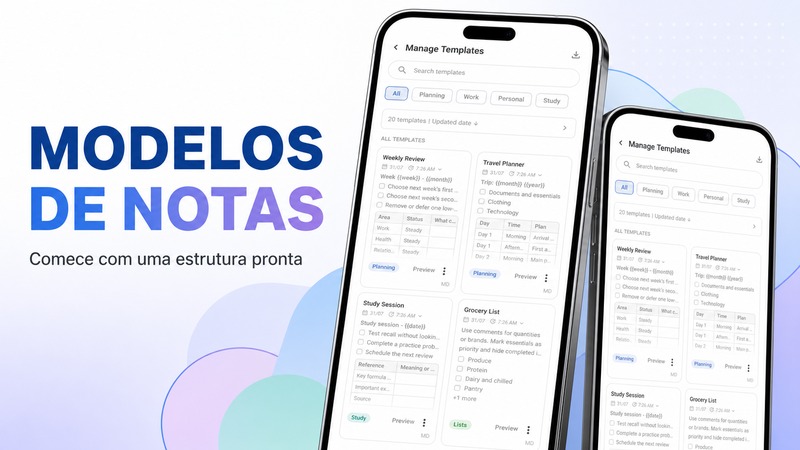
2. Note template
- Tap +.
- Choose Note template.
- Pick a template (daily plan, meeting, travel, and so on).
- Fill it in and save.
3. To-Do List
- Tap +.
- Choose To-Do List.
- Title the list.
- Add items and check them off.
- Save.
4. Drawing
- Tap +.
- Choose Drawing.
- Sketch with the drawing tools.
- Save.
After you create: categories and tags
- Category — folder icon → create or pick a group.
- Tags — # → add labels such as
urgentorideas. - Pin — keep important notes at the top of home.
More detail: How to create and customize categories and tags in DicaNote and the published Portuguese guide Como organizar notas no DicaNote com categorias e etiquetas.
FAQ
Does + only open a blank note?
No. The menu offers four paths: blank note, template, to-do list, and drawing.
Where does the new item appear?
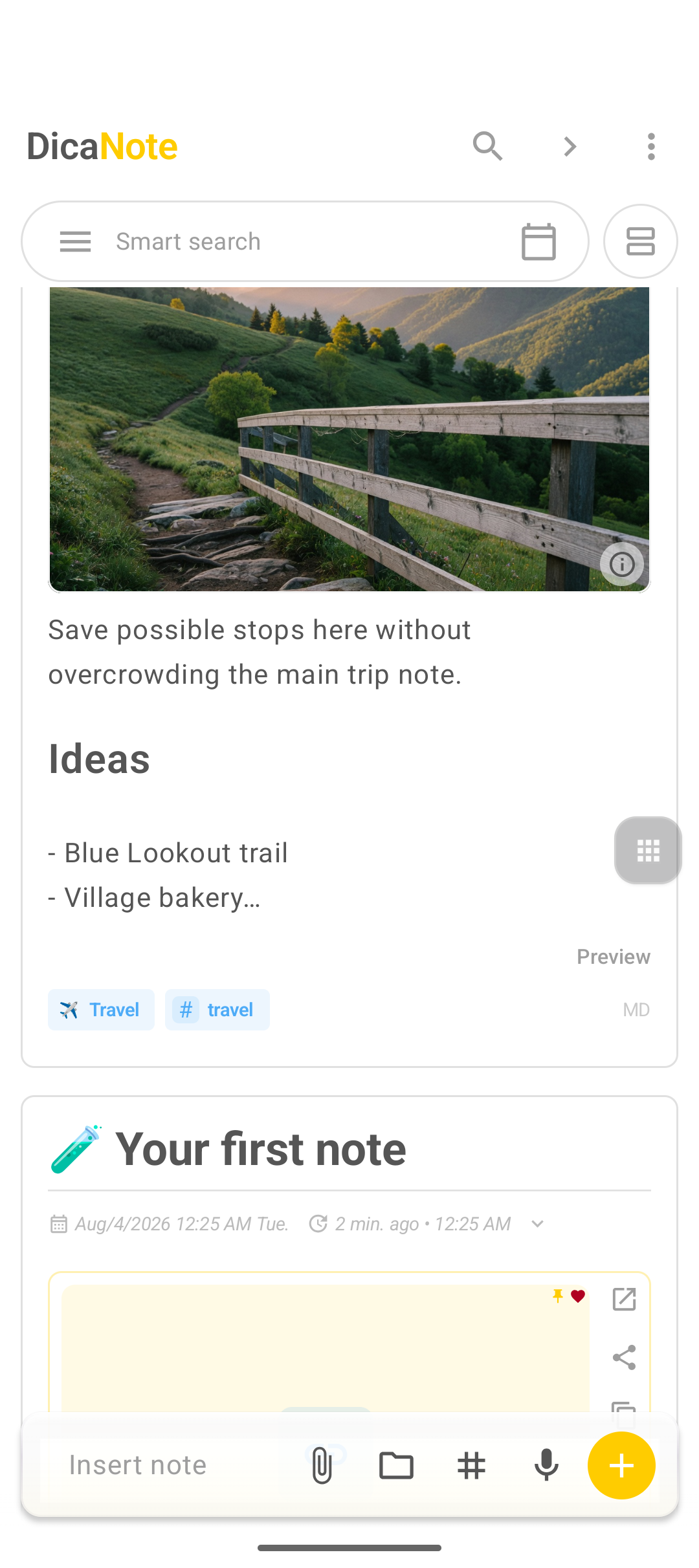
Under Notes on the home screen. Pin it if you want it under Pinned.